I compared 10 speech-to-text software: Jamie, Google Docs Voice Typing, Letterly, Otter.ai, MacWhisper, Wispr Flow, Sonix, Gboard, SpeechTexter and Speechnotes. I compared them on meeting summaries, speaker identification, dictation features, languages, free plans, and price.
Some of these voice typing apps type directly in a document as you speak.
The other type records a conversation and converts it into notes you can quickly send.
Therefore, there are two very different uses for these tools, and the right speech-to-text software will depend on whether you need to create a first draft by dictation or write up a client call.
Regardless of your use, the main question remains the same: what is the best speech-to-text software? In this article, we are going to show you 10 of them.
Excellent experience and I save many hours to focus on what really matters.

Jean-Christophe Klarer
Head of Services | Nagarro
Professional Services / Consulting · 10.000+ employees
TL;DR
Jamie is the best overall speech-to-text software, which generates real-time transcription, which means you see what you are dictating or what your attendees are speaking in real time, it can also then generate meeting summaries along with action items, speaker identification and memory (will remember the speakers for you), Ask AI (chat), over 100 languages of support, apps for Mac, Windows, iPhone and Android; Jamie stores all meeting data in Europe and permanently deletes the meeting audio after transcription. Ten meetings are free, then 25 euros a month.
Google Docs Voice Typing is the best option for writing directly into a document using your voice. Google Docs Voice Typing supports over 100 languages and includes many different accent options. It runs in the latest versions of Chrome, Edge and Safari, and is completely free if you have a Google account.
Letterly is best suited for converting a rough spoken draft to completed writing. The platform is fluent in over 90 languages and can be used through iPhone and Android mobile devices, Mac computers, Windows machines, as well as through the web. A seven-day trial period is available, and then the cost per month is 19.99 dollars.
Otter.ai is best for viewing the written transcript of your meeting as it occurs. Features include speaker identification and automated summaries that contain action items from the meeting. Additionally, there is a chat where you can ask questions regarding past meetings. With Otter.ai's free Basic plan you are able to use up to 300 minutes of transcription time each month.
MacWhisper is best for transcribing files on your own Mac. Included features of the product are local models, Automatic Speaker Recognition on Pro, and support for over 100 languages. MacWhisper Free costs nothing to download and use.
Wispr Flow is best for creating content by speaking into whatever application or window currently has focus. The platform offers support in more than 100 languages and has a Notetaker, on Mac only, that names speakers from the calendar invite. The free plan covers 2,000 words a week on desktop.
Sonix is ideal for uploading audio content to receive your transcribed text back, with labelled speakers, AI analysis and support for 54 or more languages, using a free trial of 30 minutes without needing to provide credit card information.
Gboard is ideal for dictating to a phone, as it has voice typing built directly into Google's keyboard, in addition to its glide typing and handwriting capabilities, and it can be used on both Android and iOS devices. It is free on Google Play.
SpeechTexter is best for dictating in a browser, with nothing to install and more than 70 languages supported, allowing for customised voice commands for punctuation. The product is also free and does not require signing up.
Speechnotes is best for those who want a completely free talking pad of paper; it provides a Chrome extension and an Android application. On their paid transcription plan they offer speaker diarization, which lets users identify different speakers within each transcription, while dictation itself is free.
What Are the Best Speech-to-Text Software?
The 10 best speech to text software are Jamie, Google Docs Voice Typing, Letterly, Otter.ai, MacWhisper, Wispr Flow, Sonix, Gboard, SpeechTexter and Speechnotes.
All ten use voice recognition software to convert spoken words into readable text. Jamie also generates the meeting summary itself, including the action items and a real name against each speaker, in over 100 languages, and all meeting data is stored and processed in Europe under GDPR.
Both Letterly and Otter.ai generate a meeting summary that includes the action items. Google Docs Voice Typing, MacWhisper, Wispr Flow, Sonix, Gboard, SpeechTexter and Speechnotes each answer a portion of the overall task.
Below is a comparison of the best dictation tools, Jamie, Google Docs Voice Typing, Letterly, Otter.ai, MacWhisper, Wispr Flow, Sonix, Gboard, SpeechTexter and Speechnotes based upon the criteria most buyers check first. Each cell will expand if you click on it:
1. Jamie: Best Speech-to-Text Software for Privacy-Focused Teams
Best for: Jamie is the best speech-to-text software for teams looking to capture the conversation and the minutes at the end of a meeting without a bot in the meeting.
Similar to: Otter.ai, Fathom, and Fireflies.ai.
Jamie is a bot-free speech-to-text software that captures the audio on your own device and converts the audio into a transcription, a summary and action items without any bot interfering with your meetings, causing it to be intrusive or feel awkward.
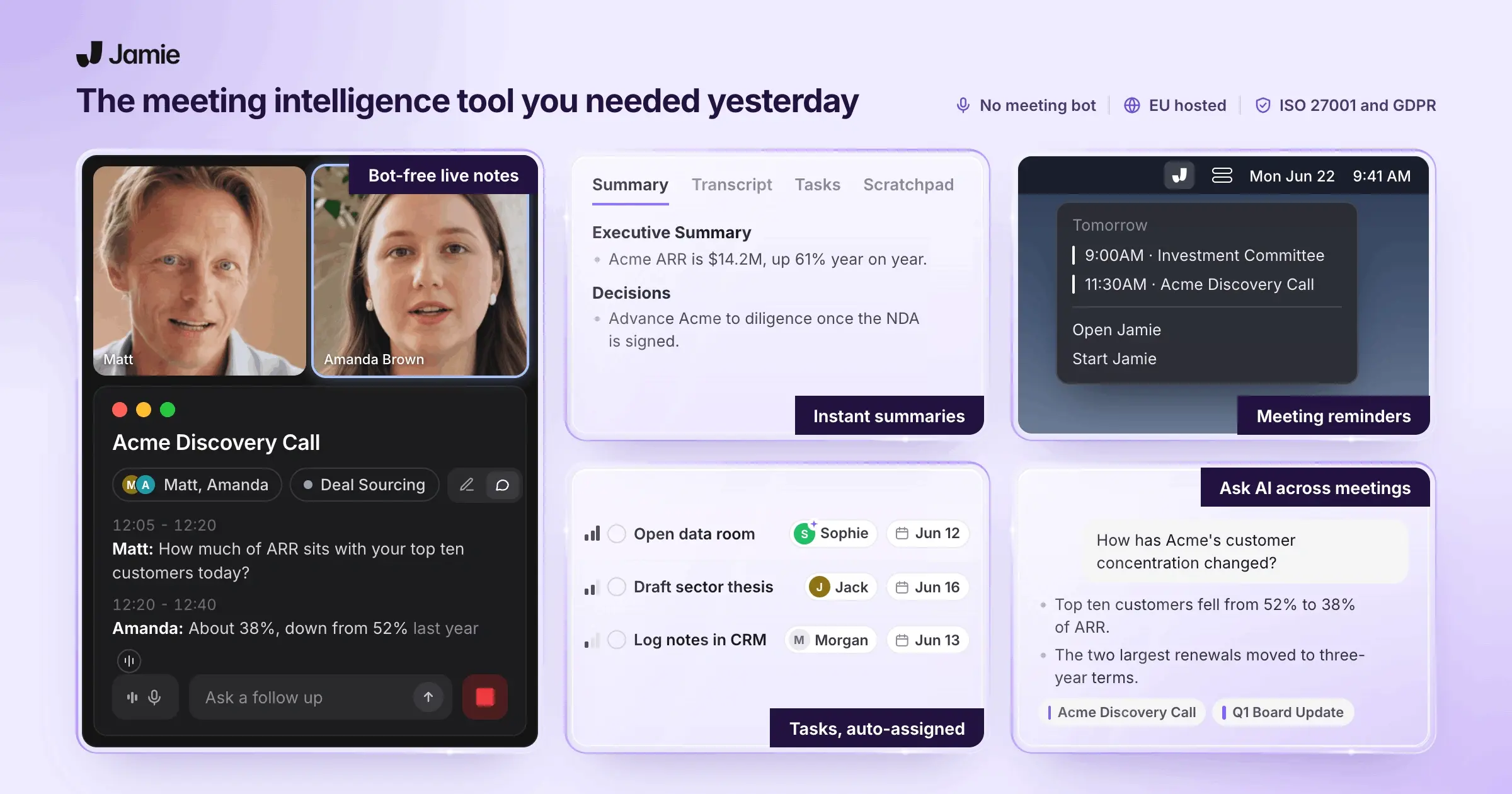
We developed Jamie for the conversations you would not entrust to a third party, like a bot, which means everything recorded remains on your device, all meeting data is hosted in Europe and the audio is deleted permanently when the transcription is complete.
Jamie Features
Jamie transcribes your meetings in over 100 languages and captures the words your team actually uses
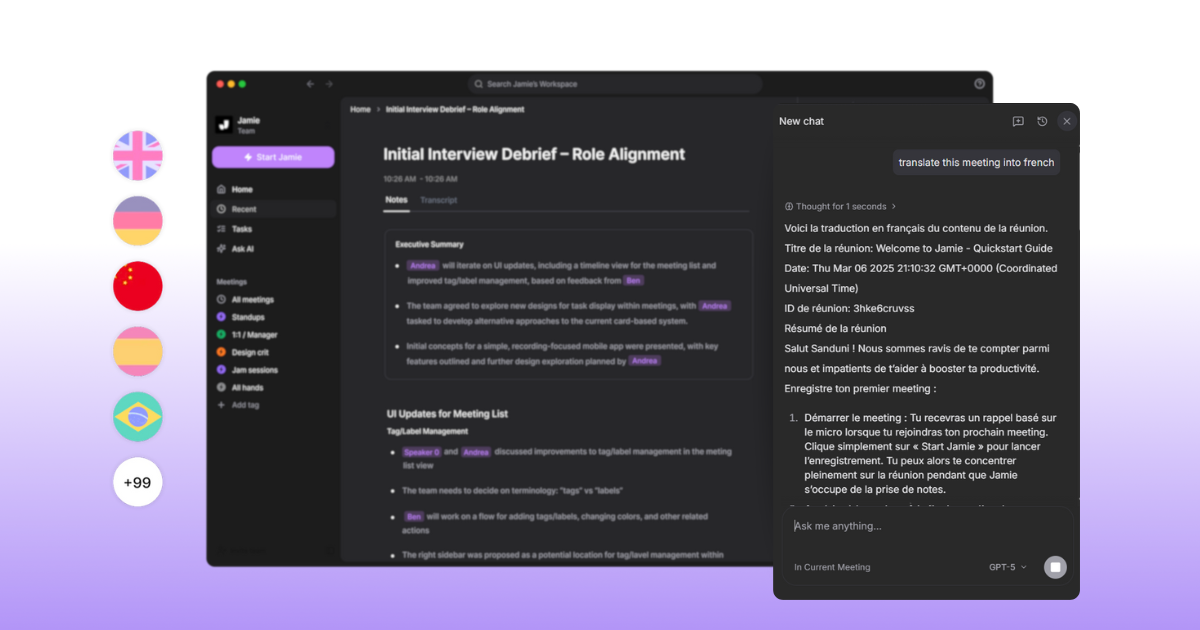
With Jamie, you can transcribe meetings in over 100 languages, including those meetings in which participants switch to another spoken language during the course of the call. We created the custom vocabulary list, where you teach Jamie your product names, acronyms and industry specific terminology that may be spelled incorrectly initially. If your team holds multilingual calls, these three controls decide whether you edit the transcript afterwards:
Language support: There is no requirement to select a language prior to capturing audio; Jamie supports over 100 languages and works the same on every plan, including the free plan.
Custom words: Teach Jamie your product names, customer names, and the acronyms used by your team daily, and Jamie will not confuse them with anything else again.
Live Transcript and Scratchpad: While the call is active, you can also watch the real-time dictation and add additional notes to the Scratchpad adjacent to the transcript, providing a toggle between both views.
Jamie identifies each speaker by name on the transcript and matches the same voice in later meetings.
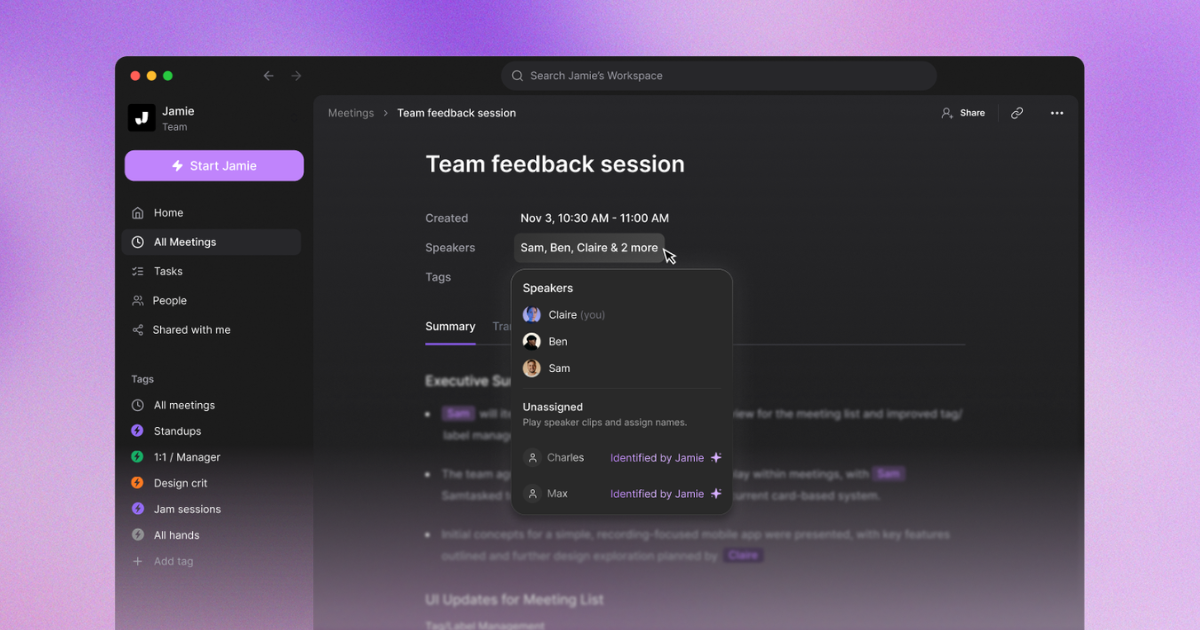
Rather than assigning speakers with numbers, such as Speaker 1 and Speaker 2, Jamie uses the actual names assigned to speakers based upon your calendar information. The meeting title and attendee list are captured independently, even during in-person meetings. If you were to speak a person's name aloud clearly when talking, Jamie has the ability to know who is who with its advance speaker diarisation. Yes, it's true; speaker diarisation in Jamie is so advanced that you can quite rely on it in both online and in-person meetings or situations and count on it to identify the speaker names. In scenarios where Jamie couldn't identify a speaker name, Jamie offers a small voice sound clip next to the identified person (Speaker 1, Speaker 2) where you can recall who that person is by matching that person's name to the voice.
Once identified, Jamie will store that name and the voice accent it belongs into Jamie's own memory box, that way, when you happen to have a meeting with them again, you won't have to retype their name, because Jamie remembers. Let me explain.
Speaker identification: Regardless of the plan selected, including the free plan, you will see a person's name associated with each segment of the transcript instead of numbers like (Speaker 1 or Speaker 2) unless on rare occasions Jamie couldn't truly pick up on the people's names.
Speaker Memory: Jamie has the ability to remember voices between meetings; therefore, if you are speaking with a particular client weekly, their name will display on the transcript prior to opening it.
Calendar connection: Once connected to Google Calendar or Outlook, a one time step, Jamie transfers the meeting title and the attendee list directly onto the meeting without requiring manual input from you.
Jamie generates an executive summary with the decisions and the action items after every meeting
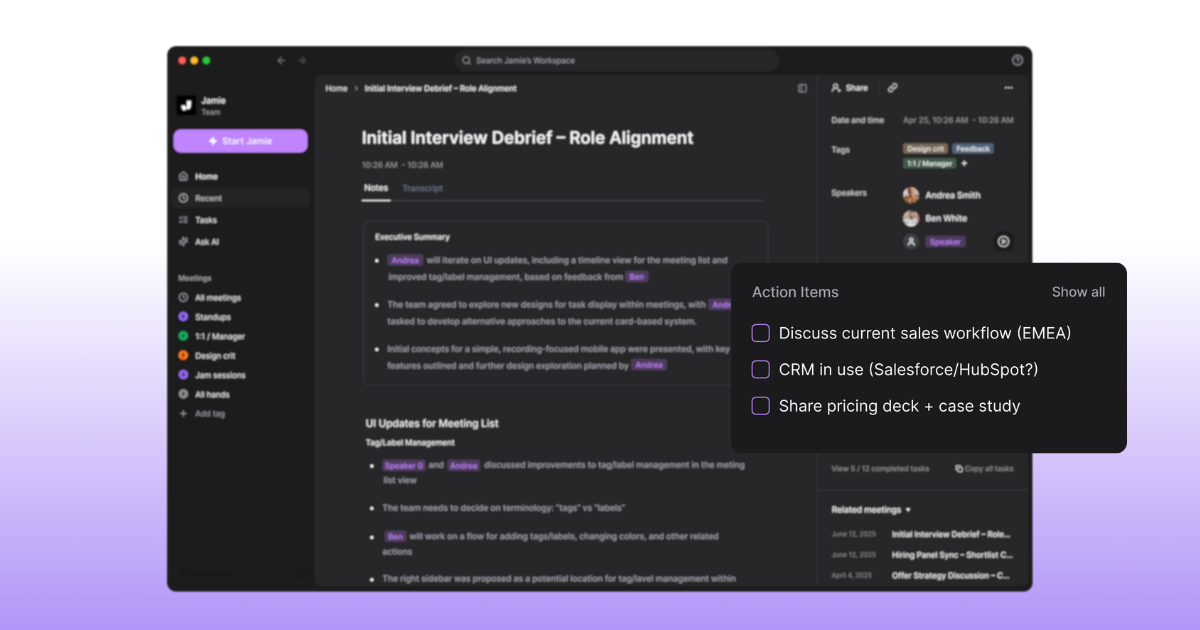
In addition to generating a full transcript of the meeting, Jamie generates an executive summary outlining the key decisions made along with the action items below it. We assign the owner of each action item automatically while the notes are generated, and you can also pick the shape of the summary with a template or let Jamie automatically apply the best-fit template for you before the call.
Meeting output: You receive an executive summary of the meeting, the topics, the decisions, the action items and the full transcript, all from a single recording, available on all plans, including the free plan.
Action items: Jamie automatically assigns the owner of the action item while it generates the notes, and you do not have to figure out who is responsible to do what manually.
Templates: Prior to each call, you can choose from numerous templates, with more than 30 pre-built templates provided on all plans, one custom template on Free, three on Plus and unlimited templates from Pro.
Edit notes: Finally, if a line in your transcription requires correction, you can make edits within Jamie prior to sending it, rather than having to copy the entire contents into a document to correct it.
Jamie stores all meeting data in Europe and deletes the meeting audio after transcription
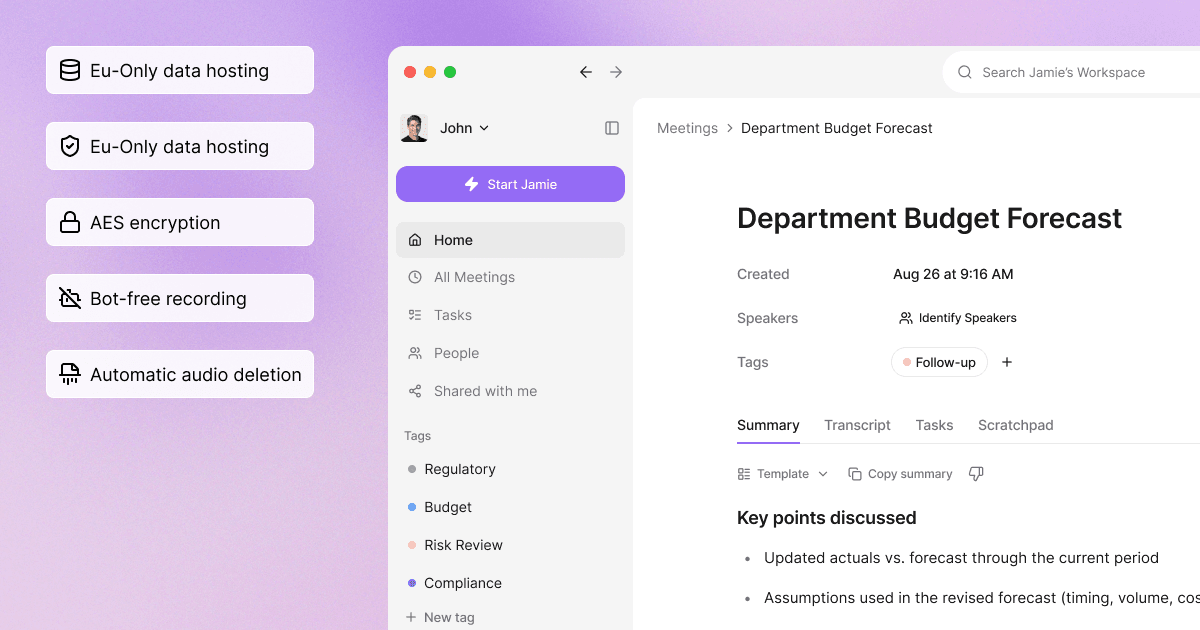
Jamie has all of your meeting data stored and processed in Europe, then deletes the audio recording after completing the transcription of that recording. Jamie is GDPR compliant, the General Data Protection Regulation, and ISO 27001 certified as a company, the international standard for information security management, and DORA-ready, which is what a bank or a fund under DORA needs before it can use us. Therefore, if your legal or IT department requires approval of Jamie before you engage clients, these four compliance answers will provide them with what they ask for:
GDPR and ISO 27001: The company you are working with is GDPR compliant and ISO 27001 certified; therefore, your compliance officer can read those two certifications in one line on our security page, eliminating any delay due to requesting proof of compliance from a vendor while going through the sign off process.
Data in Europe: All of the meeting data collected by Jamie is stored and processed in Europe; therefore, when your European clients contact you to find out where the recordings of their meetings go, you will have a response.
Audio deletion: After Jamie completes transcribing a meeting, Jamie will delete all the voice data; thus, a confidential conversation will never outlast the deal that it pertained to.
No model training: Any conversations you may have with Jamie will not train an AI model. Your legal counsel can review this statement on our own website instead of needing to review each company individually that we work with prior to signing.
Jamie discloses the recording through verbal consent, an optional email notice, and a notice in the meeting chat
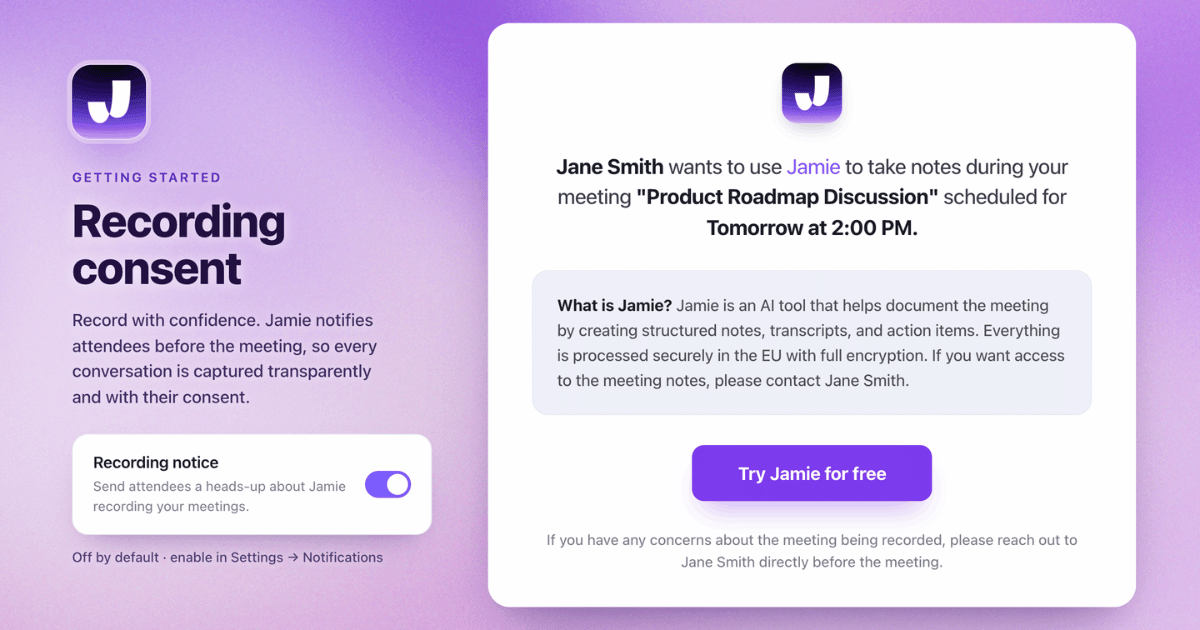
Jamie records your meetings with no bot in the call, and identifies three methods of disclosing to the other parties that a recording is happening. All three options can be controlled by you as the owner of the spoken content, and both notifications remain turned off until you decide to turn them on in the settings. When your legal team needs to approve the note taker prior to a client call, they typically want to identify which three disclosure routes are being used:
Verbal consent: Inform the people attending the call, in your own words, that you are going to use Jamie to take notes. Our documentation indicates that informing all attendees of the meeting is your responsibility, and that you have the responsibility as the data controller, including providing transparency and establishing the legal basis for collecting this data.
Automated Recording Notice: Turn on the Recording notice toggle in Settings under Notifications. Prior to each meeting starting, everyone that was invited to the meeting will receive an automated email notification. You can select how far in advance, from 10 minutes to 48 hours, but four hours is the default time frame. This option excludes invitees that come from within your own workspace, and this is also optional because you must enable this feature. If your clients do not like receiving an automated email from a vendor, nothing will reach their inbox unless you have chosen to send something.
Meeting chat notice: Toggle on the meeting chat notice inside the Jamie desktop app, which can be accessed on Windows or macOS. After you begin recording, a single line post will appear in the meeting chat a few seconds later, when using Microsoft Teams, Google Meet and Zoom. The line reads, I am using Jamie (meetjamie.ai) for automatic transcription and note-taking. Until you toggle this feature on, it remains deactivated; if you prefer to tell the group verbally on the call instead, you will never see either a message or an email sent out.
Jamie answers questions across every meeting you have recorded, with Ask AI, tags and search
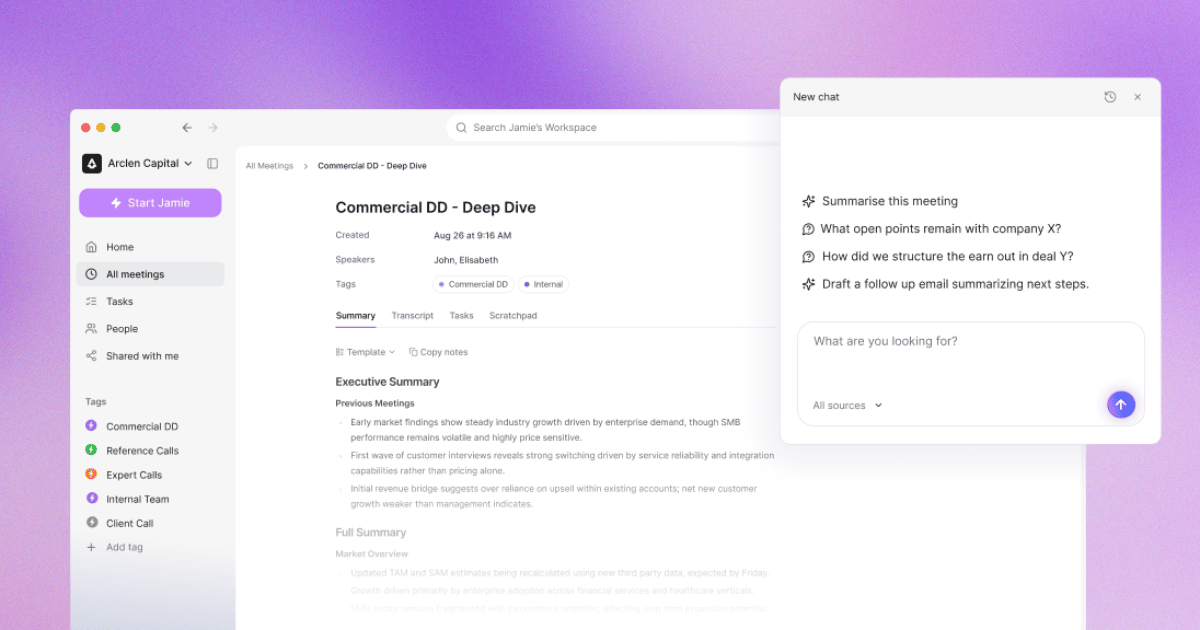
Ask AI in Jamie answers questions across every meeting you have recorded, rather than having to review individual transcripts. We developed it in three ways: it searches through all of your meetings from the meetings list, through only the current meeting you are in, and through only the meetings carrying a tag. When someone asks what a client agreed to three weeks ago, these three features get that information back:
Ask AI: Type a question in plain language and receive the response along with the meeting it came from. Ask AI is unlimited on all plans, including the free plan.
Tags: Organise your meetings by project, client or team; share a tag with a colleague and then point Ask AI at only those tagged meetings.
Search: In addition, you can search across every meeting by keyword or by speaker for the times when you generally recall what was discussed during the meeting.
Jamie works agentically after your meetings, running the workflow you described once in your own words
Jamie is agentic. Therefore, Jamie acts on your meetings beyond stopping at the notes. Workflows are rolling out workspace by workspace. Agentic Intelligence in Jamie is composed of layers: a Workflow executes automatically following a meeting that meets your criteria, while Connectors authorise it with your own account, and only the actions your account is allowed to take can be performed by a Workflow. If the hour after a call involves logging the call and drafting a follow up email, these three parts of Agentic Intelligence take that off your desk:
Workflows: Define what action you want taken in the chat box, in your own terms, something like log a call activity in my CRM with the key takeaways. Jamie generates a draft of the Workflow, asks which Connector to use and what meetings to run it against. Then Jamie performs the actions immediately following each corresponding meeting. Workflows are currently being rolled out incrementally, which means some users may not see Workflows in their navigation menu yet. Until it appears in your sidebar, you log the call by hand after each meeting.
Connectors: Authorise access to each tool separately through your own account on each respective sign in page, and Jamie never stores your password and never has access to it. As a result, a Workflow, which is still rolling out workspace by workspace, can only perform the actions your account privileges permit.
Workspace connectors: An admin can set a connector up once for everyone, rather than requiring each individual to connect the same tool themselves.
Jamie logs your meeting notes to HubSpot, Salesforce, Dynamics 365, Attio, Affinity and DealCloud
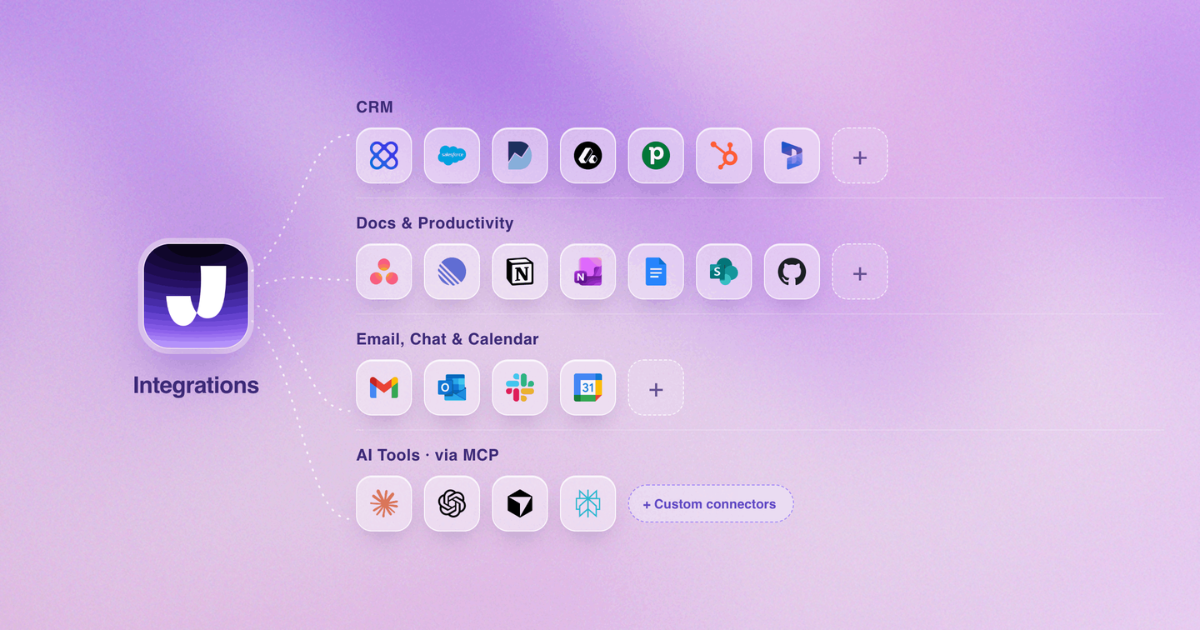
After each meeting, Jamie can log your meeting notes into the CRM that your team is already using, without anyone lifting a finger. We call it Plug and Play Integrations since you turn the sync on in the settings one time and the meeting notes are then added to the correct record going forward. If somebody on your team retypes a call into the CRM every week, these three groups of integrations are where that stops:
CRM logging: Turn the integration on in Settings for the CRM you use, HubSpot, Salesforce, Dynamics 365, Attio, Affinity or DealCloud, and the meeting notes are logged to the correct record after every meeting, starting at our Pro level.
Docs and tasks: In addition to your CRM being populated with meeting notes, you may also choose to send your meeting summaries into other apps, Notion, Google Docs and OneNote, and your action items to Asana. Notion, Google Docs and OneNote are included in our free plan.
MCP, webhooks and the API: And if your team utilises other cloud tools, Claude, ChatGPT and Cursor read your notes over MCP, a webhook pushes the meeting to your internal systems the moment the notes are ready, and there is an API for everything else.
Jamie records every meeting platform on your own machine, with no bot in your client's attendee list
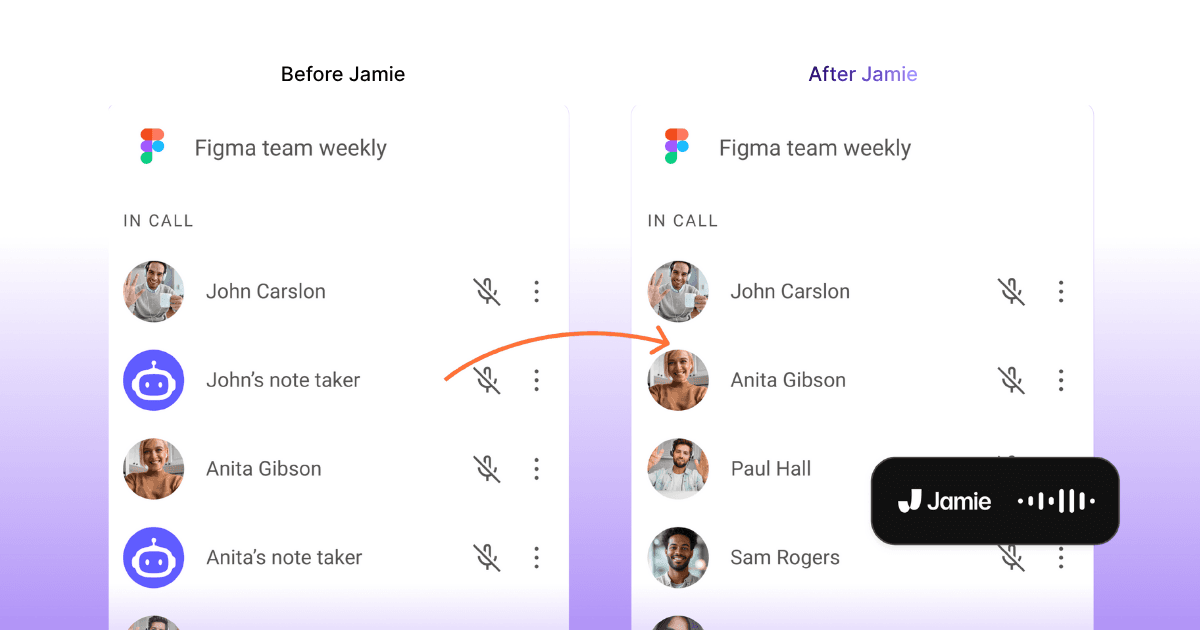
Jamie records the audio on your own device without any bots, which is why every meeting platform works and nothing joins the call. We ship mobile apps on iOS and Android, plus macOS, Windows desktop and the web. And it captures both in-person meetings, via the phone app, and online calls. The four answers for capture listed below cover the situation when you are at someone else's meeting with no access to their meeting software:
On device recording: Since you will be using your own device, the laptop or the phone you already carry, you will not have anything installed in your client's tenant and there will not be a bot they would need to admit or block.
Every meeting platform: We work with Microsoft Teams, Zoom, Google Meet and all others that run on your device, across all plans including our free plan.
In-person meetings: Using your smartphone for a face to face meeting in a client's office, via either iOS or Android, is also possible. All plans, including our free plan, provide this capability.
Devices: Every operating system supports syncing, which means whether it is your train ride home where you are viewing your meeting notes after recording them on your laptop during a meeting, or recording on your iPhone then later viewing the meeting notes on your MacBook Air, it will all sync from the same account.
Jamie Pricing
Jamie has 5 pricing tiers:
Free: 10 meetings per month with a 30-minute recording limit and integrations with Notion, Google Docs, and OneNote
Plus: €25/month per user. Unlocks 20 meetings per month with a 2-hour meeting limit
Pro: €47/month per user. Unlimited meetings with a 5-hour meeting limit and CRM integrations like Salesforce and HubSpot
Team: €39/month per seat (2 to 10 users). Unlimited meetings with a 5-hour meeting limit and centralised billing
Enterprise: Custom pricing (10+ users). Includes SAML SSO, admin controls, SCIM provisioning, and DPAs
What Jamie users love
Bot free capture, with no bot on the call
"I like Jamie because it's a bot-free AI note-taker that can take notes without an awkward bot on the call." Verified User in Design, G2
Multilingual meetings, including Hebrew, online or in person
"Finally an app that... Understands Hebrew. Jaime is also a life saver for: Multi lingual conversations [and] Offline and online meetings." Rachel C., G2
What Jamie users flag
Speaker identification works best with a good microphone
"The speaker identification feature of Jamie, though very useful, isn't entirely reliable or infallible. In our experience, to get the most effective results from Jamie, it was necessary to invest in a good quality microphone." Tom W., G2
2. Google Docs Voice Typing: Best Free Dictation Inside a Google Doc
Best for: Google Docs Voice Typing is the built in dictation software for hands free voice dictation directly into a Google Docs file.
Similar to: Apple Dictation, Microsoft Word's Dictate feature
Source: Google Docs
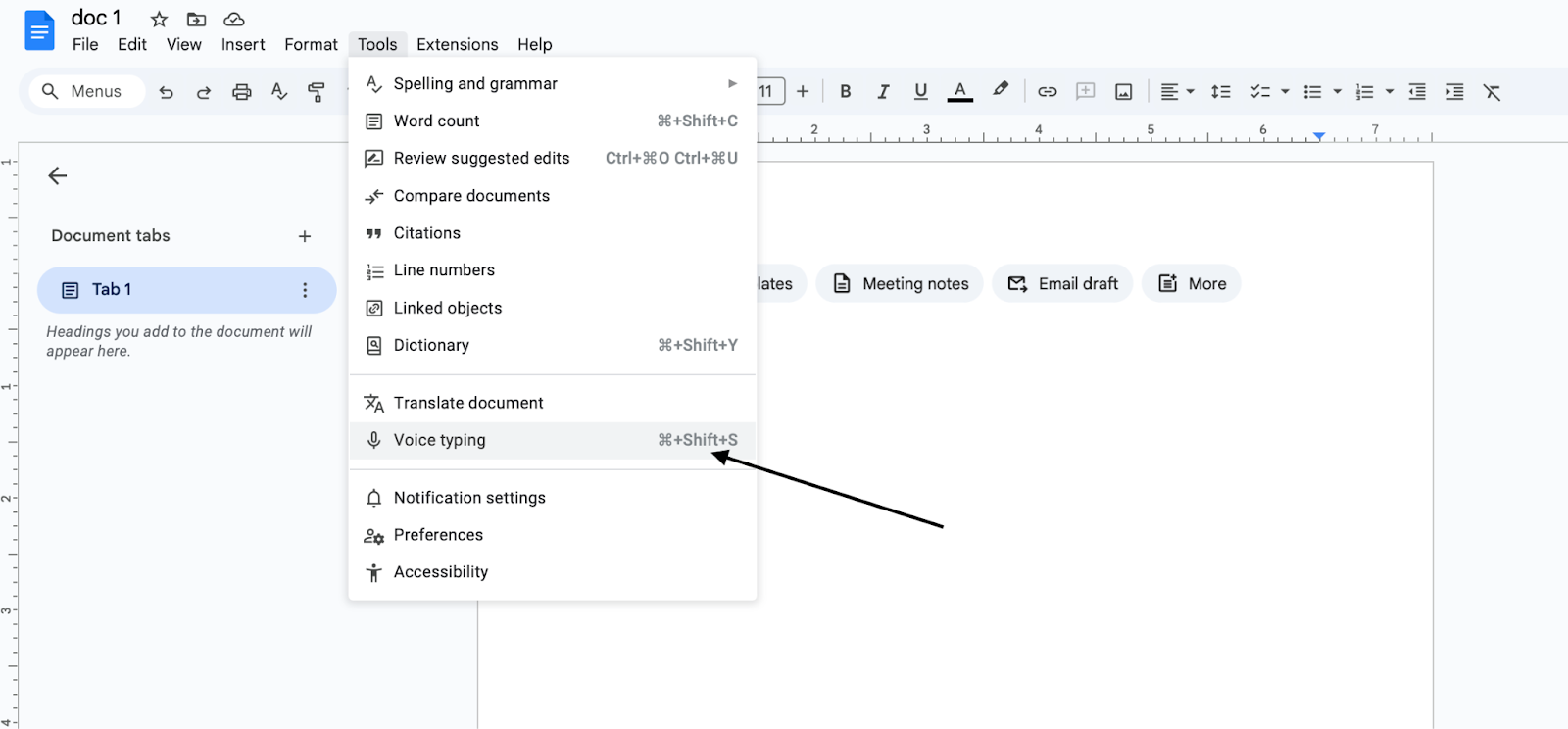
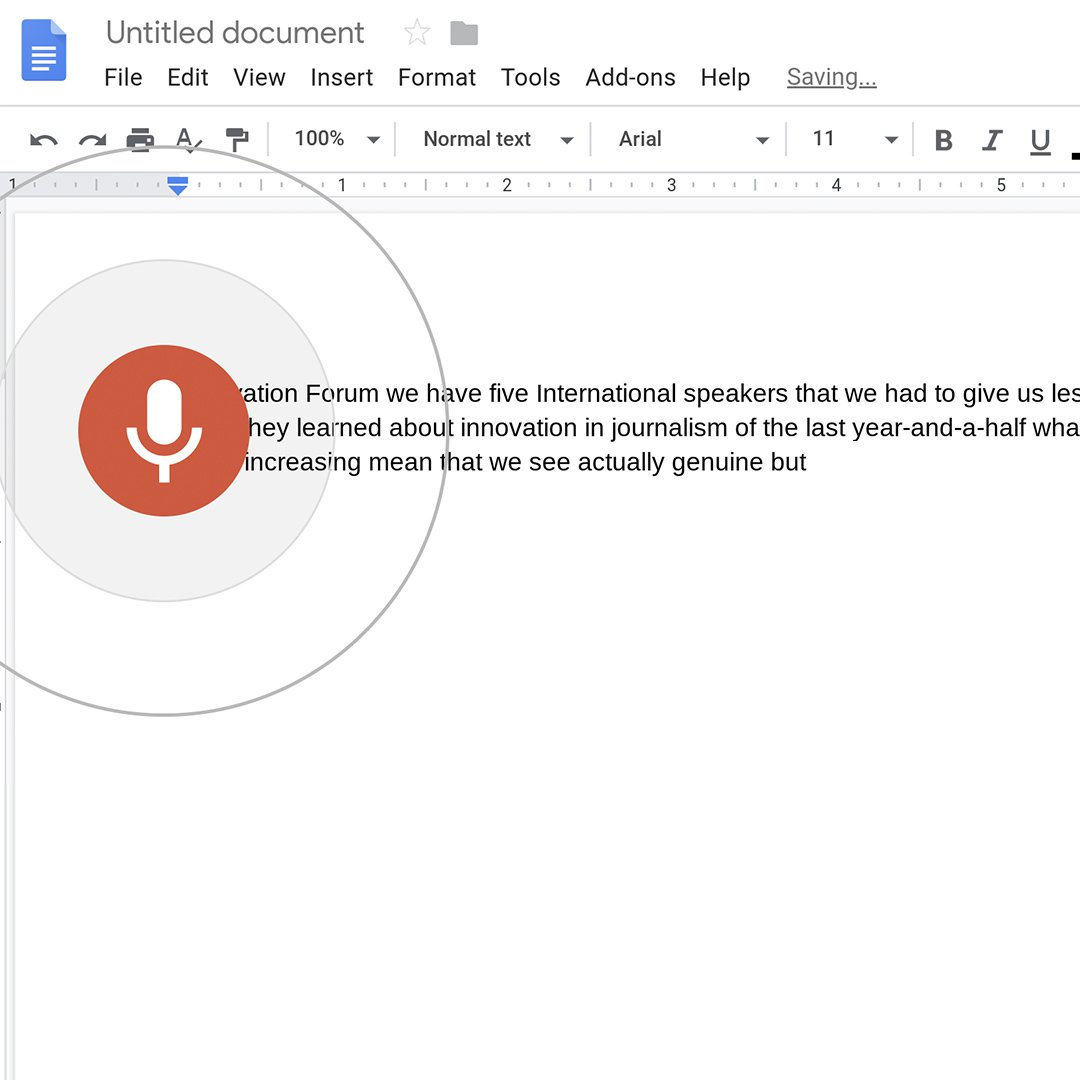
With Google Docs Voice Typing, you can dictate documents, and even edit them, hands-free. Google Docs Voice Typing is supported by the most recent versions of Chrome, Edge and Safari. Once you turn voice typing on in your web browser, it begins to process your words and convert them into text before they appear in Google Docs.
Google Docs Voice Typing Top Features
Source: Google Docs
Voice commands: On their help page, Google has listed various spoken commands including Select paragraph, Italics and Go to the end of the line.
Editing by voice: On their help page, Google has listed several commands including Copy, Cut, Paste, Delete and Delete last word.
Punctuation by voice: On their help page, Google has listed several commands to format text, including Period, Comma, Exclamation point, Question mark, New line and New paragraph.
Over 100 languages and accents: Google Docs Voice Typing works in over 100 languages and accents for voice typing.
Chrome, Edge and Safari: Voice typing works in the most current versions of Chrome, Edge and Safari.
Google Slides speaker notes: You can also voice type into speaker notes in Google Slides.
Google Docs Voice Typing Pricing
Free: 0 dollars per month, inside Google Docs
What Google Docs Voice Typing users flag
Capital letters after you pause
"whenever I use voice typing and stop in the middle of a sentence, when I start again, it shows capital. I edited everything to make it correct but voice typing is SUPPOSED to reduce the work, right?" Ruhanee Bhatt, Google Docs Editors Community
Google Docs Voice Typing is an additional feature within Google Docs. As such, there are no review websites that list reviews of it. The note above comes from Google's own help community, where users go for assistance.
How Google Docs Voice Typing compares with the other tools here
Free, and over a hundred languages
Google Docs Voice Typing works in more than 100 languages and accents for voice typing. Google Docs installs free from Google Play. Jamie, MacWhisper and Wispr Flow also publish over 100 languages.
It types, and it does not write you a summary
Voice typing lets you create a document with your voice and edit the content with your voice. Jamie, Otter.ai, Sonix, MacWhisper and Letterly all generate a summary of the recording on their own pages.
No speaker names, and no search across past recordings
Google Docs Voice Typing creates a single document with your voice. Jamie, Otter.ai, Sonix and Wispr Flow all name each speaker and offer a way to submit questions about content across everything you have recorded.
3. Letterly: Best Speech-to-Text App for Turning Dictation Into Writing
Best for: Letterly is the dictation tool designed for people who wish to turn a dictated version of their ideas into completed written work.
Similar to: Grammarly, Jasper AI
Source: Letterly
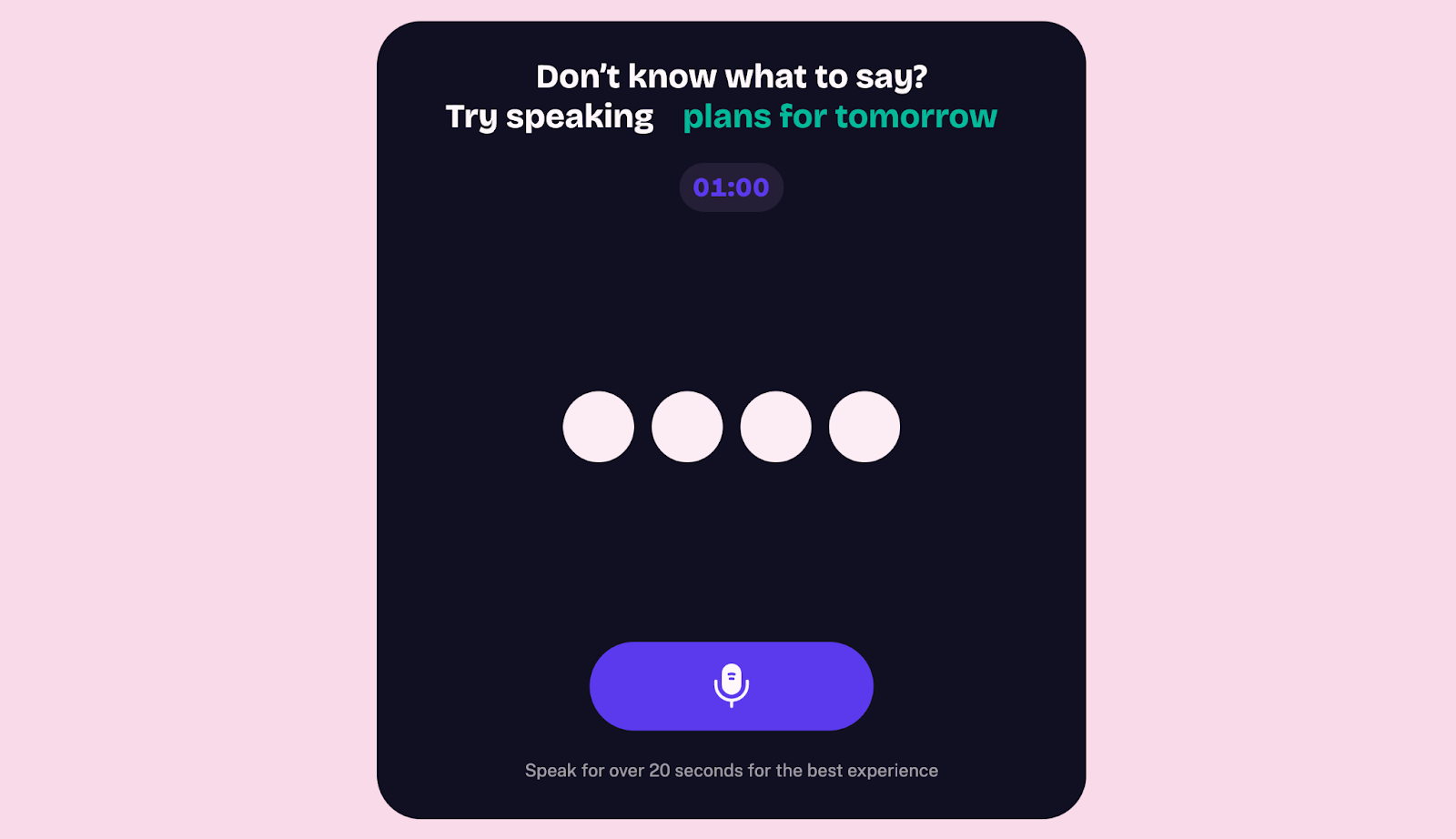
Letterly lets users think aloud, unstructured, then immediately transform those thoughts into clean, finished writing.
Letterly Top Features
Source: Letterly
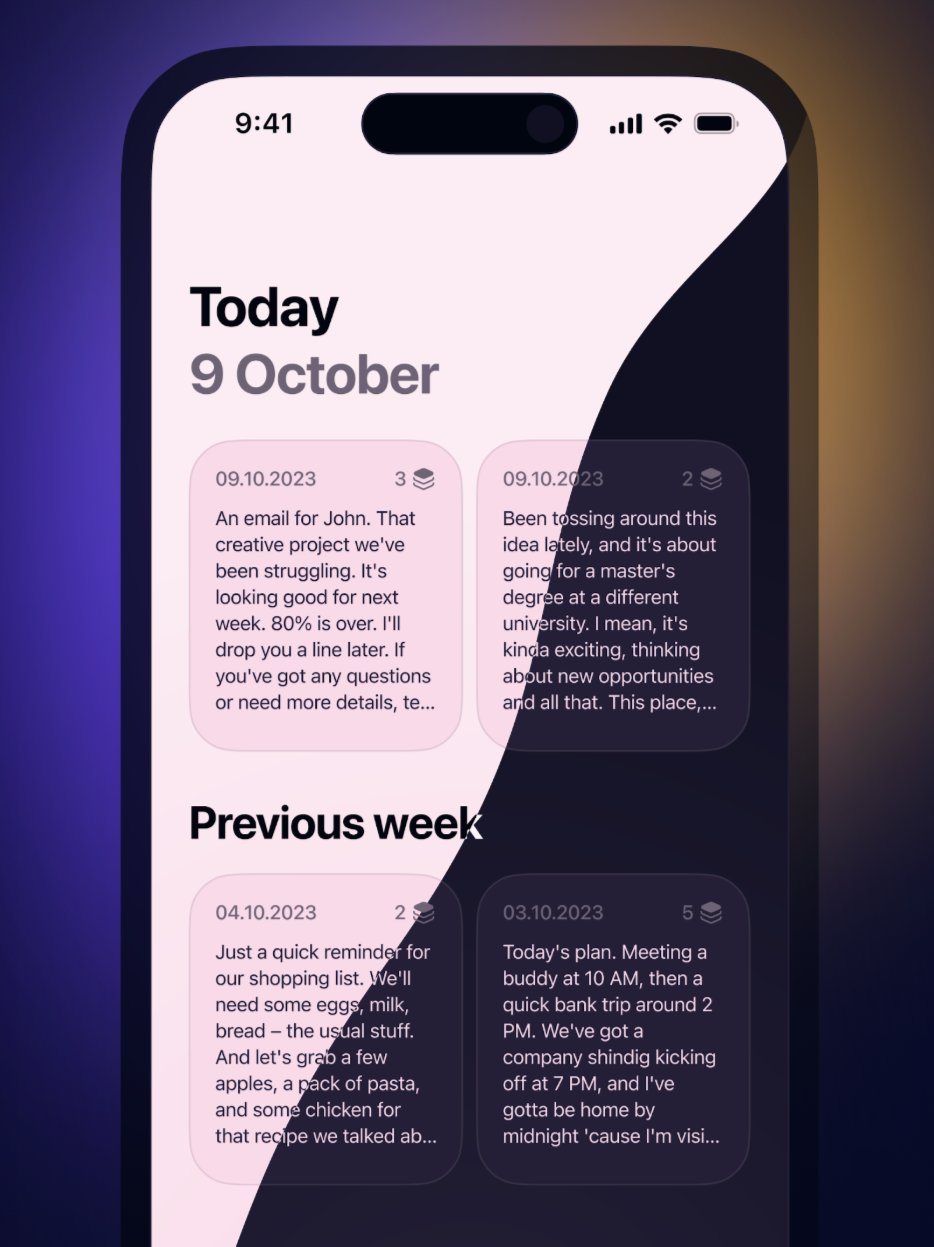
Transcript split by speakers: Your recording becomes a transcript split by speakers.
Summary: The original recording may become a summary, or be changed into another format the user selects.
90+ languages: The app is fluent in 90 plus languages and automatically identifies the language being spoken.
25+ rewrite styles: Users select from 25 or more pre-made rewrite styles for common writing tasks, or add their own.
Home screen widget: A widget on your home screen lets you start a new recording directly from it.
Apps are available for iOS and Android devices, as well as Mac, Windows and web browsers.
Letterly Pricing
Free: 0 dollars per month, with dictations metered on the free plan
Free trial: 7 days, and the account is then charged
PRO monthly: 19.99 dollars per month
PRO yearly: 69.99 dollars per year, with other yearly bands available
PRO lifetime: 199.99 dollars once, with a higher lifetime band available
Letterly PRO costs 19.99 dollars a month, 69.99 dollars a year, or 199.99 dollars once, after a 7 day free trial.
What Letterly users love
Recording and summarising meeting notes
"Great app! I love it for recording and summarizing meeting notes." sushifarmer, App Store
What Letterly users flag
A long recording can be lost
"we talk for 30 or 40 minutes and then you lose it. It's a bummer cause you can't retrieve those thoughts." doneckert, App Store
4. Otter.ai: Best AI Note Taker for Live Meeting Transcription
Best for: Otter.ai is the AI note taking platform for teams wanting to view the transcript while they are still in the meeting.
Similar to: Fireflies.ai, Fathom, Jamie.
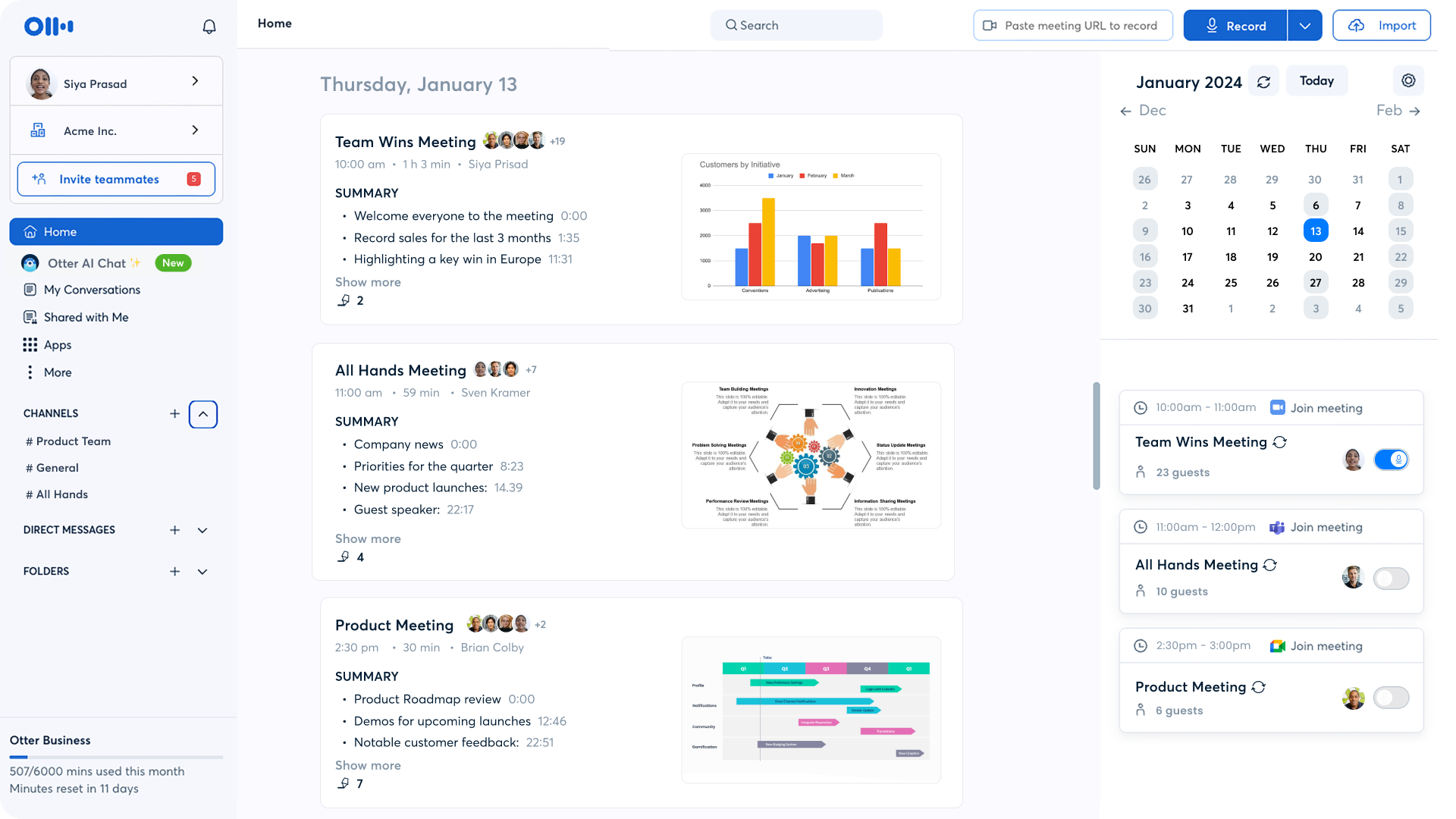
Otter.ai is a meeting transcription tool developed by Otter.ai Inc., Otter transcribes Zoom, Microsoft Teams and Google Meet meetings. They also offer a desktop version for Mac and Windows, which records meetings without adding a bot participant to the call.
Otter.ai Top Features
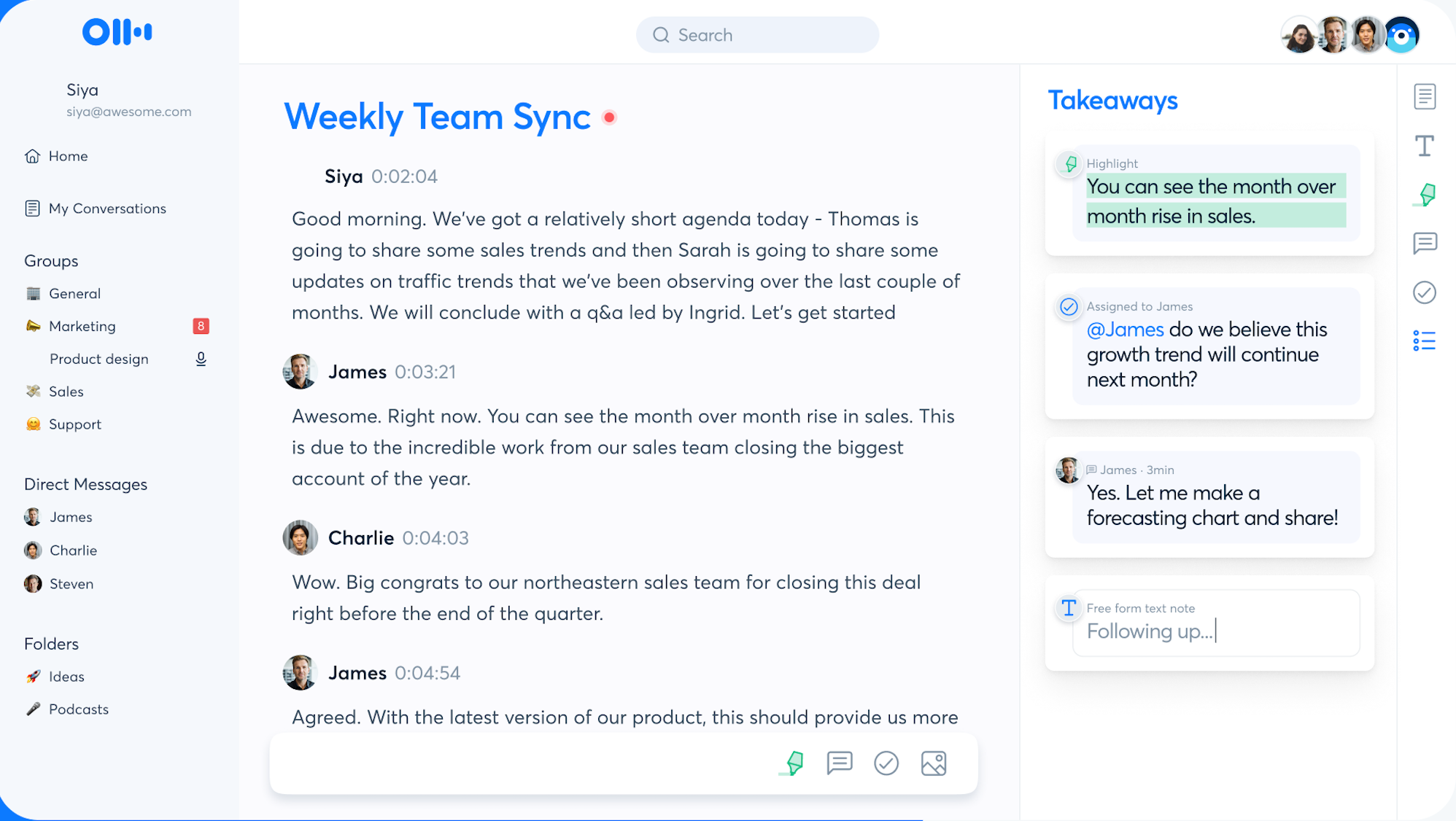
Automated summaries: Otter generates automated summaries with action items and outlines.
Live transcription: Otter transcribes live on the free Basic plan.
Speaker identification: Speaker identification by name in the plan comparison section.
Otter MCP server: Otter includes an MCP server on the free Basic plan.
Zoom, Microsoft Teams and Google Meet: Otter transcribes your team meetings on Zoom, Microsoft Teams and Google Meet.
Mobile support, with iOS and Android apps, is available on the free Basic plan.
Otter.ai Pricing
Basic: 0 dollars per month, with 300 transcription minutes a month
Pro: 16.99 dollars per user per month
Enterprise: Custom pricing
What Otter.ai users love
Discovery calls without writing anything down
"AI Meeting Notes has changed the way I run discovery calls because I can stay focused on how the prospect answers, instead of scrambling to capture budget, competitors, dates, technical concerns, and names while the conversation keeps moving." Rostyslav M., G2
What Otter.ai users flag
Language support is almost all English
"I find Otter.ai has limitations with language support, as it operates almost exclusively in English, which makes it struggle with non-English conversations, code-switching, or multilingual team meetings." Khalid s., G2
5. MacWhisper: Best Speech to Text Software for On Device Mac Transcription
Best for: MacWhisper is the transcription application for Mac users who want the file processed locally on their own Apple devices.
Similar to: Aiko, Whisper by OpenAI
Source: MacWhisper
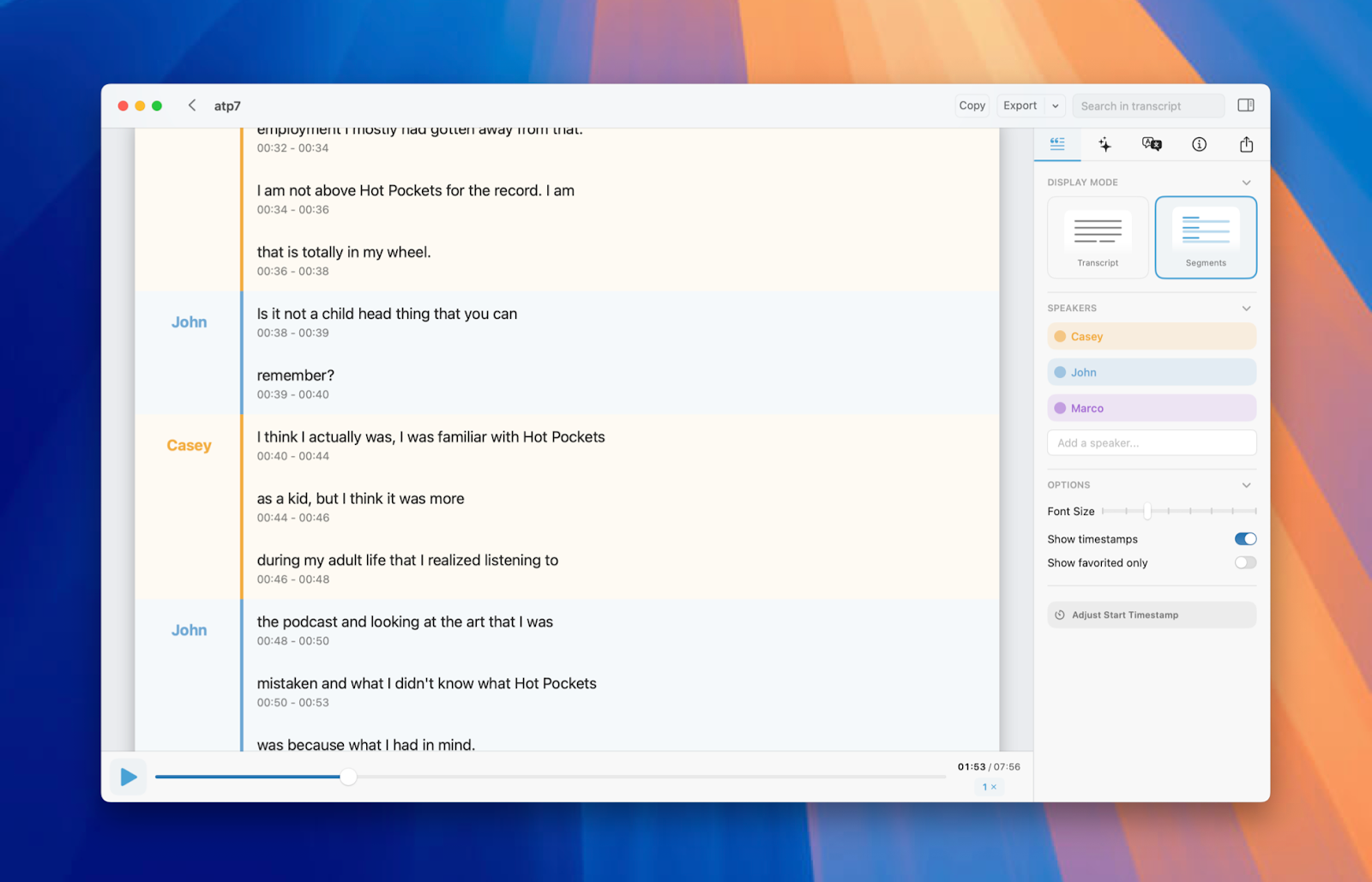
MacWhisper is a software application developed by Good Snooze that converts audio files into written text using OpenAI's Whisper model., local models let the transcription take place directly on your own Mac.
MacWhisper Top Features
Source: MacWhisper
Over 100 languages: MacWhisper supports over 100 languages for multilingual transcription.
Automatic Speaker Recognition: Automatic Speaker Recognition sits in the Pro column. and the feature labels voices Speaker 1 and Speaker 2.
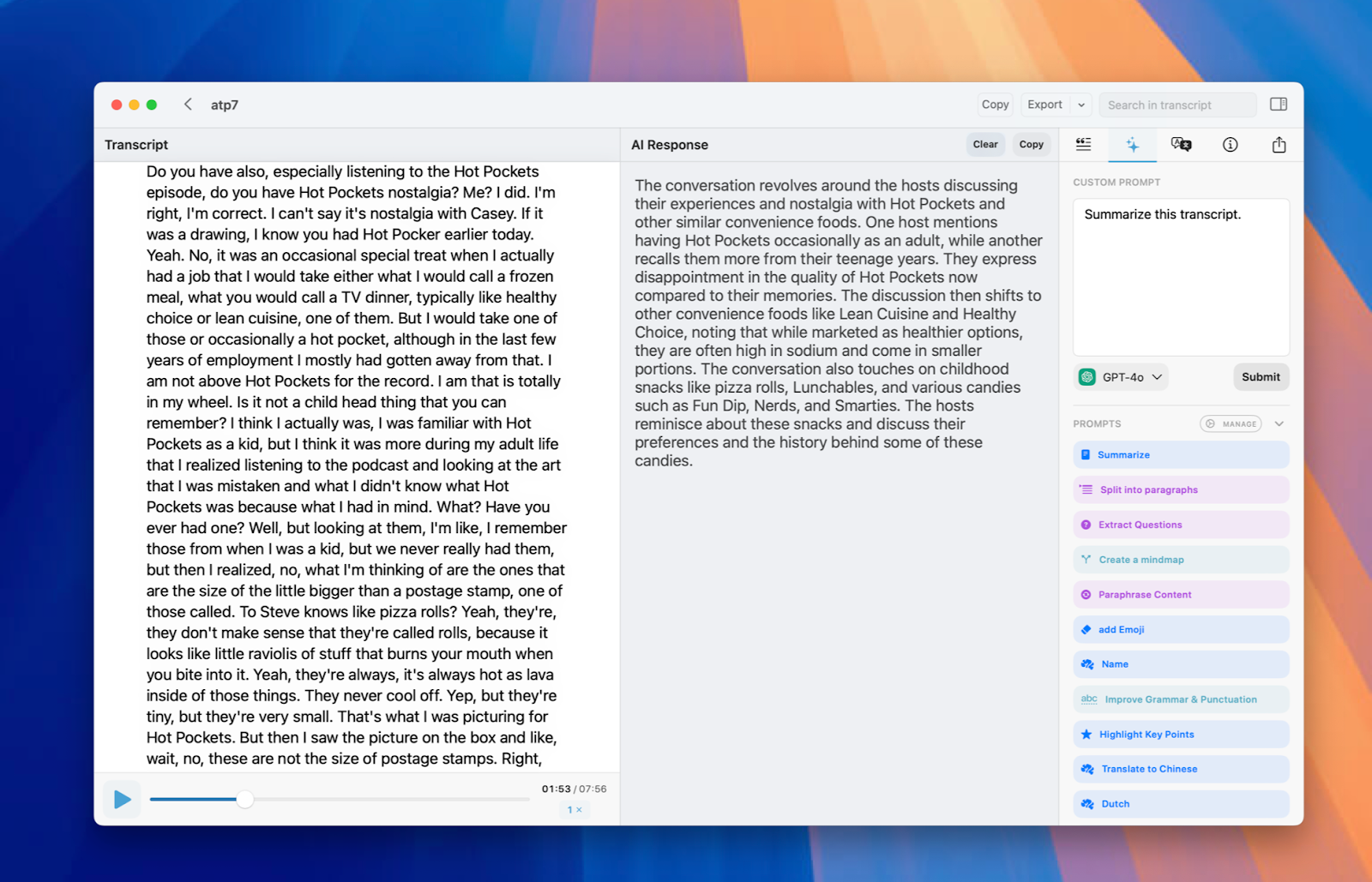
Assistant summaries: The Assistant generates a summary with the highlights and action points of a meeting.
Chat with your transcript: You chat with your transcript to get answers to your prompts.
Local models: Local models transcribe sensitive files on your Mac, and the Assistant is a separate optional subscription.
Export formats: You export transcriptions as subtitles, documents or structured text files.
MacWhisper Pricing
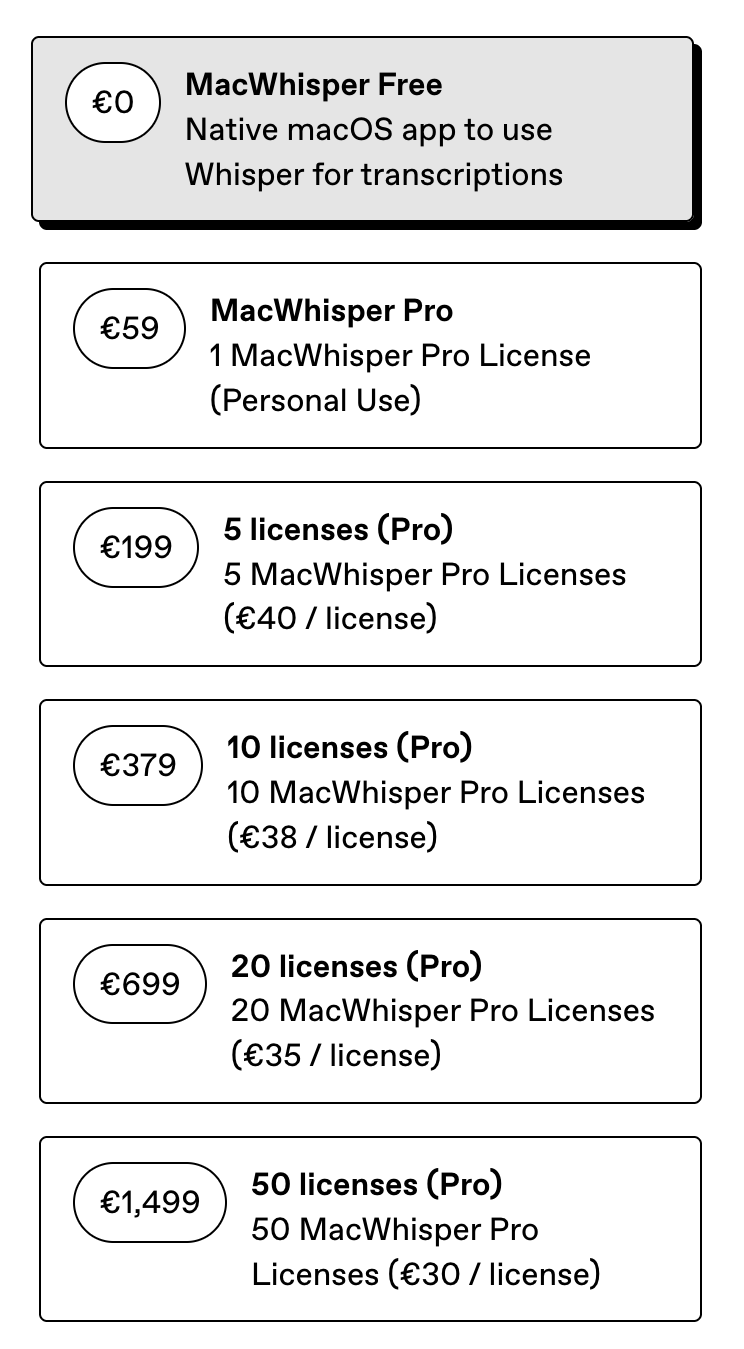
MacWhisper Free: 0 euro per month, described on their page as free forever
MacWhisper Pro: 64 euro once per licence, with lifetime updates
Source: MacWhisper
What MacWhisper users love
A native macOS design
"This app gets a lot of things right and has a very nice native macOS design." NinjaPenguinCoder, App Store
What MacWhisper users flag
Saving a transcript needs the Pro version
"The tool is good if you pay for the PRO version; otherwise, there is no way to save the transcripts." msvillarreal, App Store
6. Wispr Flow: Best Speech to Text App for Dictating Anywhere
Best for: Wispr Flow lets users use voice dictation to type directly into whatever window they currently have open.
Similar to: Voicy, Superwhisper, Monologue.
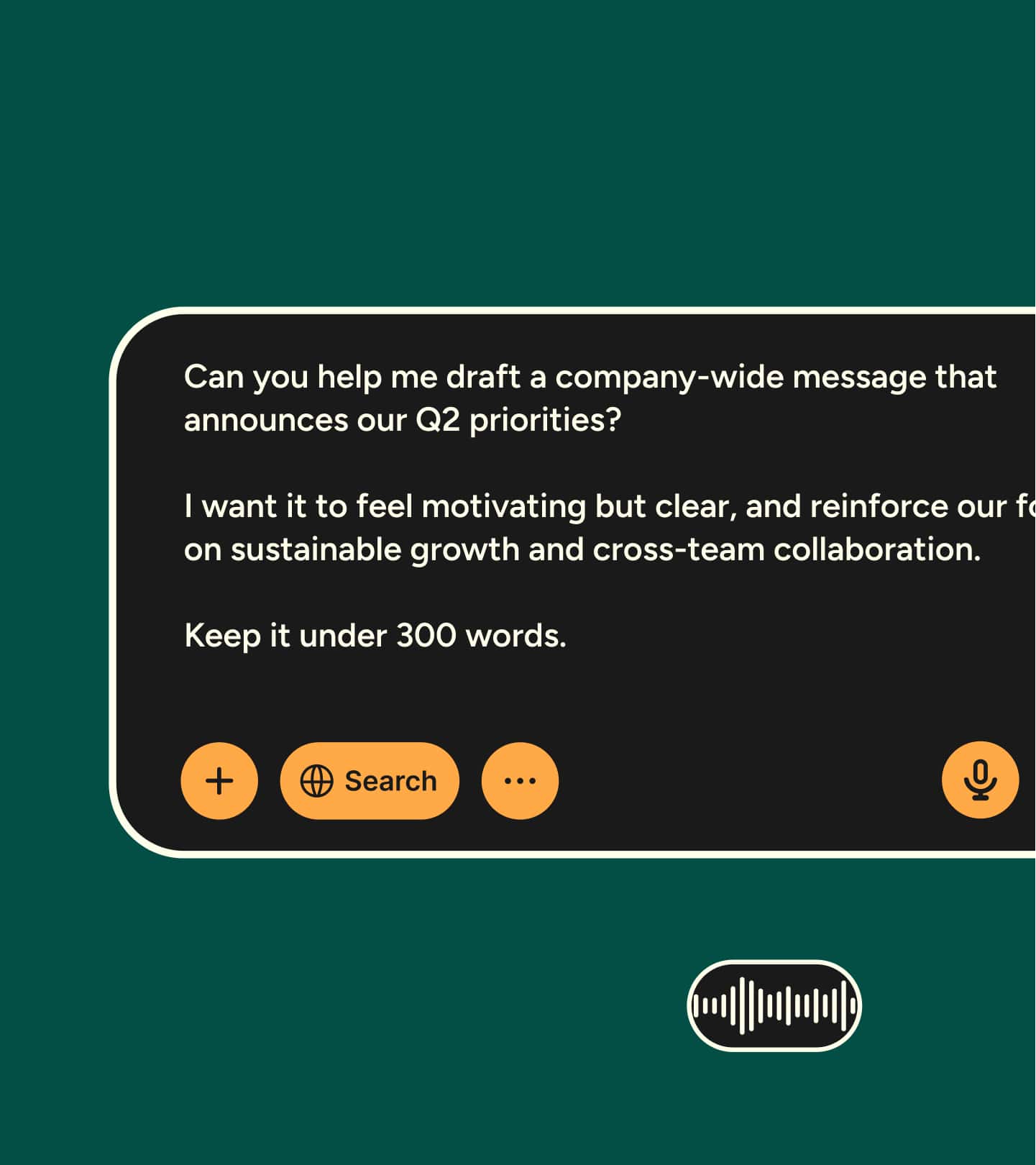
Source: Wispr Flow
Wispr Flow is a voice keyboard and dictation app created by Wispr AI, Inc. Flow automatically identifies the language being spoken as you speak naturally, letting the user switch between languages.
Wispr Flow Top Features
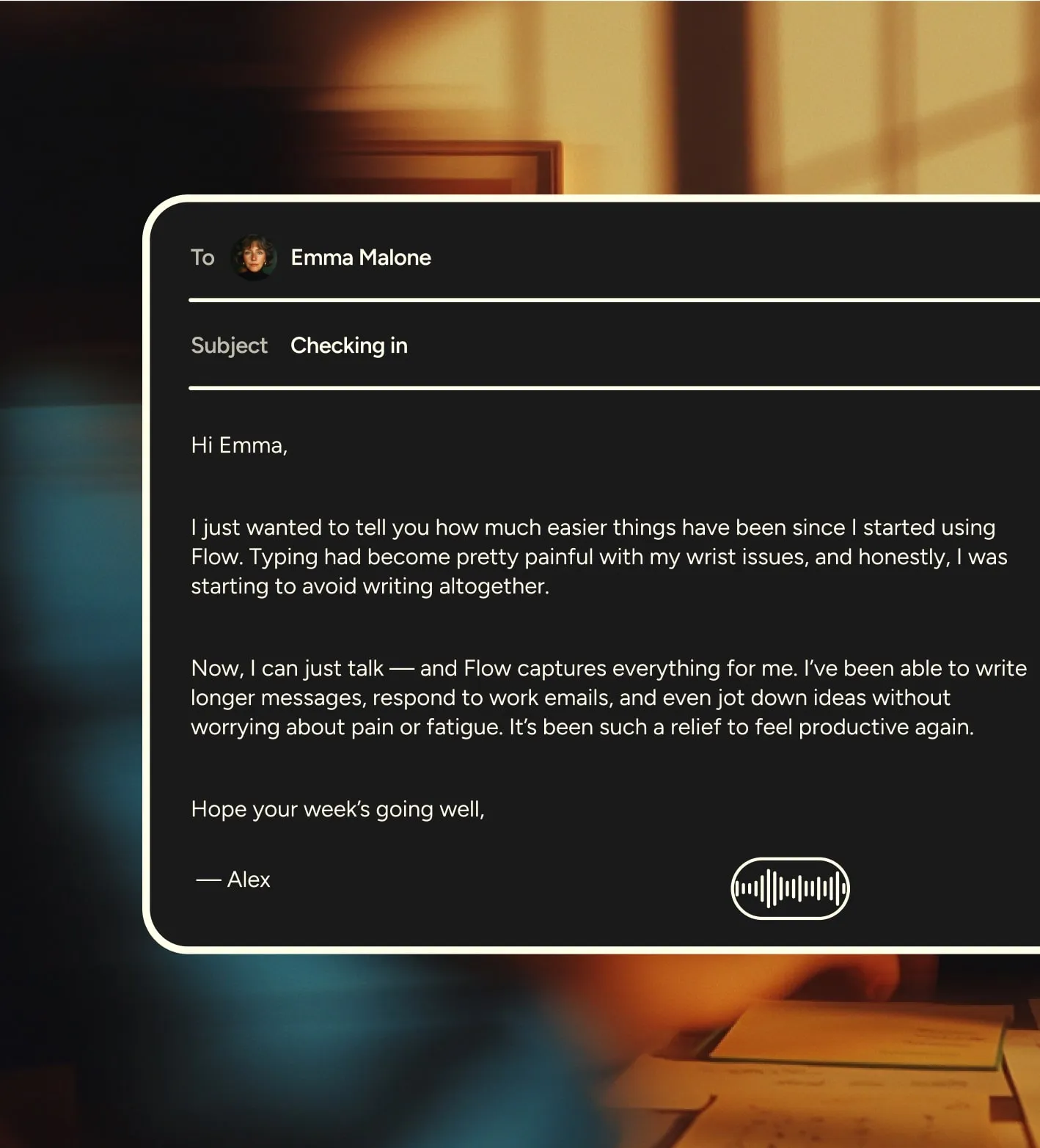
Source: Wispr Flow
Notetaker: Notetaker captures the most important dates, decisions and next steps from meetings, and Notetaker is Mac only.
Speaker names: Notetaker names speakers rather than numbering them, on Mac only.
Search across your meetings: You can ask questions about any meeting or about all of them, on Mac only.
100+ languages for dictation: Flow can detect and transcribe over 100 different languages while the user speaks.
Notetaker is English first: Notetaker is English first, and a non-English meeting carries a notice with a Continue anyway option, on Mac only.
Security certifications: Flow is certified to SOC 2 Type II and ISO 27001, and is HIPAA compliant.
Wispr Flow Pricing
Free: 0 dollars per month, with purchases inside the app
Pro Monthly: 15 dollars per month
Monthly Student: 7.49 dollars per month
What Wispr Flow users love
It picks up a whisper
"This is amazing as far as voice-to-text, and it picks up everything even though I'm whispering right now." mrBMHsr, App Store
What Wispr Flow users flag
The subscription price against the keyboard
"the asking price of the subscription is definitely not worth it when the qwerty keyboard is worse than apple's own default keyboard" teaneedz, App Store
7. Sonix: Best Speech to Text Software for Transcribing Audio Files
Best for: Sonix is the speech to text tool for users who want to upload a recorded audio or video file and receive the text back.
Similar to: Rev, Descript, Happy Scribe.
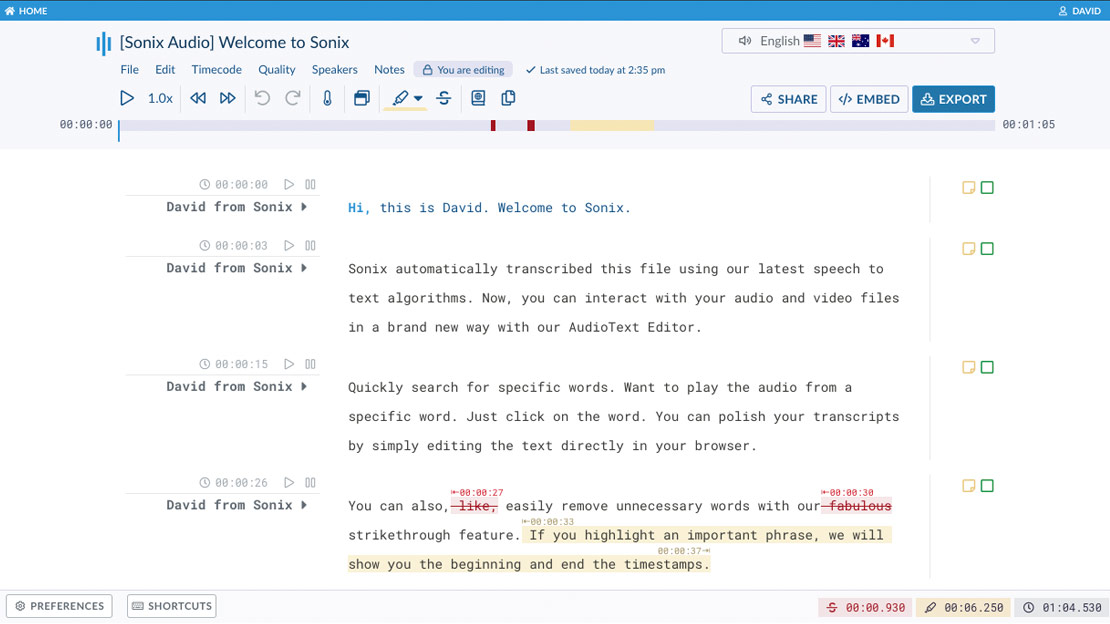
Sonix is a file transcription service that has been running since 2017. Users upload an audio or video file and Sonix returns a generated transcript in their browser based editor.
Sonix Top Features
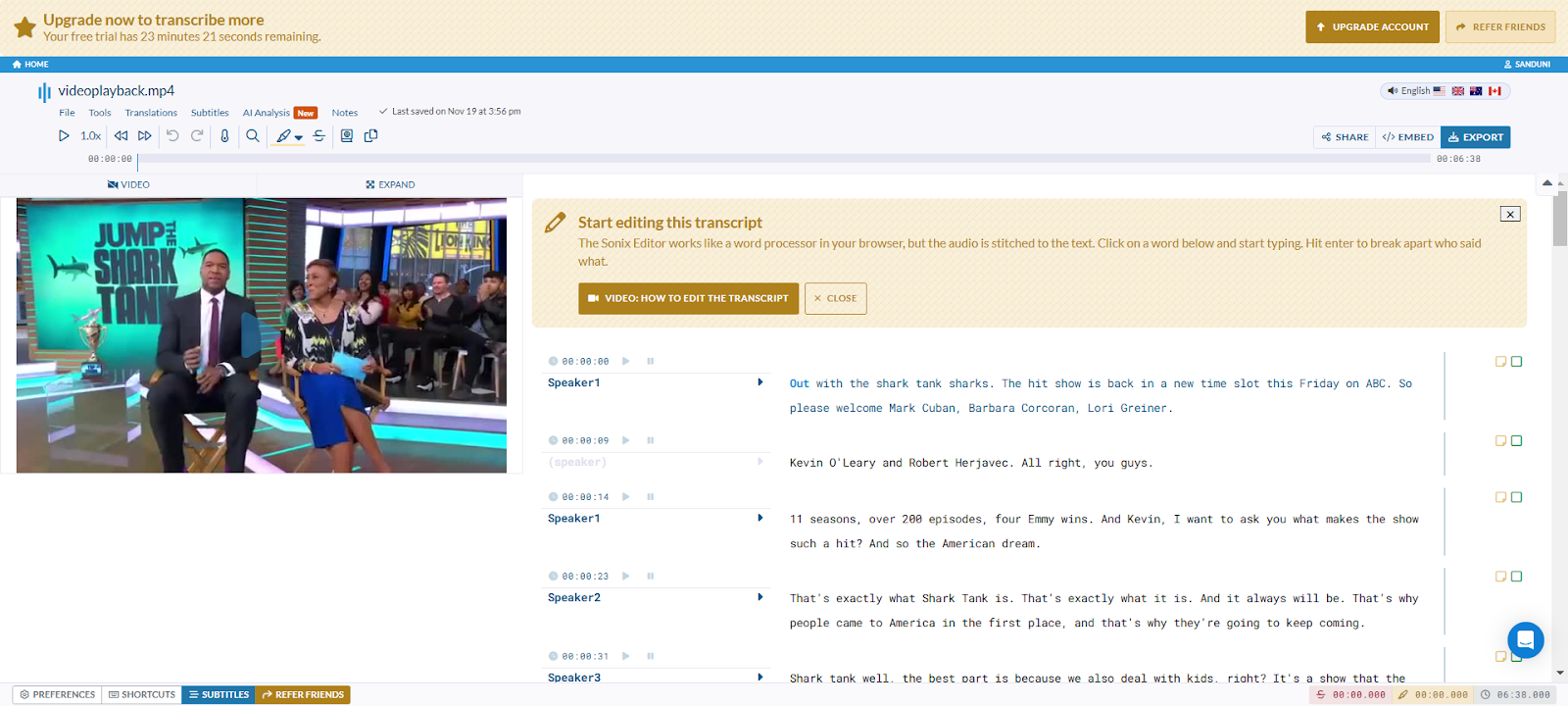
AI analysis: Automated summaries of large amounts of content give you the key points along with the action items.
Ask questions across your uploads: Users can submit questions in plain language across everything they have uploaded.
Speaker labels: Transcripts arrive with speaker labels and timestamps built in.
54+ languages: Each of their plans includes access to their editor and 54 or more languages.
Translation and subtitles: Sonix translates into 55 or more languages and generates frame perfect subtitles for videos.
SOC 2 Type 2: The platform carries SOC 2 Type 2 and HIPAA, and uses encryption to store the files users upload.
Sonix Pricing
Pay As You Go: 10 dollars per hour of audio
Core: 25 dollars per month
Free trial: 30 minutes, no card needed
What Sonix users love
Speed and accuracy on long recordings
"I've used it for several critical, long recordings and have been consistently impressed with its speed and accuracy." JJ, Trustpilot
What Sonix users flag
Mistakes in Danish
"hallucinations and and other mistakes in danish" Jesper Westi-Henriksen, Trustpilot
8. Gboard: Best Free Speech to Text Keyboard for Android and iPhone
Best for: Gboard is the voice typing keyboard available free to people who prefer to dictate on a phone rather than a computer.
Similar to: Apple Dictation, Samsung Keyboard, Microsoft SwiftKey.
Source: Techspot
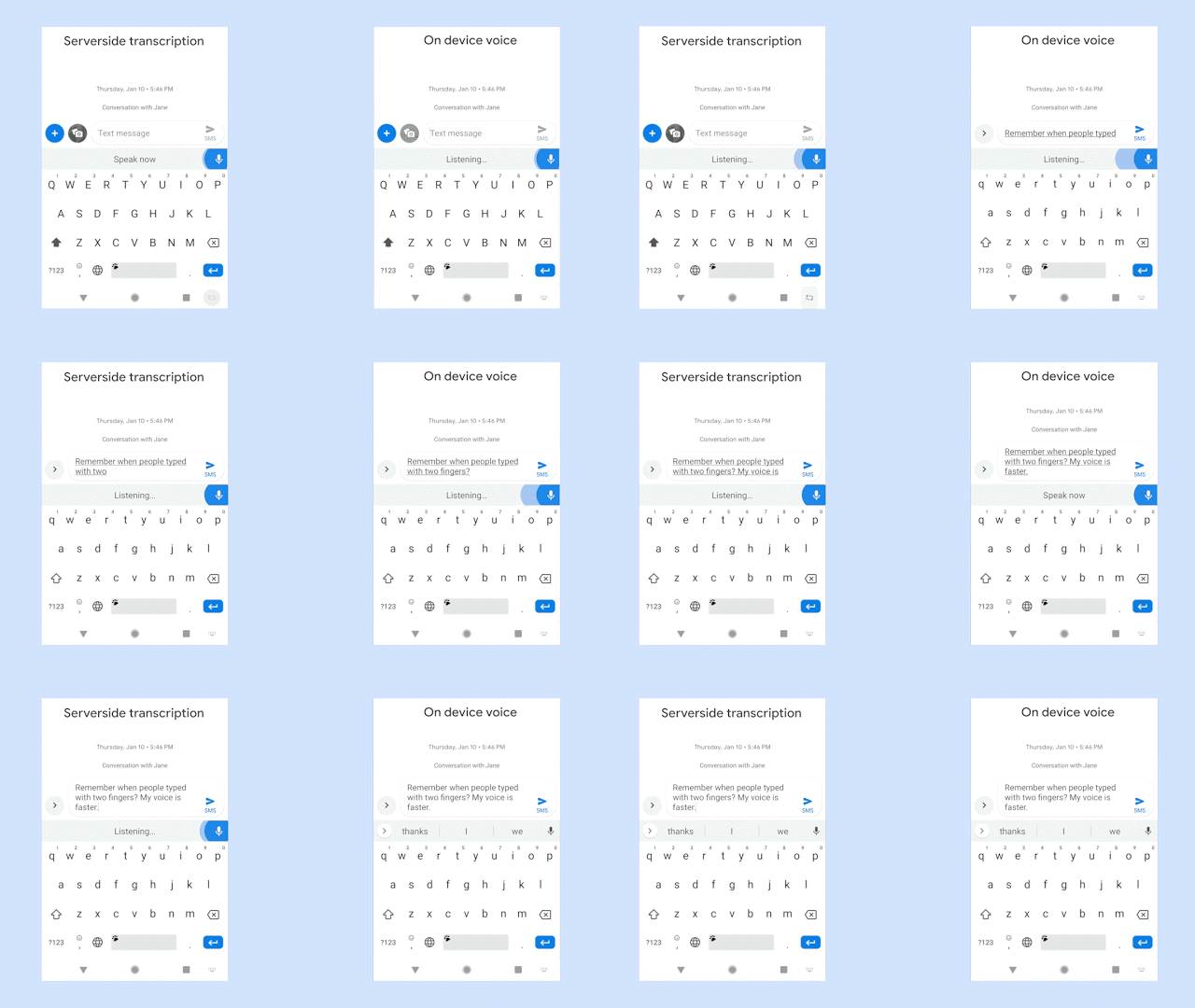
Gboard is Google's keyboard for Android and iPhone. As stated on their Google Play listing, Gboard includes three input options: voice typing, glide typing and handwriting, and the app has passed 10 billion downloads.
Gboard Top Features
Voice typing: Their Play listing gives users voice typing as a direct input method through the keyboard.
Glide typing: Users type faster by sliding a finger from one letter to another.
Handwriting: Gboard also takes handwriting as a third input method, alongside glide typing.
Works inside any app: Gboard is installed as a replacement for the native keyboard on a phone. Users can dictate anywhere they would normally type, including chat apps, and the text appears where they entered it.
Android and iPhone: Gboard's Google Play listing is for Android, and Gboard is also published on the Apple App Store for iPhone.
Gboard Pricing
Free: 0 dollars per month on Google Play
What Gboard users love
The standard keyboard on most Android phones
"gboard seems to be the standard and auto installed on most Android devices" Tony McGuiness, Google Play
What Gboard users flag
Word suggestions in Hungarian
"It suggests Hungarian words extremely poorly and inconsistently." Peter, Google Play
9. SpeechTexter: Best Speech to Text Tool With No Install Needed
Best for: SpeechTexter is one of the free tools in a browser for people who want to create written text without installing anything.
Similar to: Google Docs Voice Typing, Dictation.io
Source: SpeechTexter
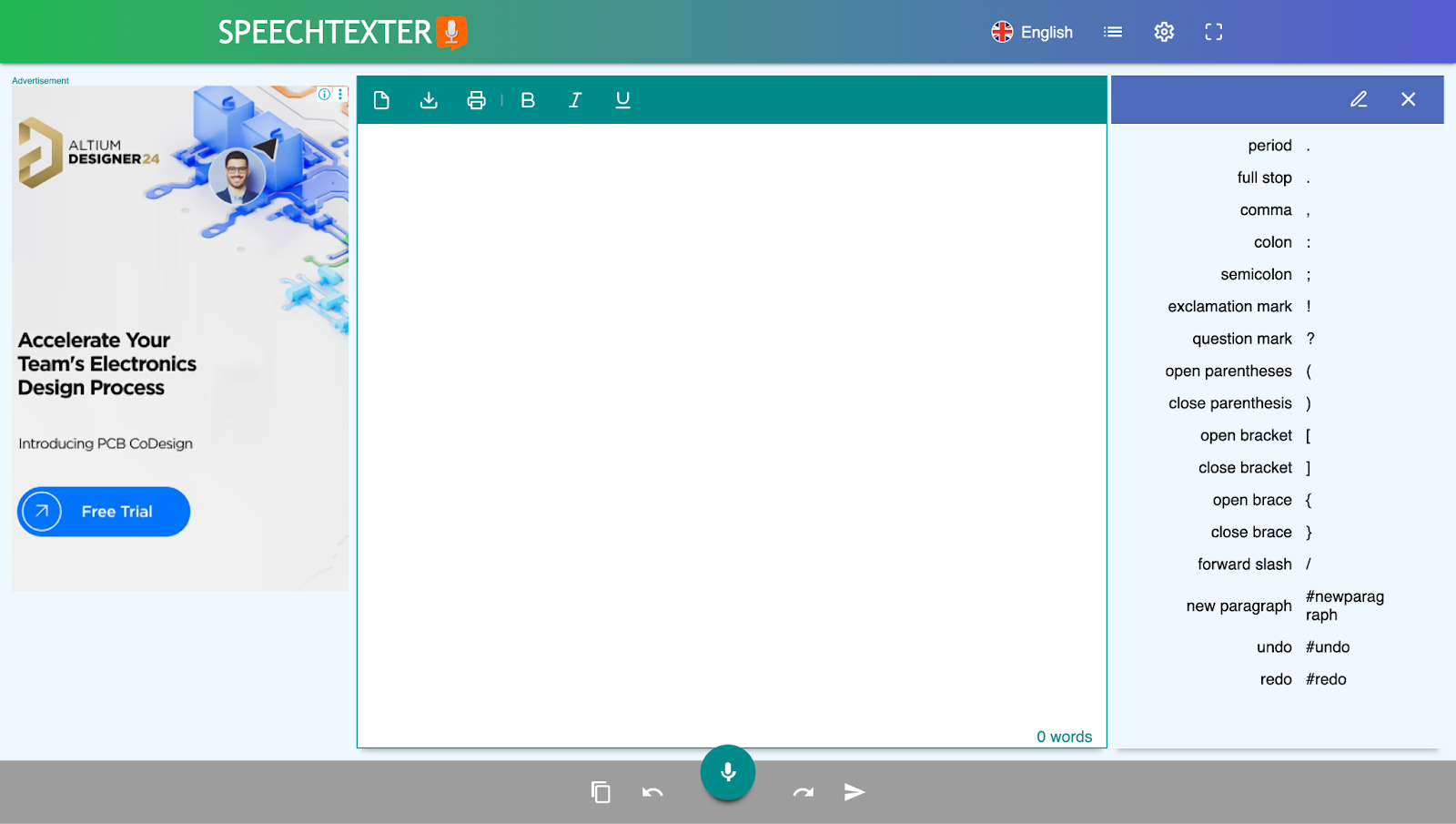
SpeechTexter is an application that converts spoken words into written text in real time using Google Speech Recognition, an online speech recognition tool. The application is supported by the Chrome browser on desktop.
SpeechTexter Top Features
Source: SpeechTexter
Over 70 languages: SpeechTexter supports more than 70 languages.
Custom voice commands: Users can customise voice commands for punctuation marks and for frequently used phrases.
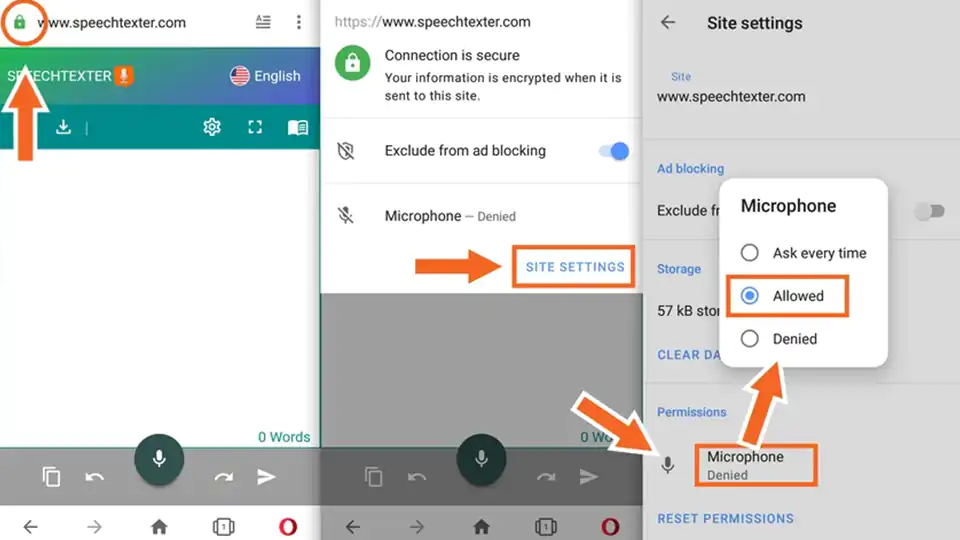
No download or registration: Users select the microphone button in their Chrome browser and start talking, and the text appears with no download and no sign up.
Dictate any document: You dictate notes, documents, books, reports or blog posts with your voice.
Language practice: The tool doubles as a way to practise pronunciation in a foreign language.
SpeechTexter Pricing
Free: 0 dollars per month
How SpeechTexter compares with the other tools here
Free, with nothing to install
SpeechTexter is a free multilingual speech to text application, and you click the microphone button and start dictating with no download and no sign up.
The text comes back, and nothing else
SpeechTexter dictates into a text editor. Jamie, Otter.ai, Sonix, MacWhisper and Letterly all generate a summary of the recording, and Jamie, Otter.ai and Sonix name action items in theirs.
No speaker names on the transcript
Jamie, Otter.ai, Sonix, MacWhisper, Wispr Flow, Letterly and Speechnotes each name the speakers on the transcript.
Seventy languages, against a hundred at the top of this list
SpeechTexter supports more than 70 languages. Jamie, Google Docs Voice Typing, MacWhisper and Wispr Flow each handle over 100.
10. Speechnotes: Best Free Speech to Text Notepad in the Browser
Best for: Speechnotes is the free dictation notepad for people who want to talk into a web page and copy the text out.
Similar to: SpeechTexter, Google Docs Voice Typing, Dictation.io.
Source: Speechnotes
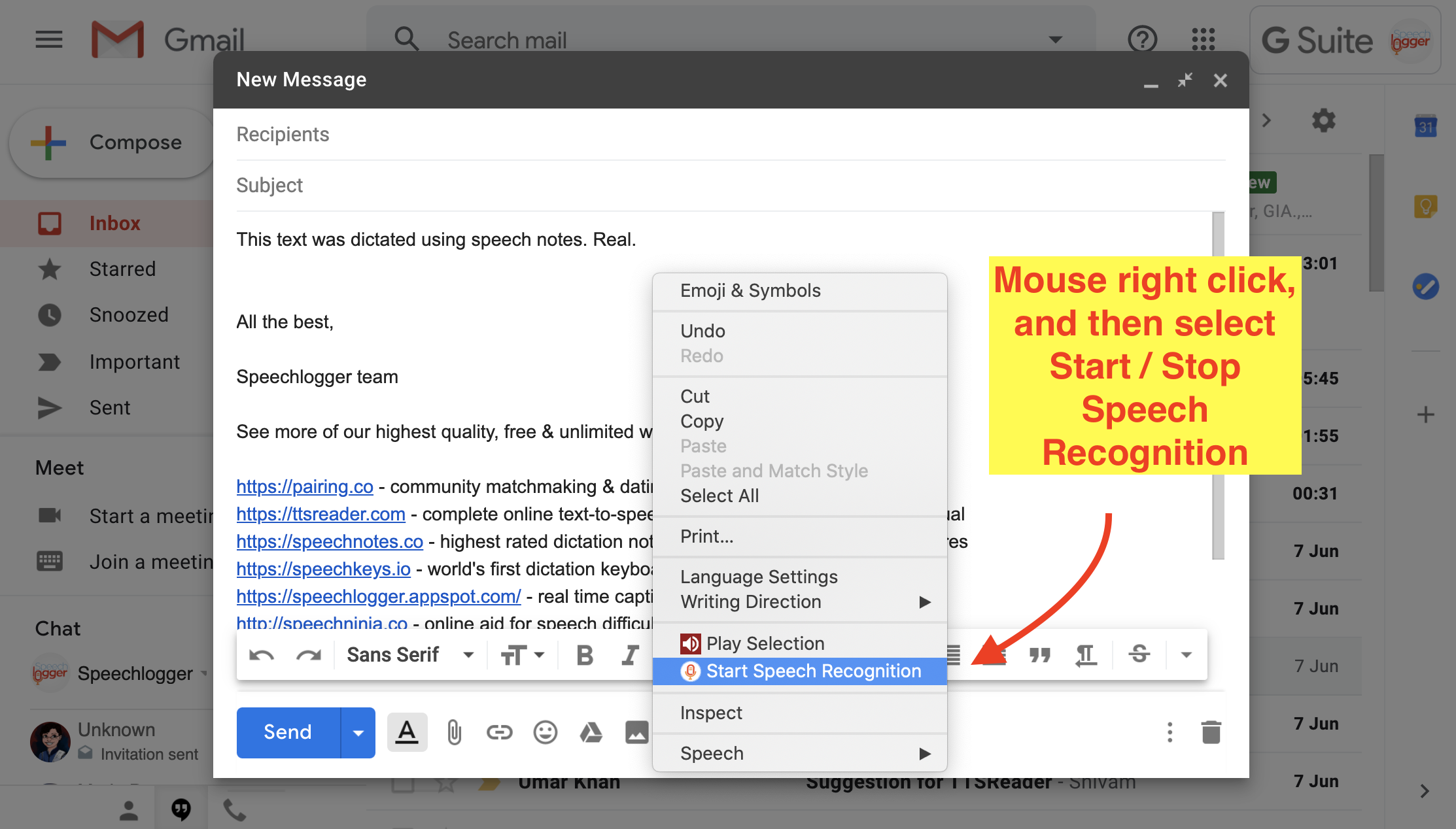
A web based application called Speechnotes is a note taking tool that has been developed as a Chrome extension and also as an Android app., you can use Speechnotes for free with ads displayed, or pay a fee to remove those ads.
Speechnotes Top Features
Speaker diarization: The pricing information provided by Speechnotes does list speaker diarization in English, but only under the paid transcription plan, rather than under the free notepad.
AI summaries: Speechnotes' website lists AI generated summaries on their transcription service, alongside two other tools, the ability to add timestamps to recordings and to generate captions for them.
Online dictation notepad: Their pricing section lists the online dictation notepad and voice typing under the free version of the plans.
Chrome extension: Their pricing section lists a Chrome extension on the free plan.
Android app: Speechnotes runs as an Android app alongside the browser notepad.
All file types and languages: The Speechnotes transcription service supports all file types and all languages.
Speechnotes Pricing
Dictation: 0 dollars per month, with ads
Dictation Premium: 1.9 dollars per month
Transcription: 0.1 dollars per minute, paid as you go
What Speechnotes users love
The best free option this reviewer had found
"The best free app I've found. Sooo much better than Window's Speech Recognition." 1860Sky Gypsy, Google Play
What Speechnotes users flag
Chunks left out of the transcript
"Sometimes it was very accurate, but usually it left large chunks out" L R Hay, Google Play
Final Verdict on What's the Best 10 Speech to Text Software?
The best dictation software is only good enough when it works for exactly what you want at that time. If what you want is the conversation written out from that last meeting with no bot in the call, then, Jamie can be the best choice among the speech to text software. Now let us quickly recap what Jamie will provide to you:
Privacy And Preserving The Natural Conversation: Jamie records the audio from your own device, which means no bot joins your client's call and no additional entry appears in their attendee list.
Advanced Technology Used For Speaker Diarization: Jamie identifies each speaker by name rather than by a number, and speaker memory matches the same voice in your later meetings, which is what you want from AI note takers.
Rooted Privacy Laws And Highest Security: Jamie is GDPR compliant and ISO 27001 certified. Jamie is also DORA-ready, and all of the meeting data is both stored and processed in Europe.
Values One's Privacy And Keeps AI Training Out Of It: Once Jamie has completed the transcription of your meeting, Jamie deletes the meeting audio, and nothing you say trains an AI model.
Built To Be More Than A Meeting Assistant: Jamie is agentic, which means a Workflow runs in your connected tools after you tell Jamie what you want to happen, and Workflows are still rolling out workspace by workspace. Ask AI answers questions about anything you have recorded.
You can also pick a different tool when the job is different.
Choose Google Docs Voice Typing whenever you are working within a Google Doc and require no software installation.
Choose Letterly when you wish to quickly convert a dictated draft into polished writing on your phone.
Choose Otter.ai when you would like to see the transcript as the meeting is happening.
Choose MacWhisper when you prefer to have your files transcribed directly on your own Mac.
Choose Wispr Flow when you wish to dictate into whichever window is currently open.
Choose Sonix when you already have a recording and wish to create a written transcript including the names of the speakers.
Choose Gboard when you are typing on a mobile device and want voice typing built right into the keyboard, at no cost.
Choose SpeechTexter when you wish to dictate in a browser without installing any software or signing up.
Choose Speechnotes when you wish to have a free notepad you talk into, with paid transcription when you need it.
For everything else, Jamie transcribes and generates the meeting notes for all calls without the use of a bot in the actual call; Jamie stores all meeting data within Europe under GDPR and removes the recording audio after transcribing it; and Jamie answers questions about every meeting you have recorded, on every plan including the free plan.
What I love about Jamie is that it never forgets. Every decision, every idea, every follow-up is right there when we need it.
Toni Stork
Founding Partner & CEO | OMMAX
Professional Services / Consulting · 250-500 employees
Read More
On a Windows machine? Read our guide to transcription software for Windows.
Working on a Chromebook? See transcription software for Chromebook.
Your calls run on Microsoft Teams? Read transcription software for Microsoft Teams.
Data has to stay in Europe? See transcription software in Europe.
Weighing up Otter.ai? Read our Otter.ai review.
Wondering what Otter.ai costs? See Otter.ai pricing.
Transcribing research interviews? Read transcription software for research.
Writing up interviews by hand? Follow how to transcribe an interview.
Marketing team buried in recordings? See transcription tools for marketers.
Comparing the whole category? Read our guide to AI transcription software.
FAQs
Which Speech to Text Software Also Generates AI Meeting Notes Without A Bot?
Jamie is a combination of a speech to text software application and an AI note taking tool, which will automatically generate the transcript of your meeting, the summary, and the action items without ever having a bot on your call. Because Jamie is a native application, Jamie never joins any of your meetings or calls as a bot. Jamie operates from your own computer, running in the background, and covers all of the various meeting platforms running on that device. Jamie supports over 100 different languages, is GDPR compliant and ISO 27001 certified as a company, stores all of your meeting data in Europe, and deletes the meeting audio upon completion of the transcription. The free plan records up to 10 meetings per month for up to 30 minutes per meeting.
How Does Speech to Text Software Turn Your Voice Into Written Text?
The microphone picks up your voice and sends that as an electrical signal. That is called an analog signal and it gets converted to digital data through sampling. Digital signal processing pulls out the phonetic characteristics of the digital signal, and deep neural networks analyse those characteristics to determine what phonemes have been spoken. The words that were probably spoken given the context for each phoneme are predicted by a language model, and the output of the transcription model is determined by combining that prediction with the identification of the phonemes. Jamie does this on your own device, which is why every Jamie is compatible with every meeting platform, and there's no reason for a bot to join your meetings and make it seem so awkward or intrusive.
What Changes the Dictation Accuracy of Speech to Text Software?
Dictation accuracy depends upon who is speaking, their accent and where they are located. The biggest difference between speakers and rooms is how much background noise affects accuracy. A quieter room with one good quality microphone will produce a cleaner transcript than a speakerphone in an open office. Different vendors report vastly different levels of accuracy, and there may be value in seeing if the vendor reports the method used to evaluate that level of accuracy. OpenAI states that their Whisper model had training data of over 680,000 hours of multilingual audio, and that the new gpt-4o-transcribe improved upon the Word Error Rate of the original Whisper models.
Does Background Noise Affect a Speech to Text Transcript?
Background noise is typically the most significant contributor to inaccuracies in transcripts, because the model has to isolate the speaker from other sounds that are present in the environment. Any additional background noise, such as a coffee shop, an open office with a speakerphone, or a poor internet connection, can cause issues with the transcription. Wispr Flow indicates that using Bluetooth earbuds typically reduces the accuracy of transcriptions. Jamie records from the microphone on your own device, which means the microphone you currently use will be the one Jamie records from.
Do You Need an Internet Connection for Speech to Text Software?
Depending on what tool you are using, there could be a difference in where files are processed. In accordance with the information presented by MacWhisper about running local models on your Mac, it appears that MacWhisper transcribes locally. On the other hand, the built in tools operate in another way, and per Google's help page, your browser processes your spoken voice before displaying your text in a Google Docs file. Jamie requires an internet connection. All meeting data is stored and processed within Europe under GDPR, and after Jamie has completed the transcription process, Jamie deletes the meeting audio.
Is Dictating Faster Than Typing for Writing Tasks?
Dictating a first draft generally takes less time than typing it; this is generally true because most people tend to speak at a much higher speed than when they type. This is why dictation software can be used for a rough draft, an email, or a collection of notes that you plan on reviewing later. The trade off is the review part; you will need to enter the punctuation, the paragraph breaks, and the names. Jamie uses a different approach for meetings, because Jamie generates the summary, the action items, and the full transcript from one recording, and these are generated on every single plan available including the free plan.
What Is a Word Error Rate in Speech to Text Software?
The percentage of incorrect words entered into a document by a transcription system is referred to as the Word Error Rate. It counts substitution errors, where the system replaced a word with another word, deletion errors, where the system omitted a word, and addition errors, where the system added a word. A low Word Error Rate is preferable. It is the benchmark that researchers commonly reference and utilise, and OpenAI compares its own models the same way, saying gpt-4o-transcribe improves on the word error rate of the original Whisper models. However, a Word Error Rate is calculated based upon a predetermined set of recordings. Because a certain Word Error Rate exists from testing, that same level of performance may not necessarily exist on your own calls.
![Best Free Transcription Software: 6 Tools Tested and Reviewed [2026]](/api/media/payload/best-free-transcription-software-6-tools-tested-and-reviewed-2026-5355.png)