![Sonix AI Full Review and Best Alternative [2026]](/api/media/payload/Sonix_AI_Full_Review_and_Best_Alternative_Updated_September_2025-pvsxm9.png)
Sonix is an amazing automated transcription platform. It’s incredibly fast and accurate, transcribing audio and video files to text in over 40 languages. Sonix AI integrates with video editing platforms like Adobe Premiere, enhancing the workflow for video editors.
Video editors and journalists, content creators, and professionals, in general, will love its features: searchable transcripts, timestamped highlights, easy export options for subtitles and captions, and more! Sonix AI uses advanced AI to provide accurate transcriptions, which is particularly beneficial for eCommerce channels and retail businesses.
But, like all shining stars, it has its dark side.
Users often complain about the step-by-step workflow and limitations, such as the need for pre-recorded content (no live meeting transcription) and steep pricing. While it’s praised for its accuracy and language options, it might not be the most user-friendly or affordable option.
Here’s a thorough review of Sonix, including real user feedback and a step-by-step look at its editing features. We’ll also compare it to its best alternative, Jamie AI, a one-click transcription and meeting summary tool.
Is Sonix AI right for you? Let’s find out.
TL;DR
Sonix AI is in the spotlight now because it handles uploads well but has no live meeting transcription, takes many steps to get results, and can get costly with steady use.
People want fast accurate notes with clear speaker names, one click summaries with actions and chapters, custom vocabulary, strong privacy and compliance, offline capture, quick search across past meetings, and a tool that works with any call platform and budget.
Jamie gives online and offline transcription on any platform without bots, produces structured summaries with actions and chapters, secures data with GDPR controls and deletes audio after processing, lets you search past meetings with Ask AI assistant, and offers a free plan with simple pricing.
What is Sonix AI?
Sonix AI is an automated speech transcription and content management platform designed for audio and video files. It uses advanced speech recognition to convert spoken words into text in over 40 languages.
Key features of Sonix AI
Search and Edit: Quickly search specific words and edit transcripts directly in your browser.
Highlighting and Timestamps: Intelligent highlighting with precise timestamps for key phrases.
Exports and Captions: Export transcripts, and clips, or generate subtitles and captions instantly.
Workflow Tools:
Custom dictionaries, multilingual translation, team collaboration, and media publishing simplify content workflows.
Integrates with various editing platforms, enhancing productivity and streamlining workflows for users.
Sonix combines accuracy and ease of use to streamline transcription and content creation.
Hands-on test: our experience using Sonix AI
We want to give you our unfiltered experience with Sonix AI. From the user interface to audio transcription qualities and the challenges we faced.
Our initial encounter with the tool is its homepage, of course. The homepage looks very easy to navigate, and very clean, and not too much going on for users to get confused.
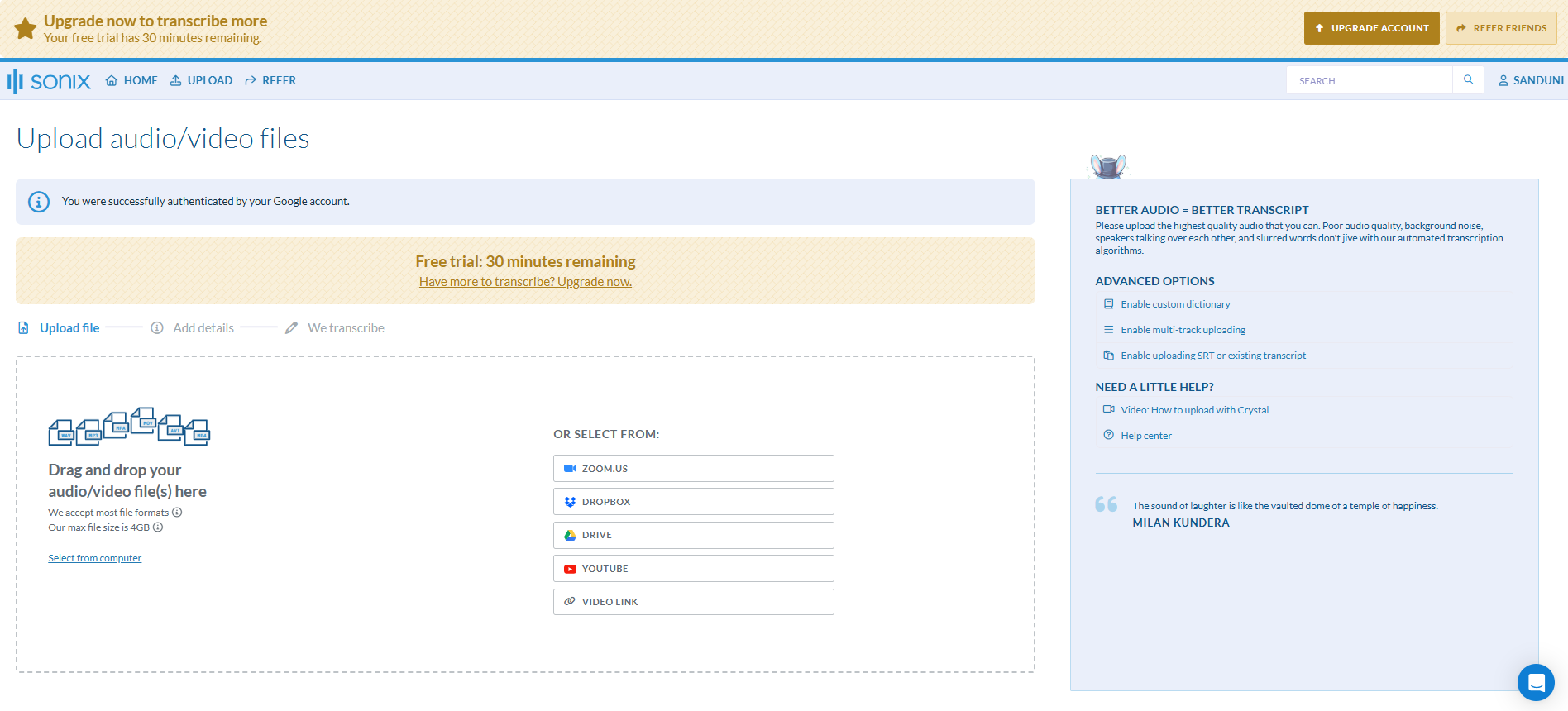
But one thing did catch our eyes, and that's this notice.
"Better Audio = Better Transcript"

Sonix AI has put a disclaimer stating that their transcription works well with better audio quality. This is quite reasonable given that audio quality does matter when you need better transcription. However, not everyone can provide crisp quality audio, and there can be background noises and multiple speakers that talk over each other.
Some noisy situations are out of our control, yet we will still need a better transcription.
And many tools help fine-tune background noises and provide you with the best transcript. Which is why we wanted to put Sonix AI to the test.
How we tested the Sonix AI tool
Since Sonix AI does not do live meeting transcription, we have only one free attempt to upload an audio of 30 minutes. So we are going to use the same audio from the test we did for the Fireflies.ai Vs Jamie Vs Otter.ai article. Let's go through the process, step by step:
#1 Upload the Video to Sonix AI
First, we upload the video to Sonix AI.
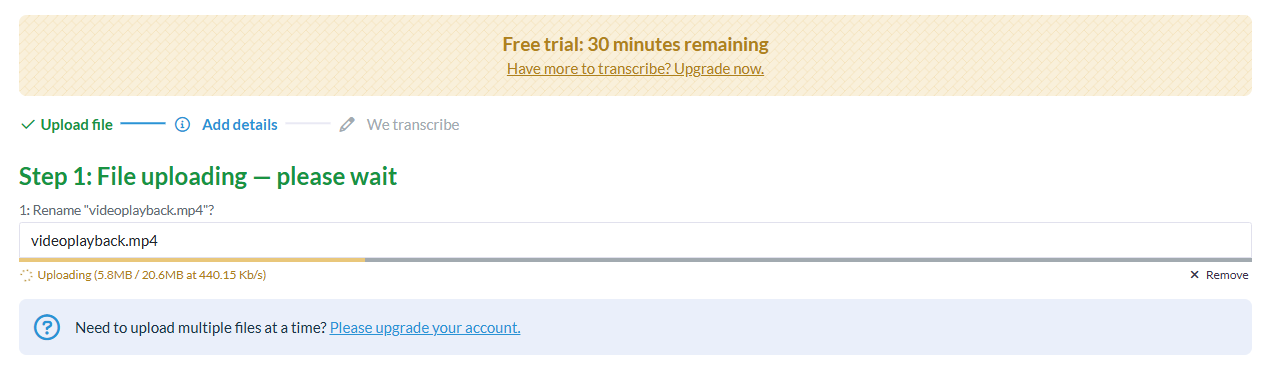
#2 Select the language that was spoken in the video
Next, we are given the option to select the language that was spoken in the video. In this case, the video was spoken in English, so we are going to pick English.
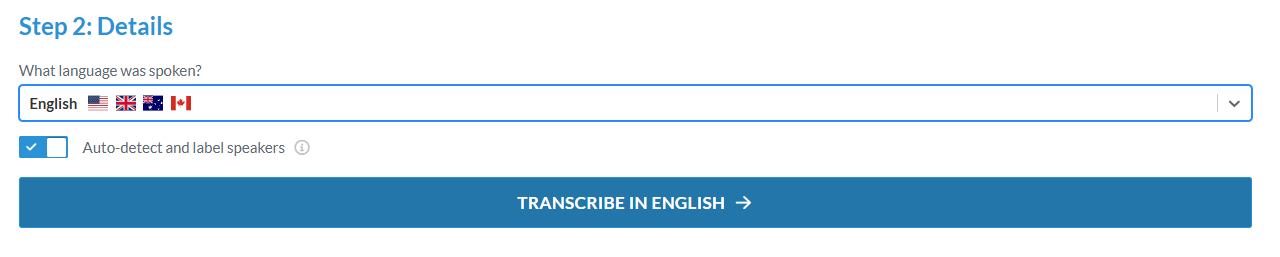
We selected English, and speaker identification is toggled on for auto-detection. And we hit "Transcribe in English."
#3 Wait till the transcription is over
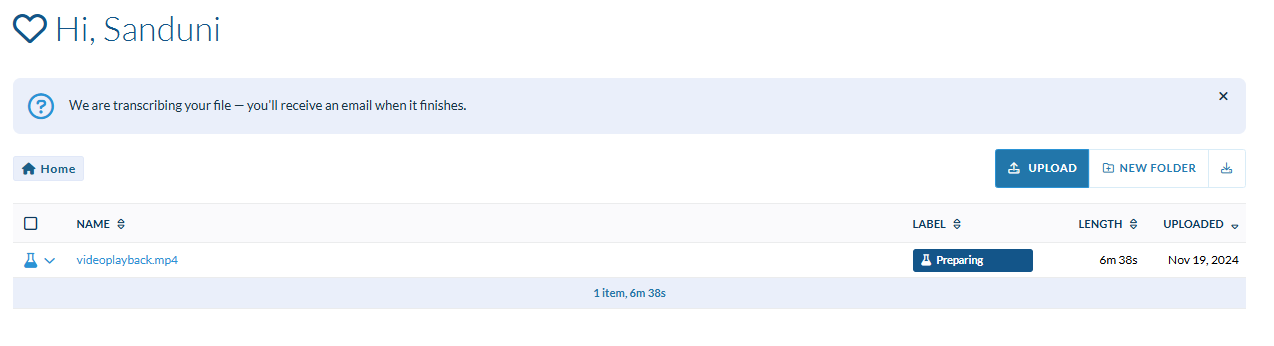
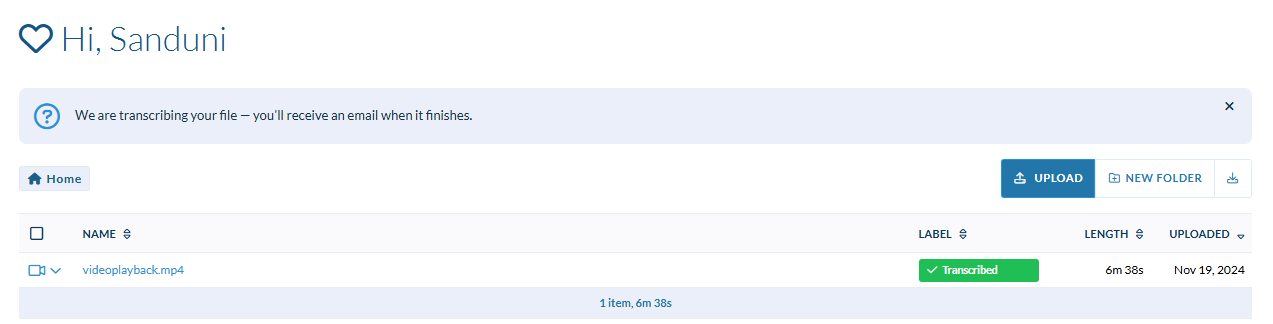
#4 Wait for the email for confirmation and open the transcript
Once the transcription is completed, you will get a link to a notification sent to your email notifying the completion of the transcription. Once the transcription is over click on the media to open the transcription:
#5 Fill out the survey
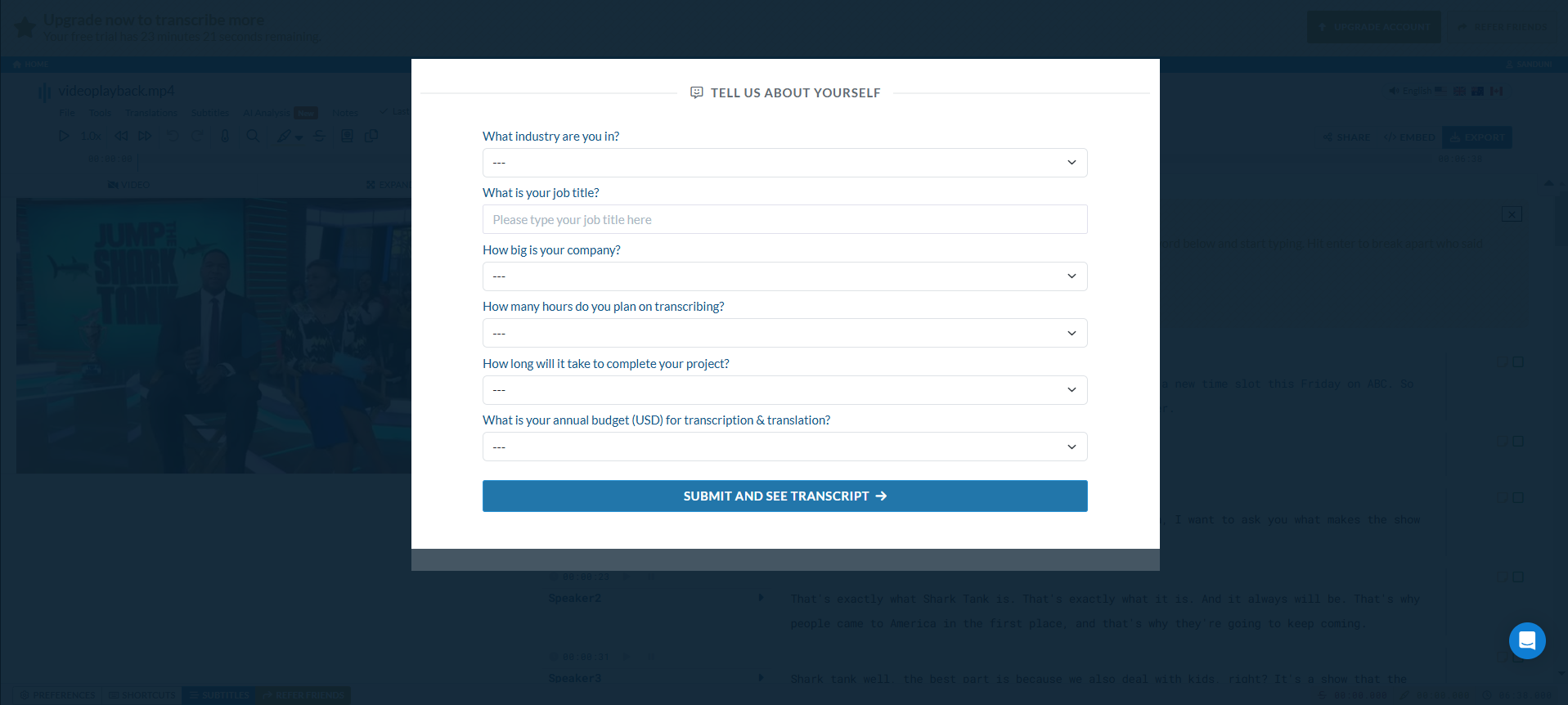
You will be welcomed with a survey that wants to know a little bit about yourself. You must fill it out to see the transcript. There are no skip buttons for this survey. (we tried to skip)
#6 Transcription quality report
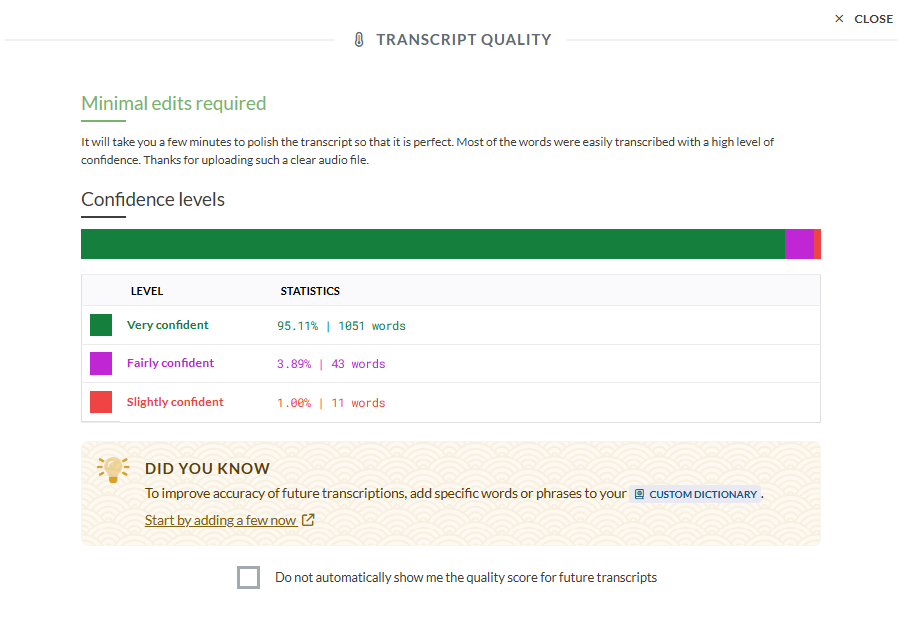
Next, you'll see this Transcript Quality report with the following details:
Minimal edits required: This indicates that the transcript is almost perfect, needing only a few minor adjustments.
Confidence Levels:
Very confident: 95.11% (1851 words)
Fairly confident: 3.89% (43 words)
Slightly confident: 1.00% (11 words)
#7 Finally you'll see the transcript
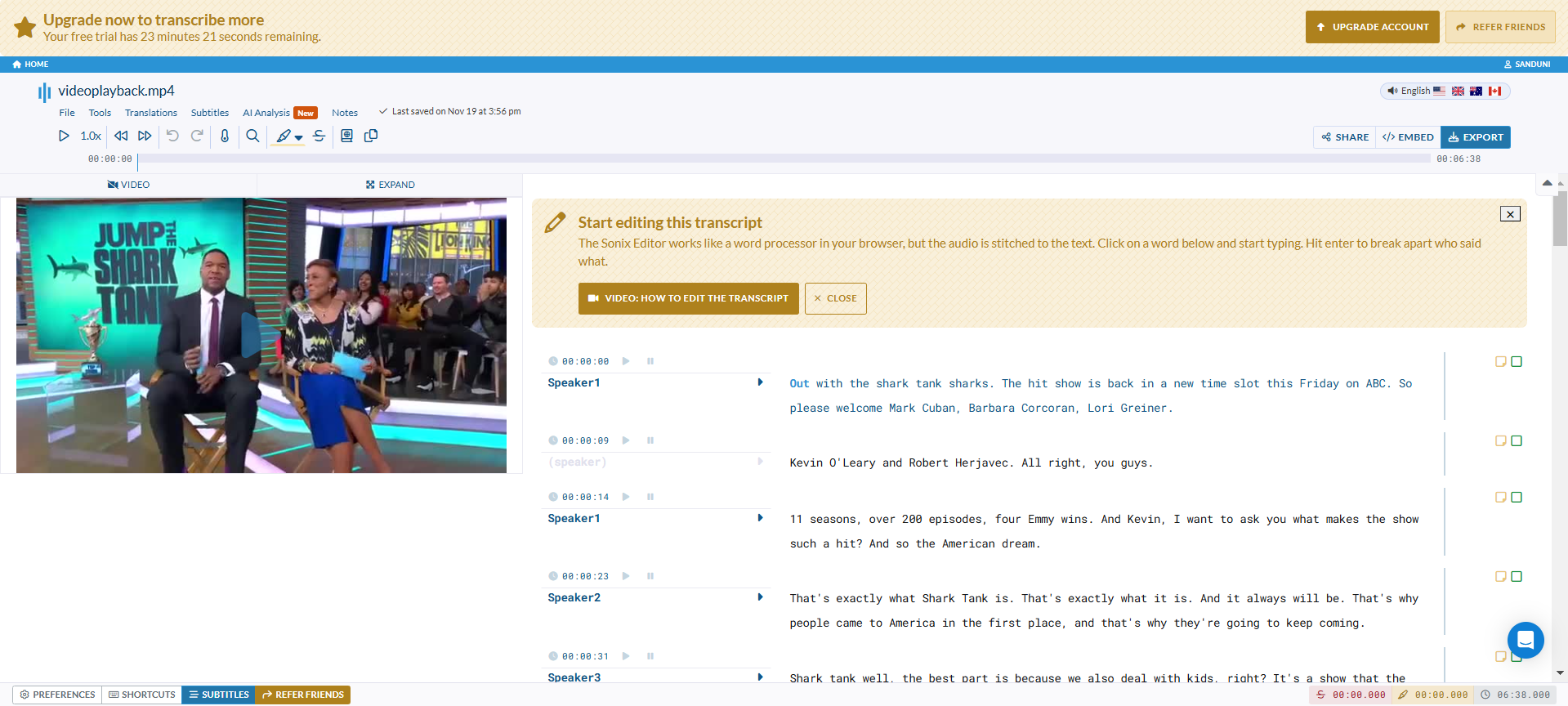
#8 Verdict of the transcription
The transcription provided by Sonix for this video clip of a Shark Tank segment on Good Morning America has several issues that impact its overall quality and accuracy. Here's a critical analysis of the transcription:
Accuracy Issues
Speaker Identification
The transcription fails to consistently and accurately identify speakers. For example, it incorrectly labels Robin Roberts as "Speaker7" at one point.
This inconsistency makes it difficult to follow the conversation flow.
Punctuation and Formatting
The transcription lacks proper punctuation and formatting, which affects readability. Sentences often run together without proper periods or commas. For instance:
"Barbara Corcoran: This damn thing. Okay. This ain't just a phone. This is a weight. Lift it three times a day to get rid of all that chicken fat."
This should be properly punctuated and formatted for clarity.
Transcription Errors
Misheard Words
There are instances where words are misheard or incorrectly transcribed. For example:
"Laura, you're going to. You're going to pitch us a tape recorder. Laura, you are pitching us the tape recorder."
The name "Lori" is incorrectly transcribed as "Laura" multiple times.
Incomplete Sentences
The transcription contains several incomplete or fragmented sentences, which may be due to overlapping speech or interruptions. For example:
"Also, can I just say the."
This sentence is left hanging without completion.
Conclusion
While the transcription captures the general content of the conversation, it falls short in terms of accuracy, formatting, and professional presentation. A high-quality transcription should have consistent speaker identification, proper punctuation, accurate word recognition, and clean formatting without extraneous information. This transcription would require significant editing to meet professional standards.
Check Sonix AI's full transcription here, and here's Jamie's transcription for the same video, for side-by-side comparison.
A step-by-step guide to editing transcripts in Sonix
Sonix offers a user-friendly interface for editing transcripts, combining the familiarity of a word processor with advanced audio-syncing capabilities. Here's a comprehensive guide to help you navigate and utilize its key features:
1. Accessing the transcript
Click on the file to open the transcript.
The interface resembles Microsoft Word but with a crucial difference: the audio is synchronized with the text. Users can share transcripts of interviews with colleagues and team members through a link, facilitating collaboration.
2. Audio-text synchronization
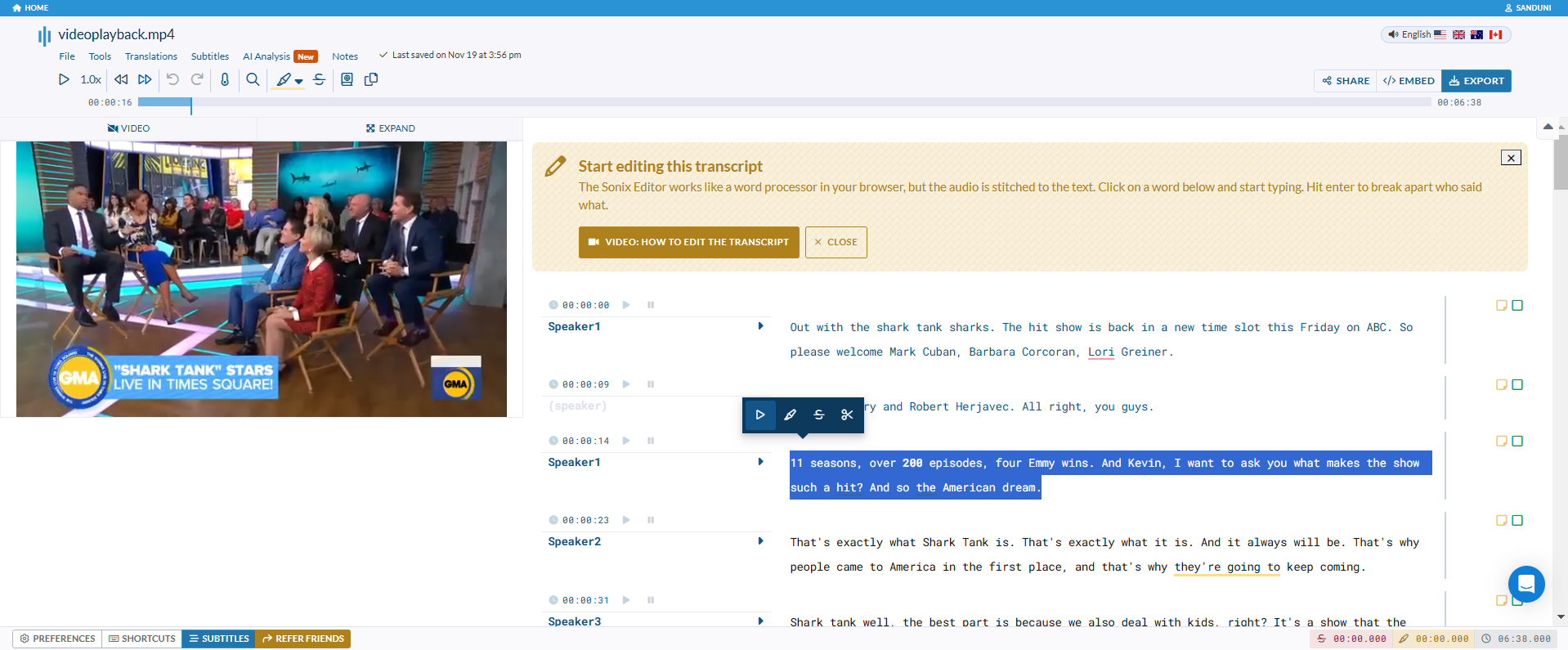
You can click anywhere in the transcript to hear the corresponding audio. This feature allows for precise editing and error correction.
3. Creating and managing speakers
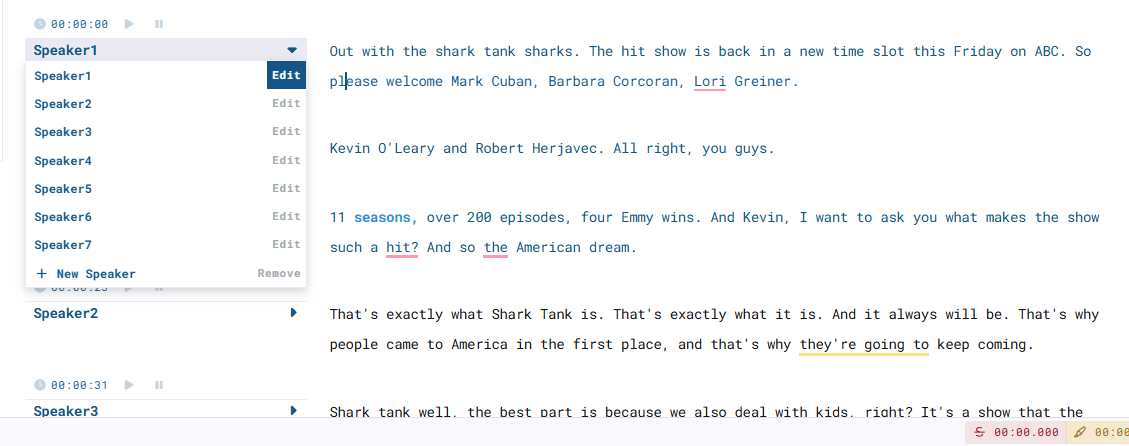
To add a new speaker, simply click on the arrow pointing to the right to open the drop-down menu. From there, you can choose "New Speaker" to enter a name, or you can modify "Speaker 1" to reflect the actual speaker's name.
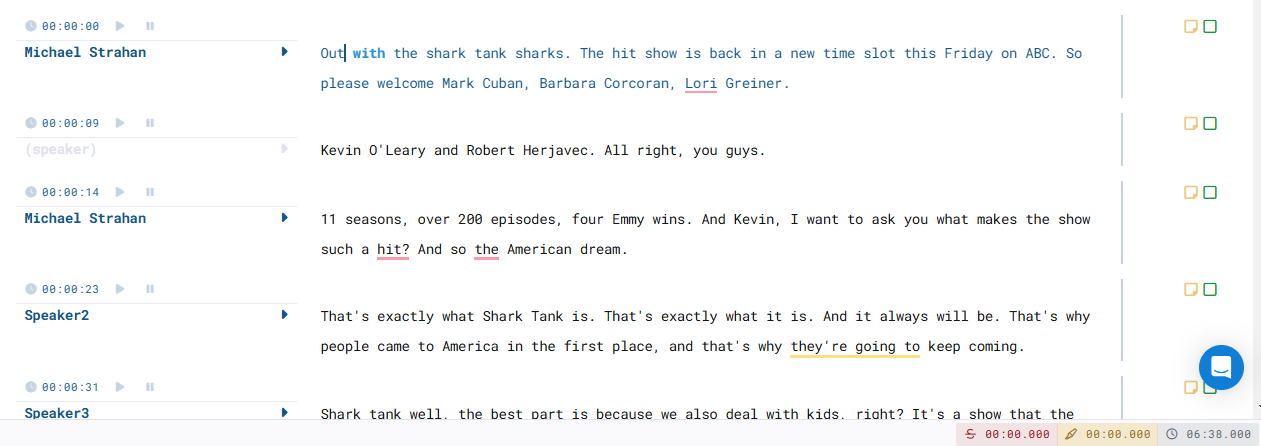
When you input the speaker's name, the system automatically fills in the speaker's name for the remaining dialogue.
4. Find and replace
If there's a certain term or name that you want to replace. You can do so by accessing the magnifying glass icon. It is the find-and-replace option.
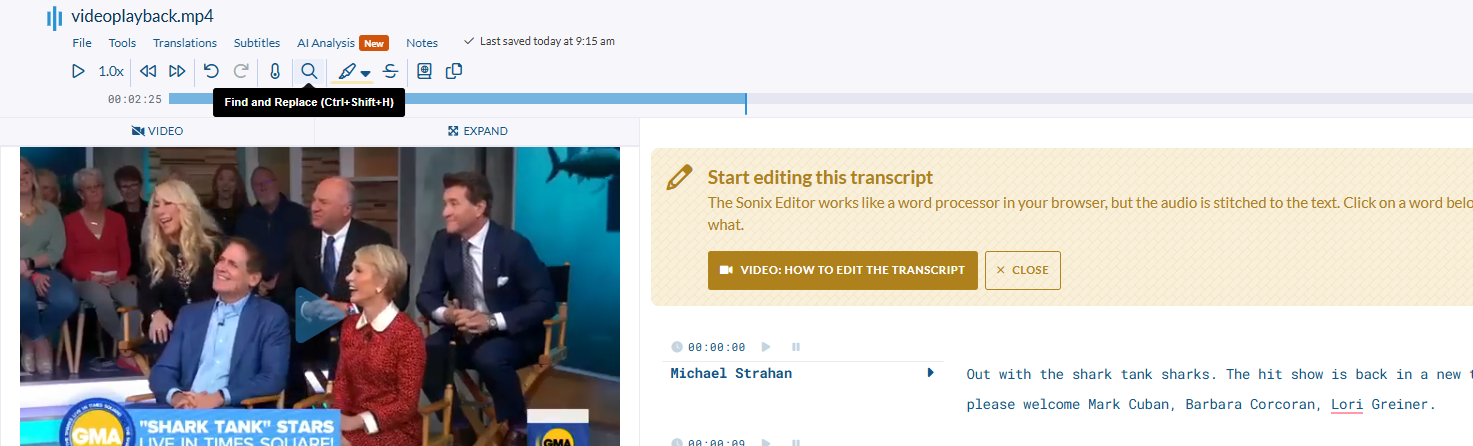
Access this feature by clicking the dedicated icon at the top menu bar.
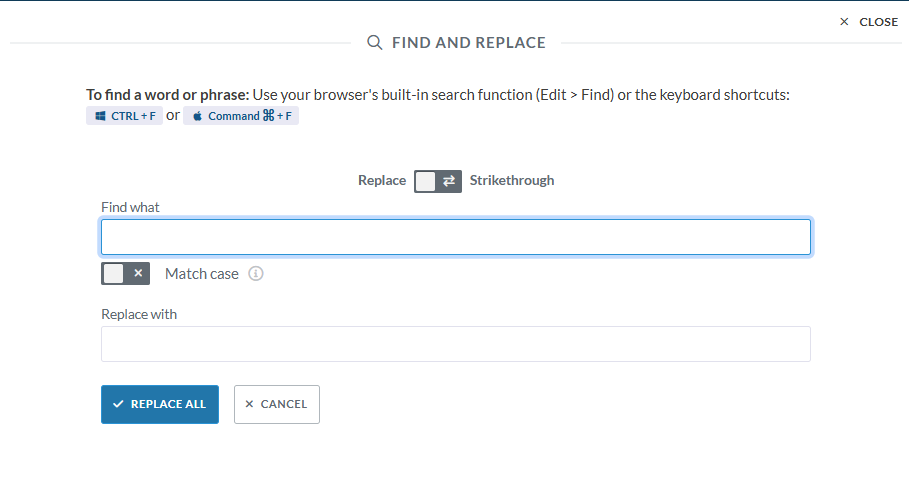
Enter the word to replace and its replacement. Click "Replace All" to make bulk changes.
5. Highlighting and strikethrough
If you want to highlight certain areas of the video or completely cut out certain areas, you can do so by either highlighting or adding a strikethrough. Here’s how to do that;

Select text by clicking and dragging.
Use the paintbrush icon to highlight in yellow.
Choose the strikethrough icon to mark the text in red.
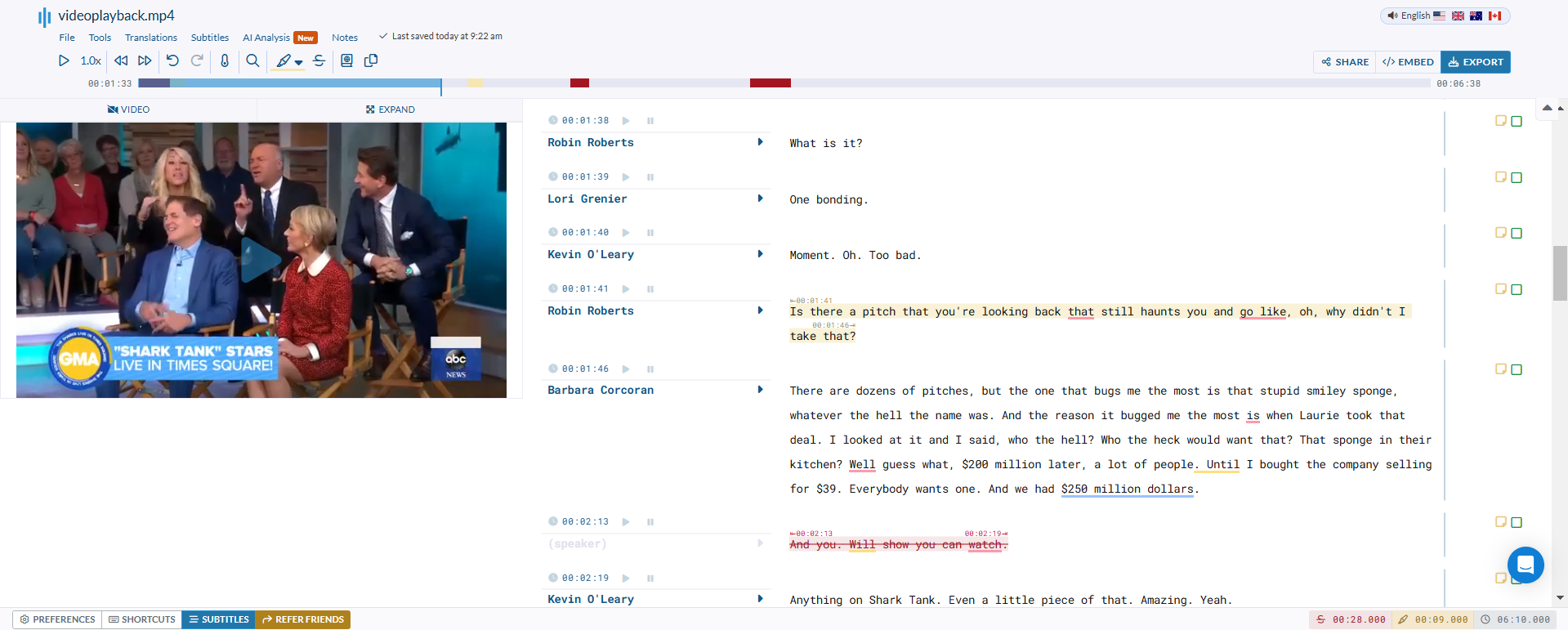
Once you have successfully highlighted or done a strikethrough, they will appear in the progress bar for easy navigation. These features are particularly useful when integrating with video editing platforms, allowing for seamless editing and transcription workflows.
6. Realigning time codes
After making many edits to the transcription, like deleting or replacing words, the timing might be off. Use the "Realign Time Codes" feature to fix this. Here's how you can do it.
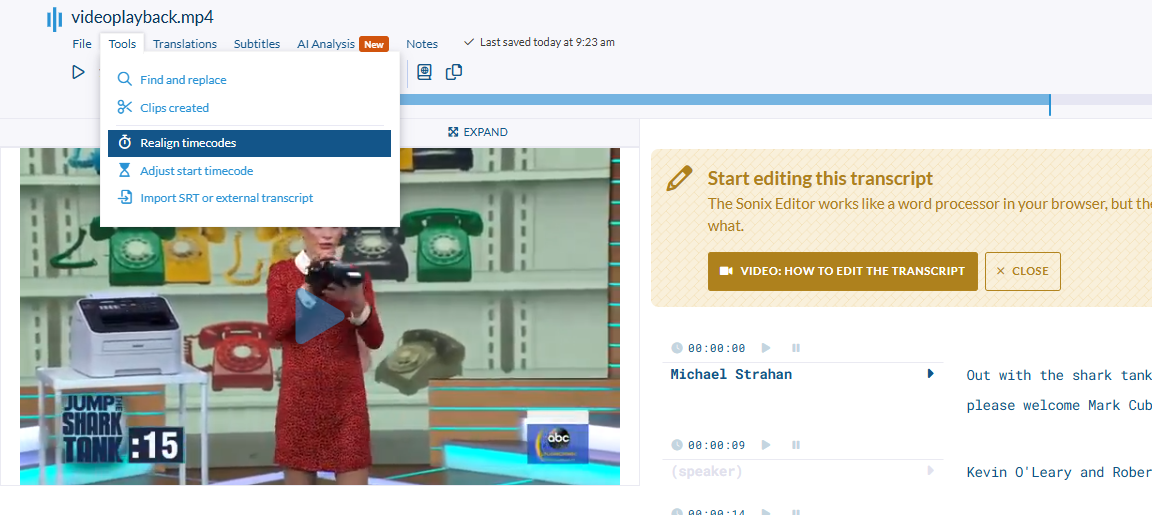
Go and click on "Tools" > "Realign Timecodes"
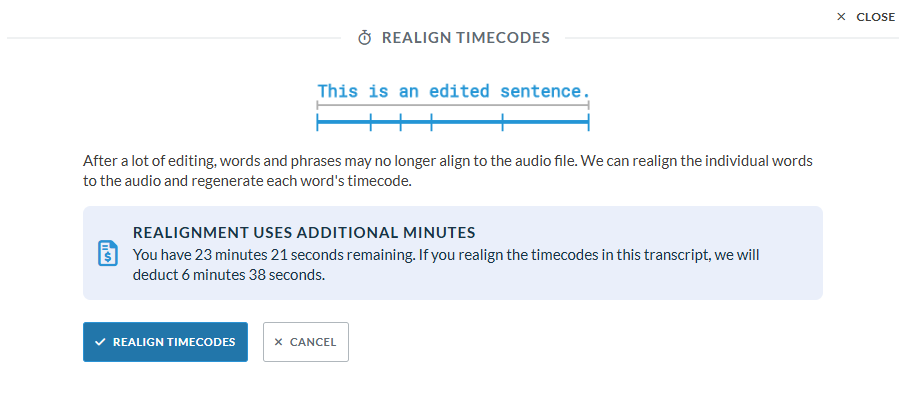
Upon reaching this screen, simply click "Realign Time Codes" to proceed.
7. Customizing preferences
Sonix AI provides many customization options for you to choose from. Let's go through each one of them. You have to first locate the Preferences button in the lower-left corner.

And give it a click.
Once you open it, you will have a lot of customization options to choose from.
Sonix editor Preference features and their benefits
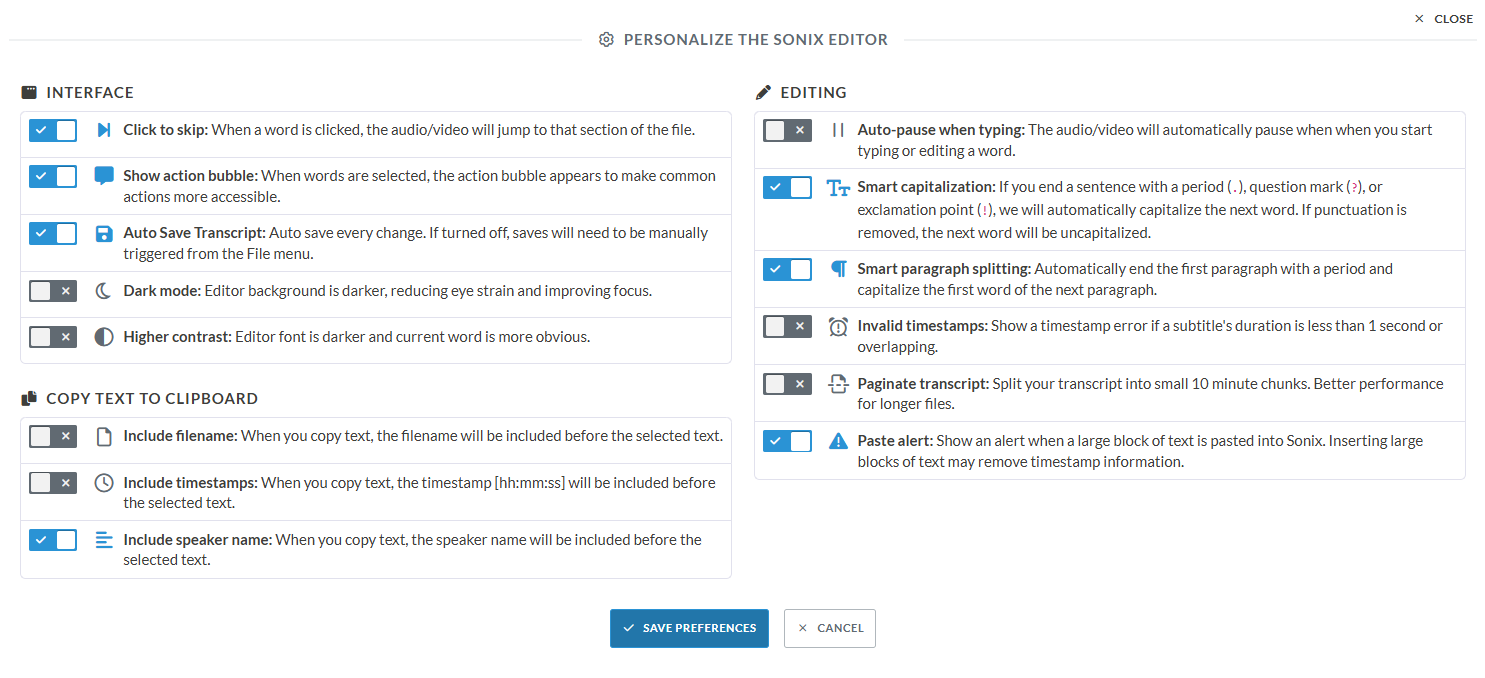
Interface Features
Click to skip: Enables instant navigation by jumping to specific sections when words are clicked, making review and editing more efficient.
Show action bubble: Displays a convenient menu of common actions when text is selected, streamlining the editing workflow.
Auto Save Transcript: Automatically preserves all changes, eliminating the risk of losing work.
Dark mode: Reduces eye strain with a darker background, perfect for extended editing sessions.
Higher contrast: Enhances text visibility with darker fonts and highlighted current words.
Copy Text Options
Include filename: Adds the source file name when copying text, helping with content organization.
Include timestamps: Incorporates time markers [hh:mm:ss] with copied text for precise reference.
Include speaker name: Adds speaker identification to copied text, essential for multi-speaker transcripts.
Smart Editing Features
Auto-pause when typing: Pauses playback automatically during editing, ensuring seamless workflow.
Smart capitalization: Automatically handles capitalization after punctuation marks, maintaining proper formatting.
Smart paragraph splitting: Creates new paragraphs with proper capitalization automatically, improving readability.
Invalid timestamps: Alerts users to timing issues, ensuring accurate synchronization.
Paginate transcript: Breaks long transcripts into manageable 10-minute segments for better performance.
Paste alert: Warns when large text blocks are pasted, preventing timestamp disruption.
These features combine to create an intelligent, user-friendly editing environment that prioritizes both efficiency and accuracy while maintaining professional transcript quality.
8. Utilizing shortcut keys
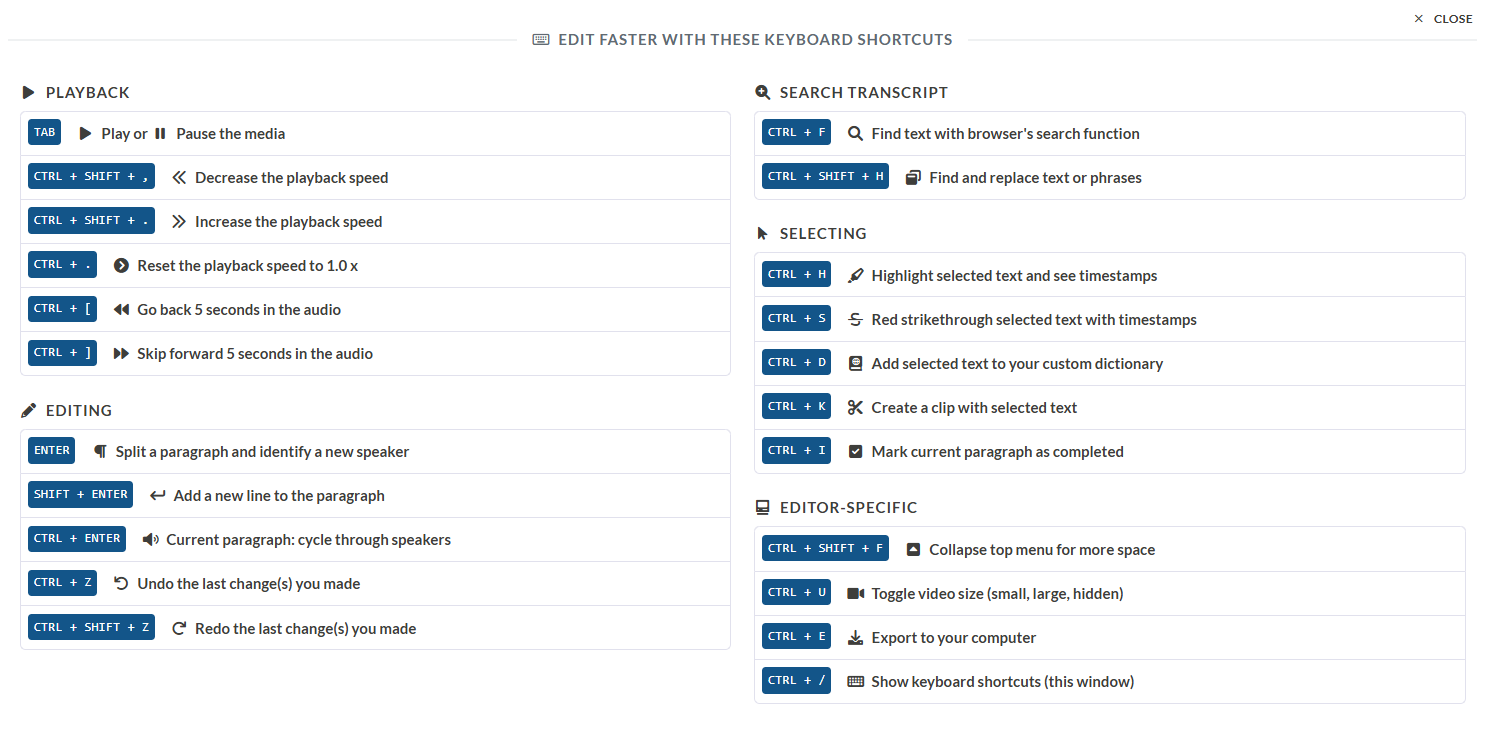
Access the shortcuts menu in the footer area to view all available keyboard shortcuts.
Sonix’s shortcuts help a lot when it comes to video editing. Use Play/Pause (TAB), adjust speed (CTRL + SHIFT + ,), split paragraphs (ENTER), highlight text (CTRL + H), and undo (CTRL + Z). You can also create clips (CTRL + K) or add to a custom dictionary (CTRL + D) for organized content. These shortcuts can save a lot of time in video script editing.
Real user reviews: What Others are saying about Sonix AI
Positive Review of Sonix AI by Verified User
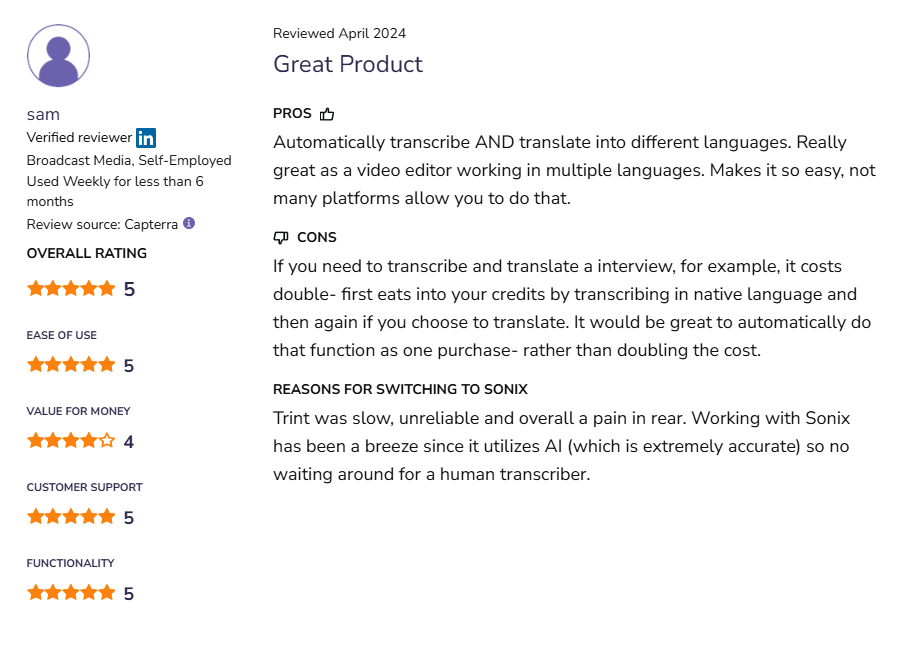
A verified user, Sam, a self-employed professional in the Broadcast Media industry, shared a positive review after using Sonix AI weekly for less than six months in April 2024.
Main Highlights:
Key Strengths:
Automatically transcribes and translates into multiple languages, making it ideal for video editors.
Praised for ease of use and extremely accurate AI-driven transcription.
Customer Support:
Rated highly for being supportive and responsive.
Concerns:
Cost Structure:
Transcribing and translating the same file costs double as it consumes credits separately.
Reasons for Switching to Sonix:
Switched from Trint due to its slow and unreliable performance.
Recent Critical Review For Sonix AI
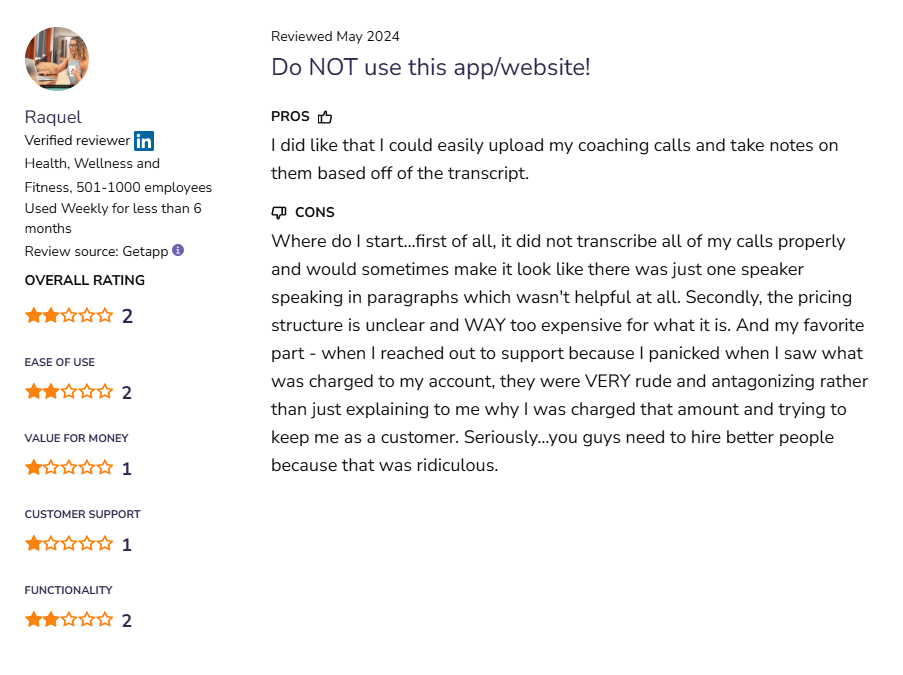
This review is from a verified user named Raquel who works in Health & Wellness at a company with 501-1000 employees. She used Sonix AI weekly for less than 6 months and gave a very critical review in May 2024. Here are the three key points from her experience:
Main Issues
Transcription Problems: Failed to properly transcribe calls, making conversations difficult to follow.
Pricing Concerns: The pricing structure was unclear and found the service too expensive for the value provided.
Customer Support: Extremely poor experience with support, described as rude and unhelpful.
This review highlights significant issues with Sonix AI's core functionality, pricing transparency, and customer service.
Sonix AI Pricing & Plans
Standard Plan (Pay-as-you-go)
Price: $10 per hour of transcription
Best for: Project-based or occasional users
Features: Basic transcription; no monthly subscription required
Premium Plan (Subscription)
Price: $5 per hour of transcription + $22 per user/month
Savings: 25% with annual billing
Best for: Regular users needing advanced collaboration tools
Features: Advanced collaboration, more frequent transcription access
Enterprise Plan (Subscription)
Price: Custom (Contact required)
Best for: High-volume transcription needs
Features: Advanced user controls, high-volume transcription, content analysis
Sonix AI Pros & Cons
Pros
Transcription Quality: Good audio, 40+ languages with timestamps.
Editing: User friendly editor, intelligent highlights, search/replace, custom dictionaries.
Content Management: Export in multiple formats, subtitles, team collaboration, and multilingual translation.
Cons
Usage Limitations: No live transcription; only pre-recorded files with manual upload.
User Experience: Complex navigation, long summaries, and transcripts require surveys.
Cost: $10/hour for basic plans, extra for premium features.
Technical Requirements: Good audio, internet; doesn't work offline.
Why Jamie AI is the best alternative to Sonix AI
Let me be clear, Sonix AI has impressive transcription. But it comes with lots of work. Sonix AI is ideal for when you want to produce videos or content for social media platforms. You can edit texts, cut them out, along with that video clip, and make a seamless video with an amazingly edited script.
But this is not the tool for live meetings.
It's too much work.
So many steps are needed to get your meeting summary the way you like it. Plus it can only transcribe audio or video files so you can't use Sonix when a live meeting is taking place.
Jamie can transcribe live meetings, in-person discussions, and videos with ease. It provides summaries, action items, and decisions – all without bots or file uploads.
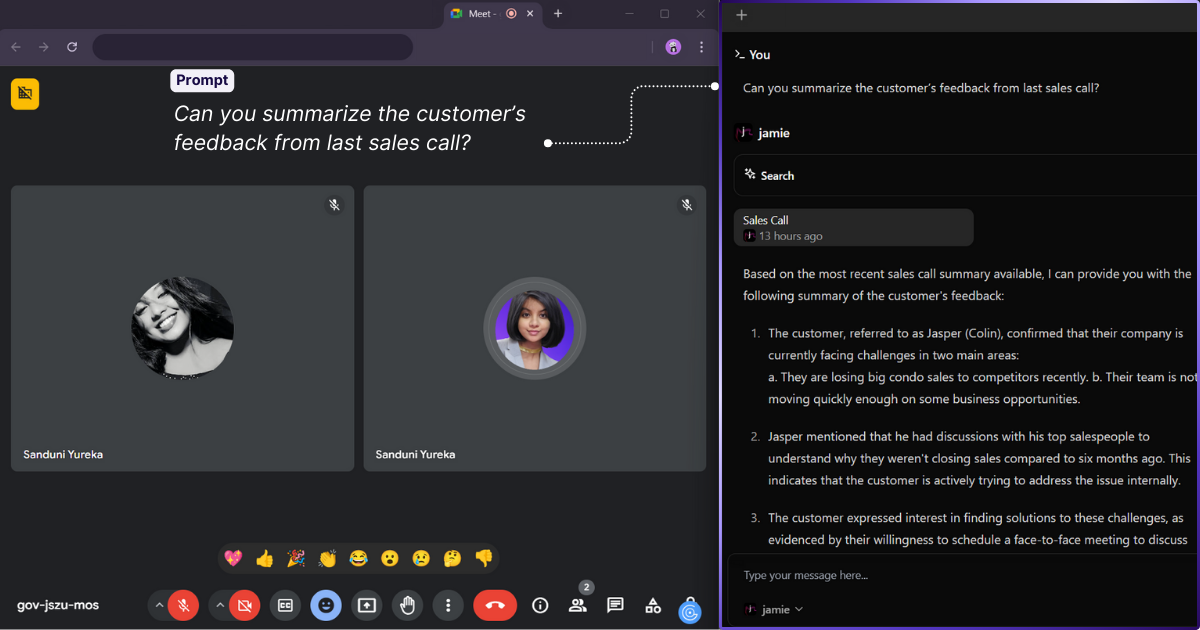
With the Executive Assistant Sidebar, you can access notes, brainstorm, draft emails, and use AI models like GPT-4, Claude 3 Opus, and Jamie's own LLM for in-the-moment help. It supports 20+ languages, integrates with calendars, is GDPR compliant, and has flexible pricing.
For smarter, better transcription and AI help for in-the-moment help, Jamie can be of better help for you.
The Best Sonix AI Alternative is Jamie AI | Comparison Table
Here's a comparison highlighting the key differences between Sonix AI and Jamie;
Meeting Transcription Process
Sonix AI: Only works with pre-recorded audio/video files, manual upload required
Jamie: Transcribes live meetings instantly, works with any video conferencing platform and even offline meetings
Summary Generation
Sonix: Multiple manual clicks through options (AI Analysis, Generate Summary, Custom Settings)
Jamie: One-click for all summaries, chapters, and topic detection without manual intervention.
User Interface
Sonix: Clunky interface with multiple menus, settings, navigation
Jamie: Simple start/stop controls, minimal clicks
AI Analysis
Sonix: Separate options for summaries, chapters, sentiment analysis, topic detection
Jamie: All analysis features in one go, plus AI Sidebar (CTRL + J) for extra insights
Customization Process
Sonix: Multiple steps to customize summaries, separate actions for different features
Jamie: Instant customization through Executive Assistant Sidebar with simple prompts
Meeting Length and Processing
Sonix: Pre-recorded content only, time limits based on plan
Jamie: Up to 120 minutes, real-time processing
Accessibility
Sonix: Internet connection, manual file upload required
Jamie: Offline, syncs with calendars, processes in background
Cost Structure
Sonix: $10 hourly transcription with user fees
Jamie: Free Plan: €0 per month, Standard Plan: €24 per month and above.
Data Management
Sonix: Standard storage, processing
Jamie: GDPR compliant, encrypted storage in Germany, auto delete audio after transcription
Overall Workflow
Sonix: Multiple steps and clicks for each feature and analysis
Jamie: One-click solution for comprehensive meeting documentation and analysis
How Jamie Gives Perfect Meeting Summary + Transcription in Just One Click
Here's a quick look into how Jamie can transcribe your videos, and organize live meetings both online and offline.
Yes, you heard that right, we transcribe anything, in whatever platform you are on, whether it's offline or online. Pretty reliable right?
Now let's get started.
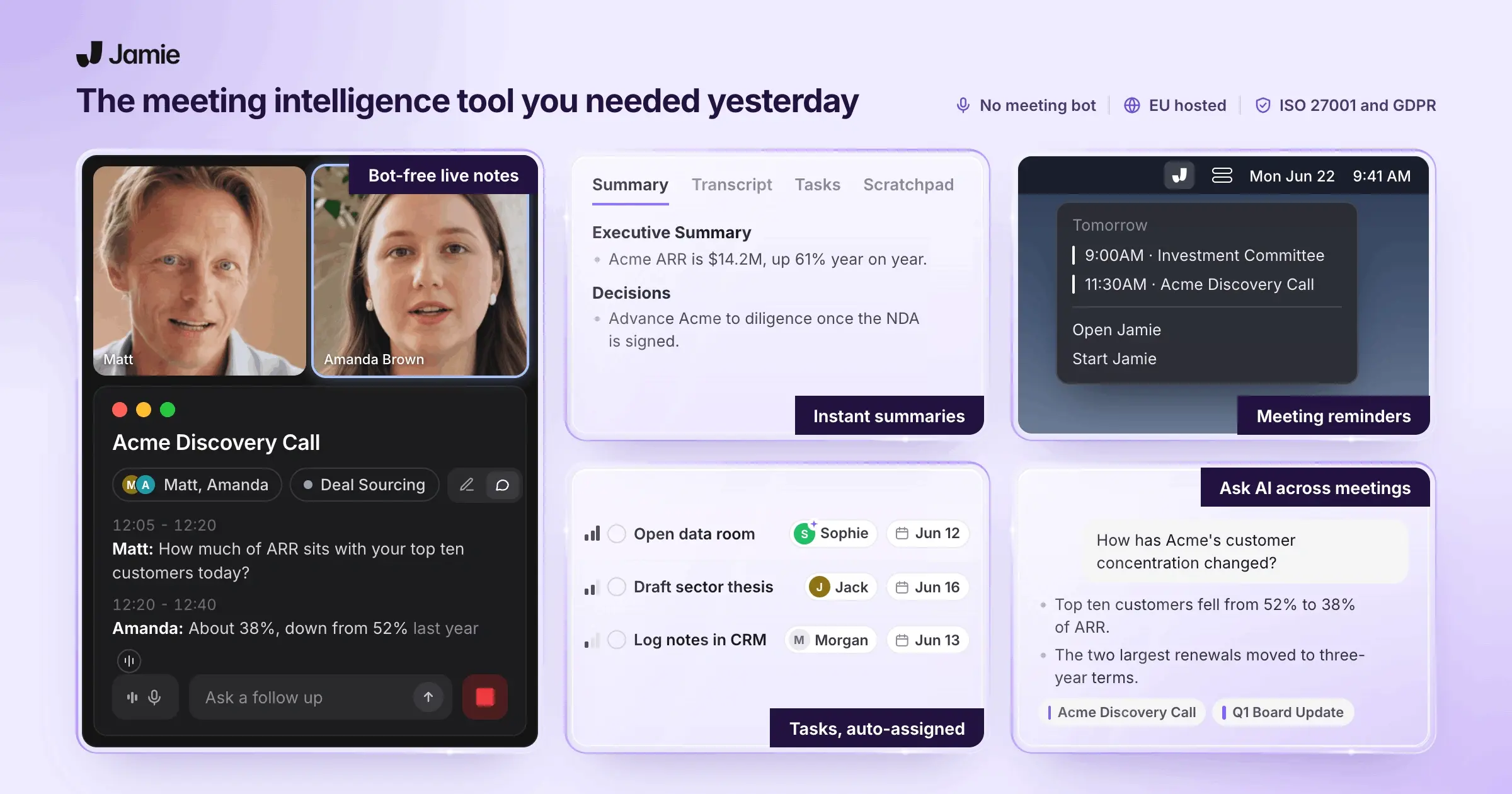
And there you have it.
Everything you need, in just one click of a button. Apart from the speaker identification process, you only had to click one button.
Sonix AI has multiple individual steps for each of these options; getting meeting summaries, topic detection, chaptering the summary, and also options to select whether you want sentences and bullet points for the summary. (it's a lot of work!)
Key Features of Jamie AI
Get readable summaries and clear action items instead of messy transcripts
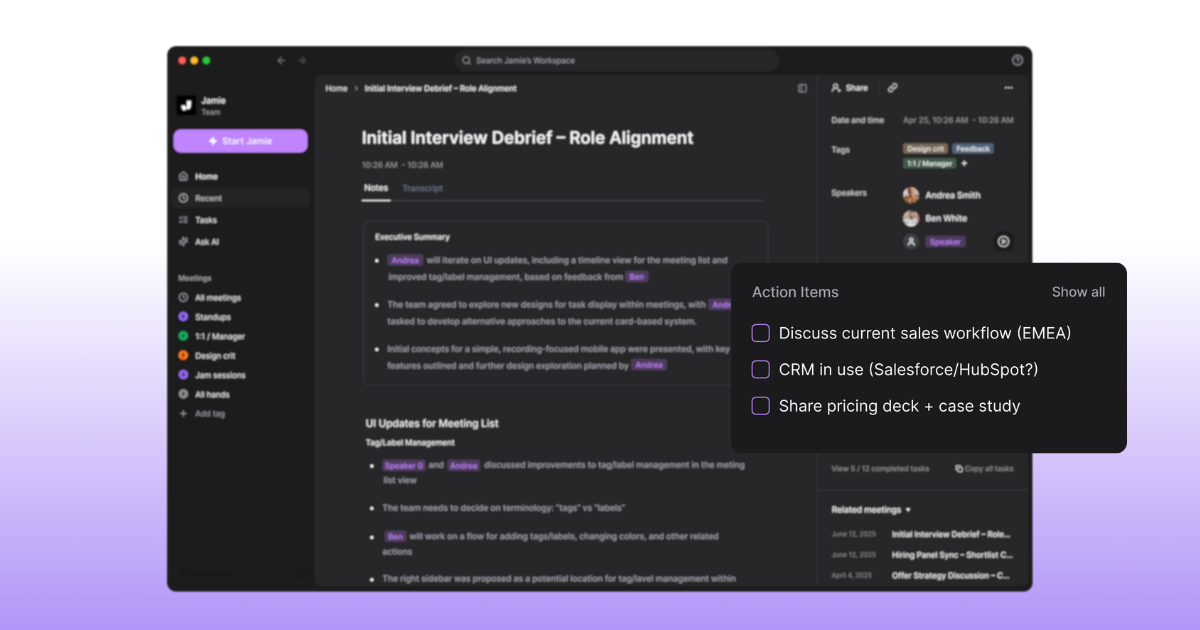
You stop digging through walls of text to find what was decided. Jamie structures every meeting into readable summaries organized by topic, pulls out specific action items with the right people assigned, and gives you clean transcripts you can edit in seconds.
Meeting notes: Get topic-organized summaries with speaker quotes that help you remember the exact conversation
Action items: See captured tasks with assigned owners automatically pulled from the discussion
Transcription: Access instant transcripts for every meeting that are readable and searchable
Editing: Make changes to summaries or transcripts with formatting tools, find-replace, and link insertion
Tagging: Organize meetings with tags so you can filter and find them later
Remember who said what without replaying the recording
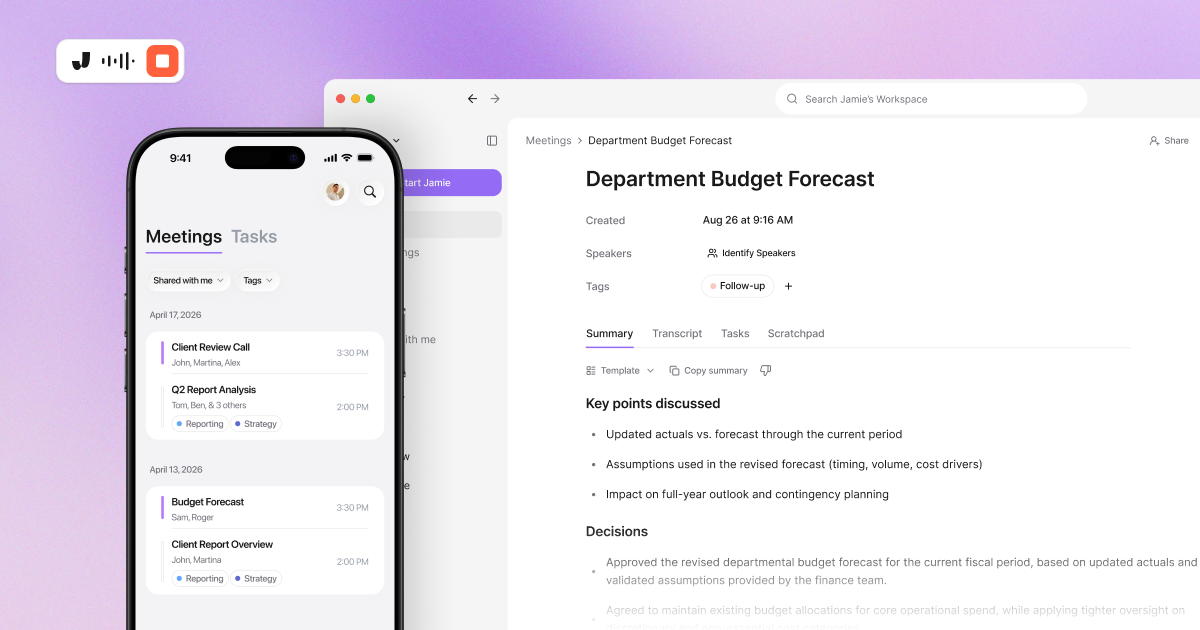
You skip the confusion of "who was that again" in your notes. Jamie identifies speakers, remembers voices across meetings, syncs with your calendar to auto-populate attendee names, generates descriptive meeting titles automatically, and sends optional consent emails to participants before recording.
Speaker identification: Jamie labels speakers in transcripts so you know who contributed each point
Speaker memory: The tool remembers voices from past meetings and links names automatically for future calls
Calendar integration: Connect Google or Outlook calendar to sync meeting details and populate attendee information
Automatic meeting titles: Get meaningful titles generated for ad-hoc meetings instead of generic time stamps
Consent emails: Send automatic notifications to attendees 24 hours before meetings informing them about recording
Work anywhere without platform restrictions or privacy concerns
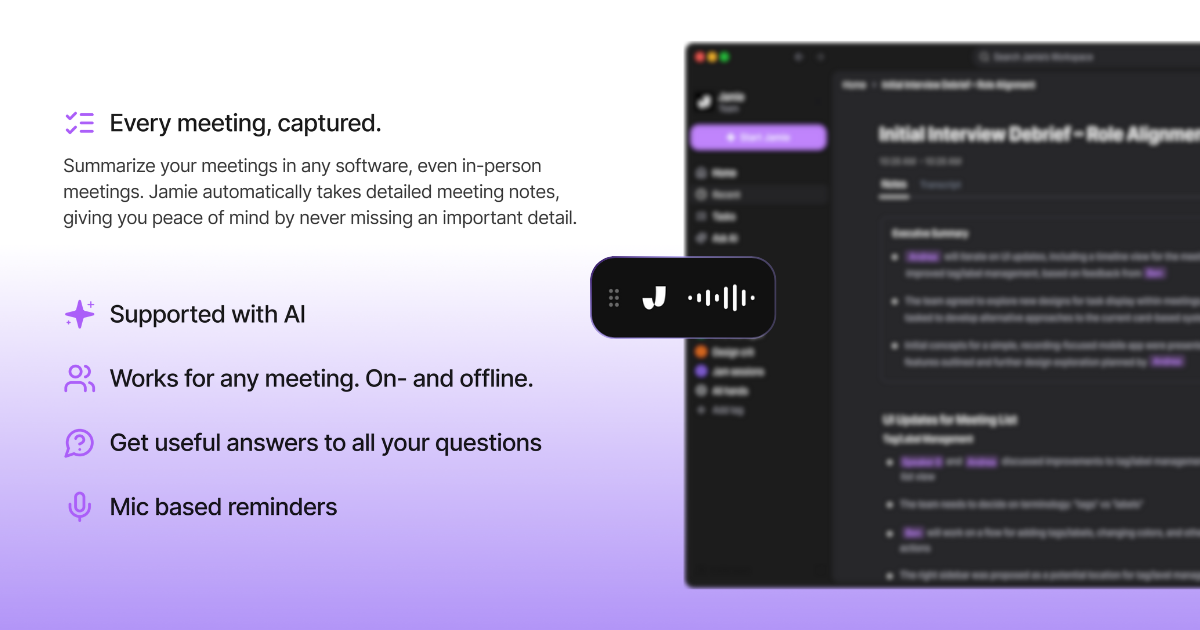
You avoid the awkwardness of bots joining calls and platform compatibility headaches. Jamie works as a native application on your device, captures meetings online or offline, supports in-person discussions, handles conversations in any language, and keeps everything secure with European privacy standards.
Bot-free operation: No virtual bot joins your calls, Jamie captures system audio directly from your device
Cross-platform support: Works on macOS, Windows, and iOS so you can record meetings on any device
Online and offline meetings: Capture notes during video calls, in-person meetings, or offline discussions without internet
100+ languages: Transcribe and generate summaries in over 100 languages with automatic language detection
GDPR-compliant encryption: All data encrypted with AES in transit and at rest, stored in Frankfurt Germany servers
iOS mobile app: Record in-person meetings from your phone with same features as desktop
Push meeting insights into your tools without manual data entry
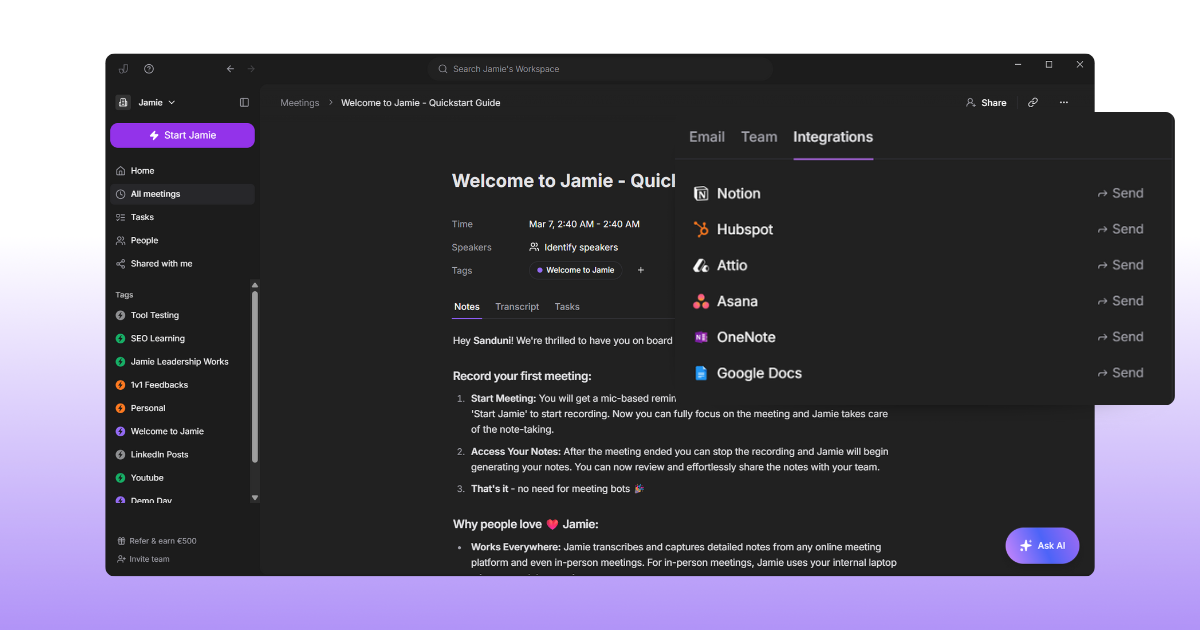
You stop copying and pasting meeting notes into five different systems. Jamie connects directly to your CRM and productivity apps, sends summaries and tasks automatically, and preserves formatting when you need to move content manually.
Salesforce integration: Send summaries and transcripts as notes to any Salesforce record like leads or opportunities
HubSpot integration: Push meeting notes to HubSpot contacts, deals, or companies automatically or manually
Attio integration: Sync summaries and transcripts to Attio person or company records as notes
Asana integration: Send action items as tasks to Asana projects with summary attached as PDF
Notion and OneNote: Automatically or manually sync meeting notes to Notion databases or OneNote pages
Webhooks: Set up custom integrations through Zapier or Make using webhook triggers for new meetings
Copy-paste compatibility: Preserve formatting and task status when pasting into tools like Linear, Todoist, or Bear
Get answers and insights without reading every transcript
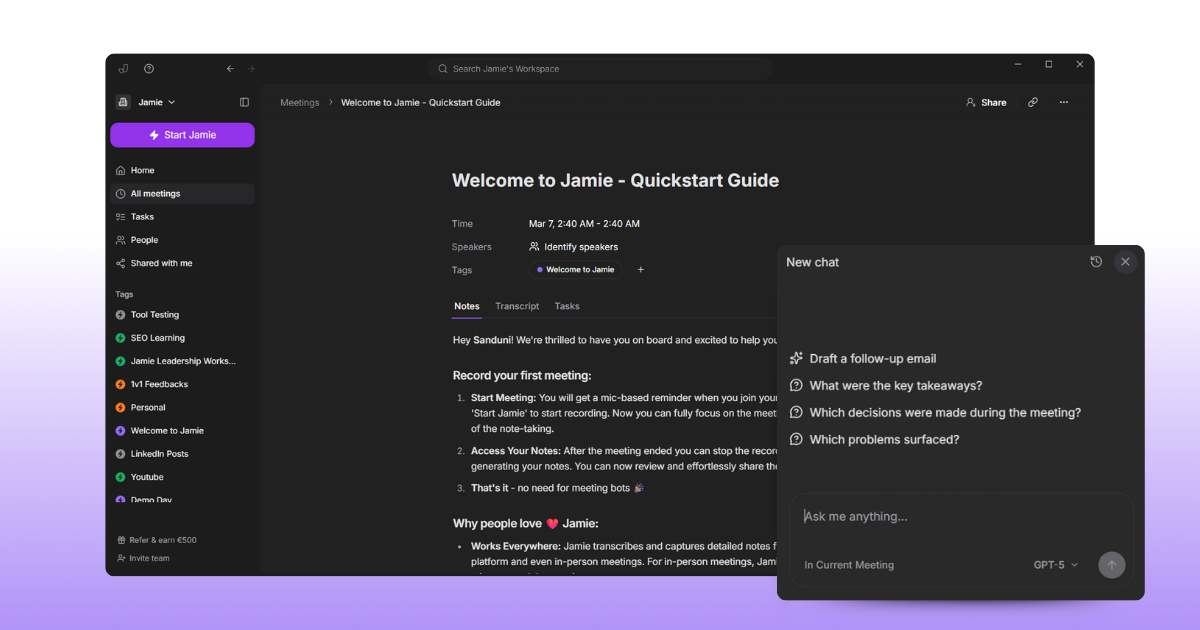
You avoid scrolling through hours of past meetings hunting for one detail. Jamie lets you ask questions about your meetings, jot quick thoughts during calls, structure notes with custom templates, and search across all your meeting history.
Ask AI: Ask questions about single meetings or search across all your meetings to find specific information
Scratch Pad: Jot down quick thoughts, follow-ups, or reminders during meetings without switching tabs or apps
Templates: Apply predefined note structures for different meeting types like sales calls, standups, or interviews
Search: Find past meetings and specific topics across your entire meeting history with searchable transcripts
Final Thoughts on Sonix AI
The Bottom Line: Sonix AI has some nice features, I'll give it that. But it's not for everyone.
Just getting the basics done is a multi-step process that could potentially hinder your productivity. If you're looking for a super easy app to use, check out Jamie AI. Jamie AI provides one-tap meeting notes, transcripts, and AI highlights. Online or offline, Jamie AI gets the job done.
And the free plan is amazing for business too - it comes with all the essentials and is platform-friendly. If you want to stop wasting time typing up meeting notes and start focusing on what matters, give Jamie AI a try.
One-click is all it takes for amazing transcripts and summaries.
Read More
Need meeting notes, not just transcripts? See our best AI note taker roundup.
FAQs About Sonix AI
Can Sonix AI Give a Meeting Summary?
Yes it can, you simply have to click the AI Analysis page in the header, and you will get a drop-down menu like below.
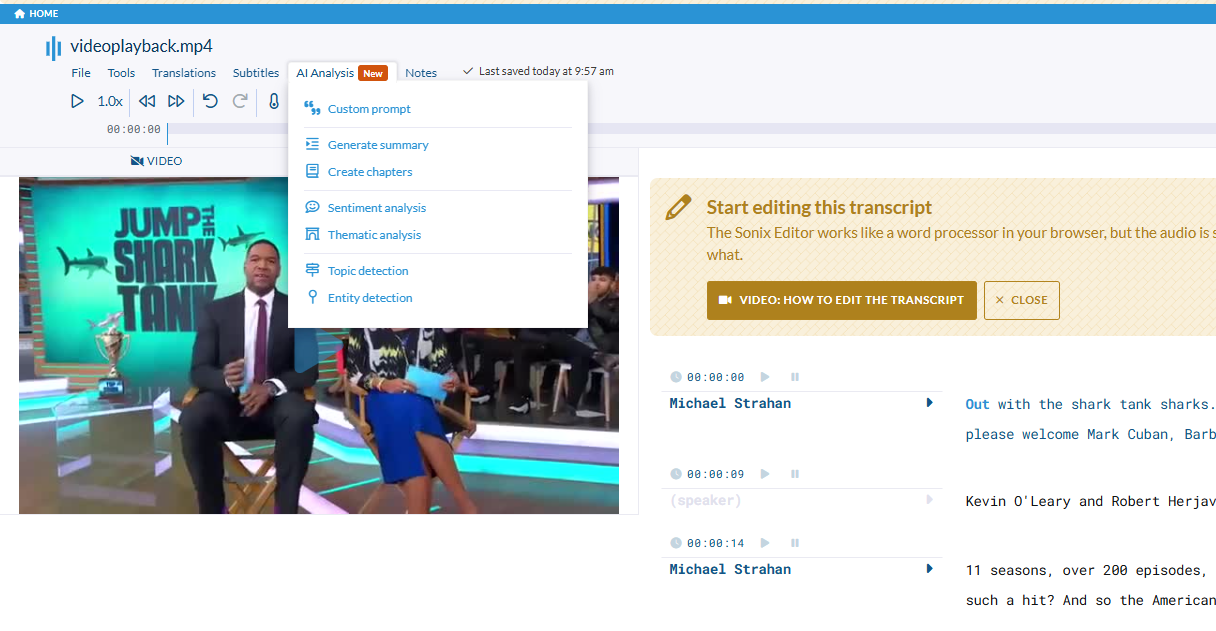
Pick the option that you want;
Custom prompt
Generate summary
Create chapters
Sentiment analysis
Thematic analysis
Topic detection
Entity detection
For this text, I'll be picking Generate Summary.
Once you click it, you will be met with these three options:
Do you want the summary in sentences
Or do you want the summary in bullet lists
And how many sentences do you want?
The customization to get your summary has many steps to it. (feels like a lot of clicking)
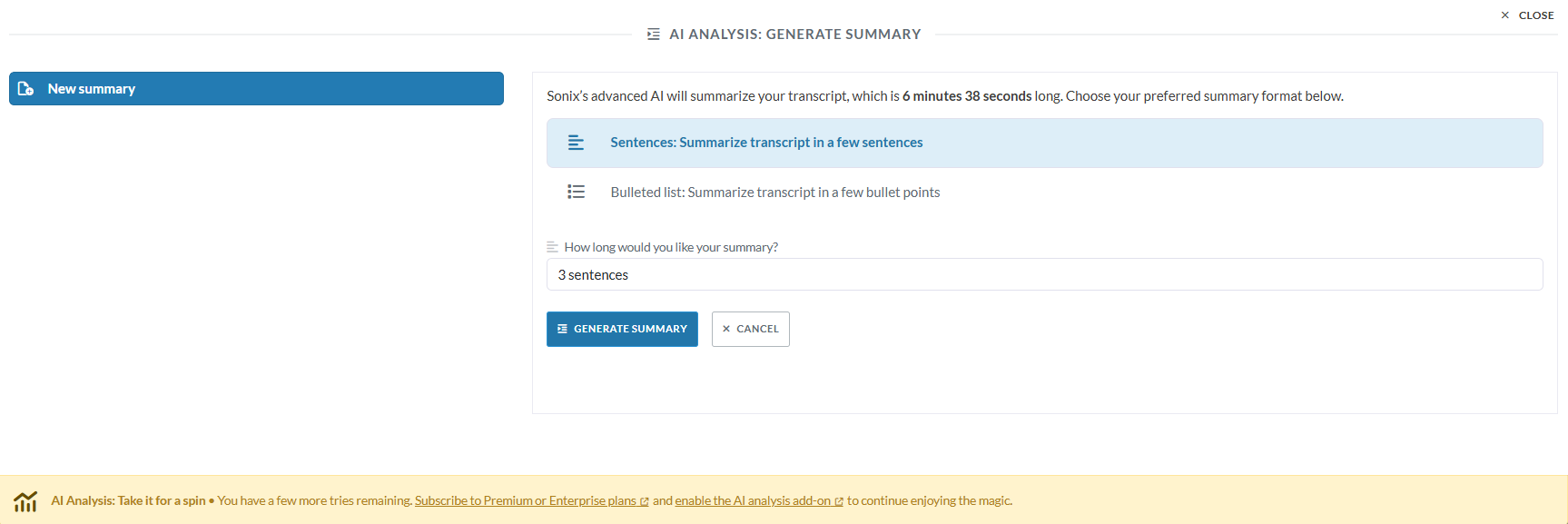
I am going to select the highest number Sonix AI offers which is 10 sentences.
Let's check how the summary is going to look.
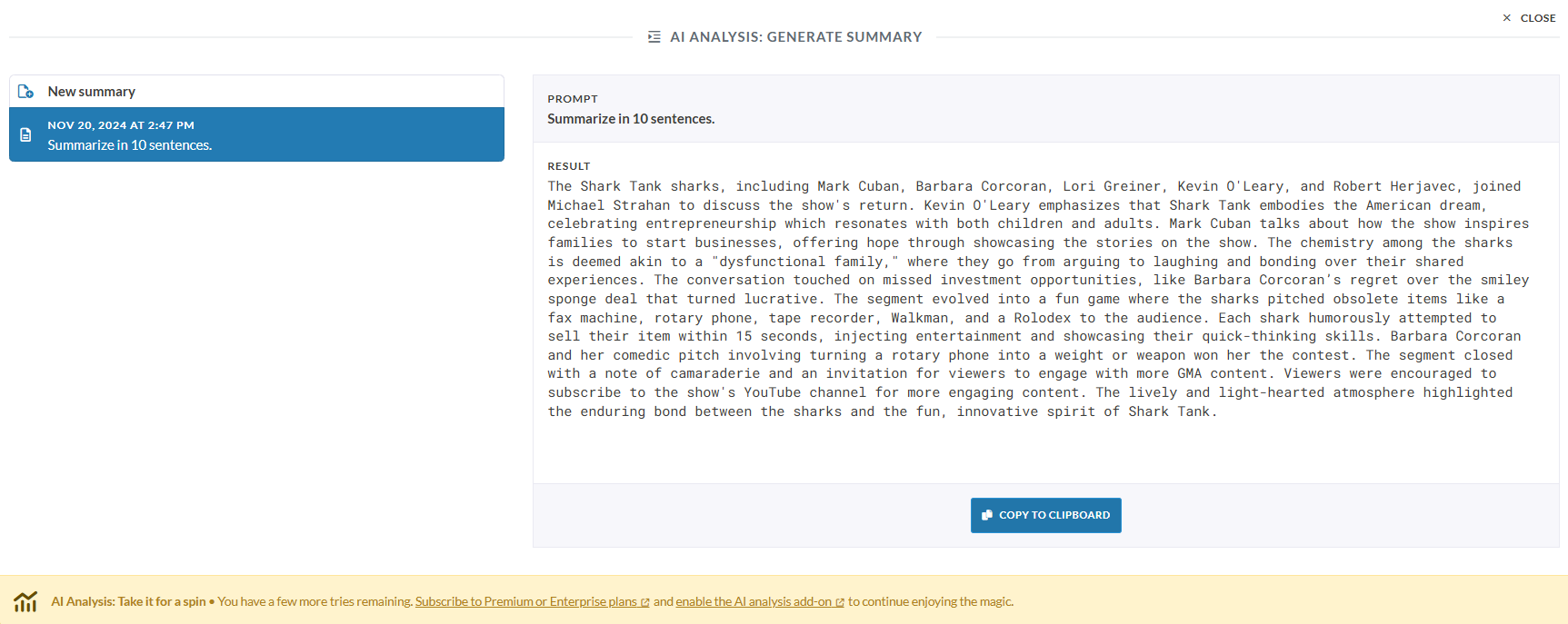
What you'll see is one big block of text with no clear headings or sections, making it hard to quickly find info. Sonix AI misses the entire point of summarizing the key points discussed in the video. It doesn't capture important stats like a number of seasons, episodes, or Emmy awards.
It mentions the Sharks but doesn't give context to how long they've been appearing together and all the other fun off-set antics they have. Sonix AI's summary lists old items that have been on the show, but it doesn't provide specific examples of the Sharks' pitches.
Overall, Sonix AI's summary is woefully inadequate.
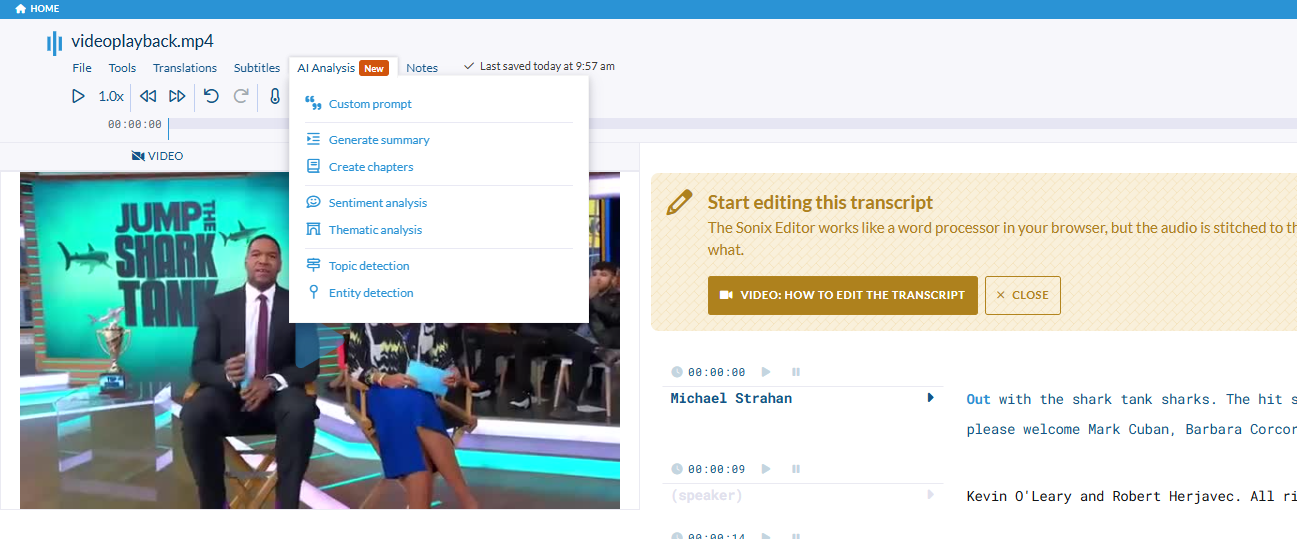
What's annoying is the user has to click through so many options just to get a summary of their meeting, meaning if they wanted a summary they only get a block of a paragraph. If they want topic detection, they have to navigate back to the top header and choose the specific option "Topic Detection", If they want chapters in the summary, they again have to to navigate back to the top header and choose that specific option, "Create Chapters".
It's just too much work for the user!
But with Jamie as your AI meeting assistant, you can get detailed meeting summaries in just 4 simple steps. First, start recording your meeting or video with a single click. Second, Jamie transcribes everything automatically in the background. Third, identify speakers once, and Jamie remembers them for future meetings. Finally, Jamie generates a complete summary with action items, decisions, and chapters—all in one go. No need for multiple clicks or navigating complex menus—Jamie simplifies everything with just one click!
Is Sonix AI legit?
Yes, Sonix AI is a legitimate automated transcription service known for its user-friendly interface and relatively accurate transcriptions. It features confidence scoring and AI summaries, making it popular among users. While its performance varies with audio quality, many find it effective for clear recordings. However, it tends to be more expensive than some competitors. Like any AI tool, it has strengths and limitations, so testing it with your specific needs is recommended before subscribing.
Is Sonix AI secure?
Sonix AI prioritizes security and data protection, achieving SOC 2 Type 2 compliance. It uses TLS encryption for data transfers, AES-256 for storage, and robust network security. Features include two-factor authentication, role-based access control, and GDPR adherence. Sonix is fully automated, ensuring no human access without permission, and regularly audits its security measures. While offering enterprise-grade security, advanced options like SSO/SAML are exclusive to Enterprise accounts.
Is Sonix AI free?
Sonix AI offers a free trial that includes 30 minutes of free transcription. This allows users to test the service without any obligation. However, Sonix is not entirely free. After using the free trial, users need to subscribe to one of Sonix's paid plans to continue using the automated transcription service, for additional transcriptions or to access features beyond the initial 30 minutes.
How long does Sonix AI take?
Sonix AI is very fast at transcribing audio and video files. It typically takes between 10% to 20% of the recording's duration to complete the transcription. For example, a 30-minute file usually takes a few minutes to transcribe. Sonix always converts audio to text faster than the total length of the file, making it significantly quicker than manual transcription services.
What are the shortcut keys in Sonix AI?
Sonix Keyboard Shortcuts
Playback Controls
TAB: Play/Pause media - Essential for quick playback control
CTRL + SHIFT + ,: Decrease playback speed - Helps in detailed transcription
CTRL + SHIFT + .: Increase playback speed - Useful for quick review
CTRL + .: Reset playback speed to 1.0x - Returns to normal speed
CTRL + [: Go back 5 seconds - Perfect for reviewing unclear sections
CTRL + ]: Skip forward 5 seconds - Helps navigate through content
Search and Text Operations
CTRL + F: Find text using browser search - Quick text location
CTRL + SHIFT + H: Find and replace text - Efficient bulk text editing
CTRL + H: Highlight selected text with timestamps - Visual reference
CTRL + S: Red strikethrough with timestamps - Mark text for removal
CTRL + D: Add text to custom dictionary - Improves future transcriptions
CTRL + K: Create clip with selected text - Extract important segments
Editing Functions
ENTER: Split paragraph and add new speaker - Organizes multi-speaker content
SHIFT + ENTER: Add new line to paragraph - Improves formatting
CTRL + ENTER: Cycle through speakers - Quick speaker management
CTRL + Z: Undo last changes - Reverse mistakes
CTRL + SHIFT + Z: Redo last changes - Restore previous actions
CTRL + I: Mark paragraph as completed - Track progress
Editor-Specific Features
CTRL + SHIFT + F: Collapse top menu - Maximizes workspace
CTRL + U: Toggle video size - Adjusts viewing preferences
CTRL + E: Export to computer - Save work
CTRL + /: Show keyboard shortcuts - Quick reference guide