Eight apps made this list of Notability AI note-taker alternatives, with Jamie first, then Goodnotes, Microsoft OneNote, Evernote, Apple Notes, Notion, Otter.ai and Fathom.
Most users of Notability do not dislike the pen. Rather, they walk out of a lecture or a client meeting, open their notes, and there's no recording, transcript or summary to review. Based on what I have read in many of these users' reviews, I believe this.
And I compared these Notability AI note taker alternatives to see whether they write your notes from your recording, whether you can still write by hand, whether the transcript identifies each speaker by name, whether your notes sync across every device you own, how safe your data is under GDPR, and how affordable each plan is per month.
What is the best Notability AI note taker alternative? Here are 8 answers.
In private equity, the quality of decisions depends on the quality of information. Jamie ensures that the insights generated in hundreds of deal conversations don’t disappear, but compound into institutional knowledge.

Investment Professional
NORD Holding
Private Equity
What Are the Best Notability AI Note Taker Alternatives?
The best Notability AI note taker alternatives are Jamie, Goodnotes, Microsoft OneNote, Evernote, Apple Notes, Notion, Otter.ai and Fathom. All eight convert in-person lectures and meetings into readable text. The main feature for Jamie is recording in-person lectures and online calls without a bot joining, in 100+ languages. The meeting data stays stored in Europe under GDPR. For those who prefer to keep a stylus in hand, Goodnotes, Microsoft OneNote and Apple Notes take handwriting, and Otter.ai and Fathom label which speaker is talking.
Here's how Jamie, Goodnotes, Microsoft OneNote, Evernote, Apple Notes, Notion, Otter.ai and Fathom compare on the 14 things a Notability user asks about. Click any answer to expand it and read the details:
1. Jamie: Best Notability AI Note Taker Alternative for Lectures and Meetings
Best for: Jamie is the best AI note taker for students and teams who record lectures and meetings and want Jamie to generate the notes and identify each speaker by name and also remember them.
Similar to: Otter.ai, Fathom, and Notability.
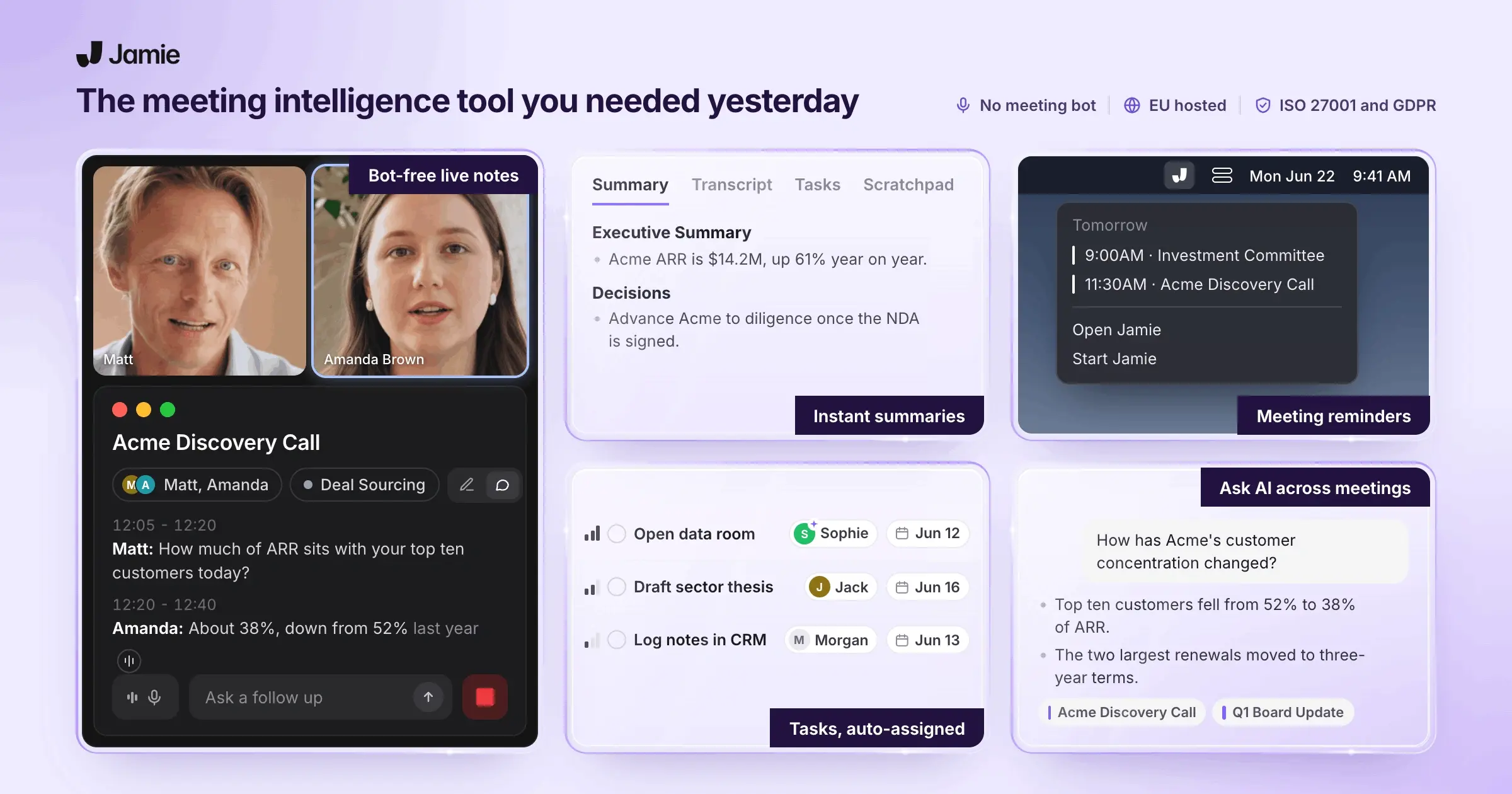
Jamie is a bot-free AI note taker for lectures and meetings. No one has to let a bot into your seminar or onto your client call, for privacy. You will still need to tell the participants that they are being recorded, as required by Article 13 of the GDPR. To help you do this, we created two options, the optional Recording notice email and the meeting chat notice. I would personally recommend opening with verbal consent in your own words, since it is the most professional way to begin.
You can also use Jamie for in-person lectures and meetings on your iPhone or Android phone. If your lectures or meetings are held online, you can still use Jamie for online meetings on any platform from your Mac or Windows laptop. 
Seconds after you stop a recording, Jamie generates the summary, the action items, and a transcript that identifies each speaker by name, in 100+ languages. All notes are synced across every device on the same account.
Let's start with what you'd miss from Notability, and how Jamie covers it:
a) Jamie Generates Review Questions, Sends Notes to OneNote, and Answers Questions About Your Lectures
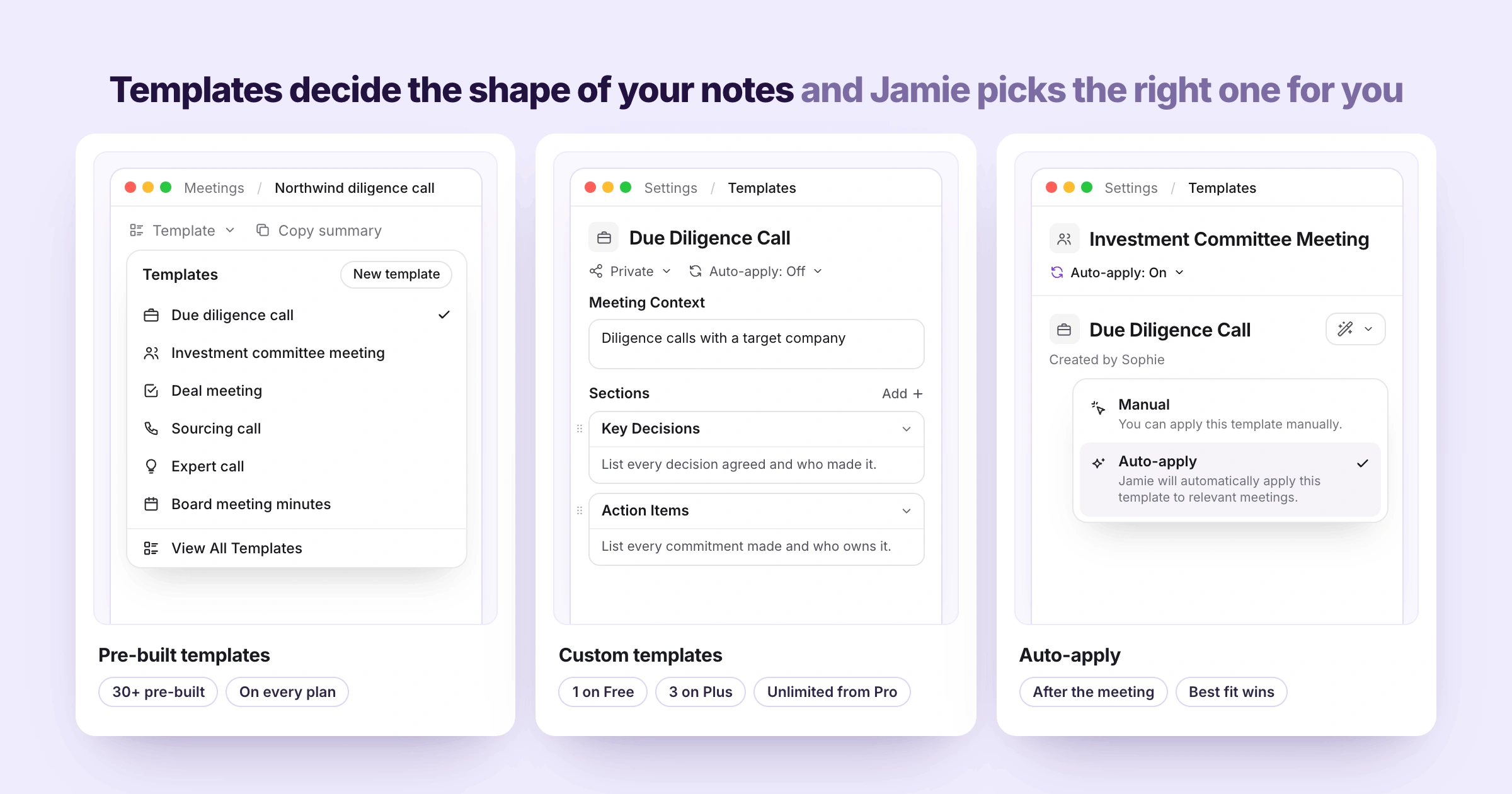
If you are one of those students who takes handwritten notes with a pen, here's what you should expect from Jamie. Jamie records your lecture or meeting and generates the notes based on what was said. However, there is no way to write notes by hand within Jamie, and no way to create flashcard decks. The jobs you used Notability for still get done, by a different route.
If you're leaving Notability for good, Jamie covers those jobs with review questions, Skills, OneNote pages, Ask Jamie, sharing, Box PDFs and a PDF the Agent generates. Let me show you how:
Feature | Description |
|---|---|
Templates | You are provided with a template creation function where you can create templates based on simple prompts. You can ask the template to create quizzes at the end of the template, or simple memorization points for you. Ideas for creativity are endless, rather than the restrictive flashcards that Notability provides. |
Skills | Save your review question request once as a skill, and Ask Jamie keeps it. A skill is an instruction Jamie keeps, which means you don't explain the format again after each class. This skill will then act on the request using your connected tools, be it Notion, OneNote, Slack, Box, etc. |
Microsoft 365 connector | The Microsoft 365 connector saves your notes in OneNote, ready for Apple Pencil on iPad. It works on all plans, which means you can handwrite over your lecture notes in OneNote. |
Ask Jamie | Ask Jamie answers across every lecture you recorded, unlimited on every plan. When Ask Jamie needs the exact words, Jamie reads the transcripts and comes back exactly as the professor said it. |
Share | The Share button sends your notes to your study group by email or link, on every plan. The person you send them to doesn't need a Jamie account to read the summary. |
Box connector | The Box connector reads your PDF handouts in Box, once Box AI is on. On any plan, Ask Jamie can then answer from your handouts and your lectures together. |
Agent | Ask the Agent for a PDF of your lecture summary, and Jamie generates it. You get a file to print or mark up when you still want paper on the desk. |
b) Jamie's Mobile App Records In-Person Lectures and Meetings and Syncs Them to Your Laptop
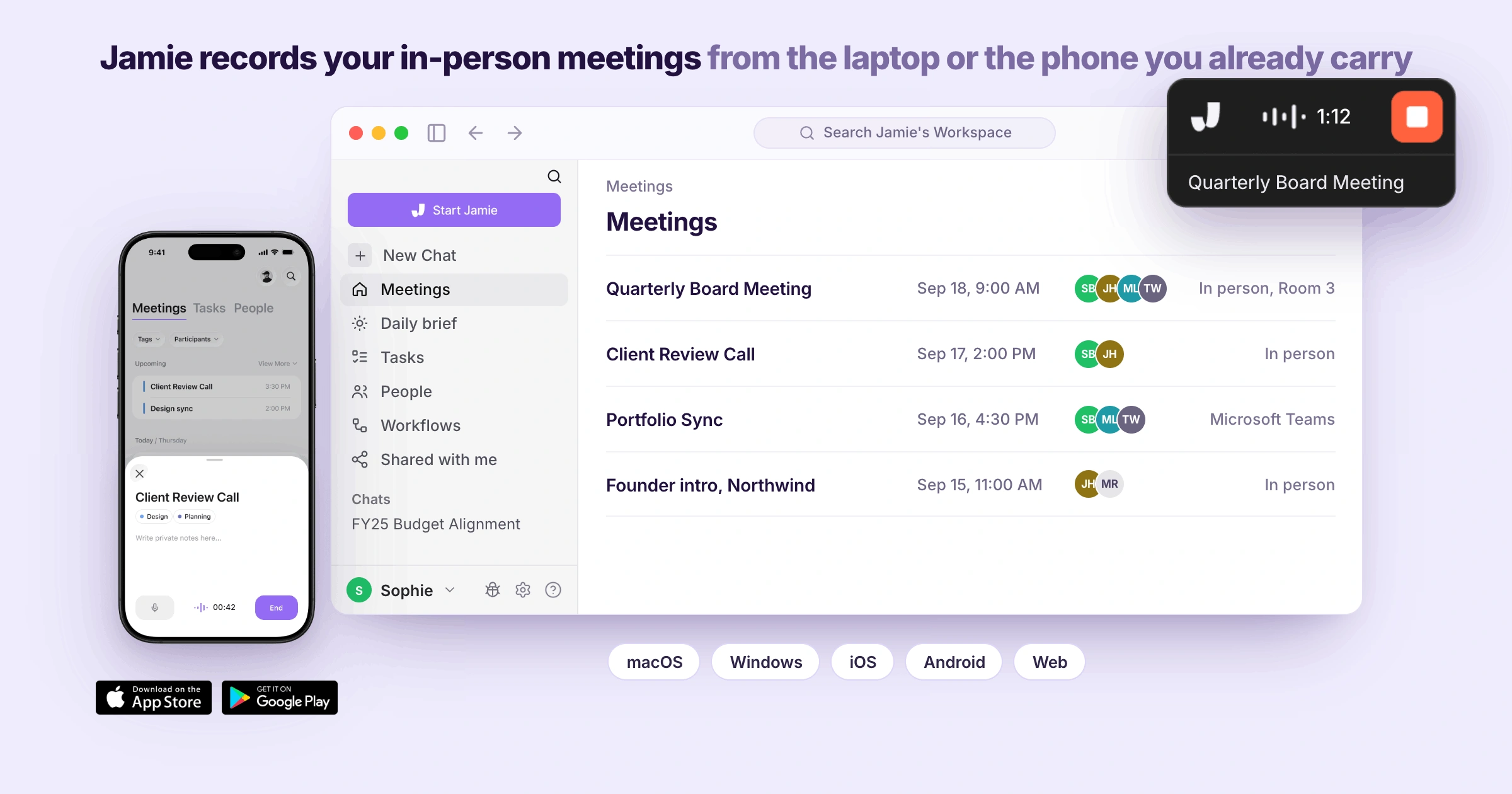
On your phone, Jamie records the in-person lecture, and on your laptop Jamie records your online classes and meetings. One reviewer uses Jamie for both and says it does everything they need it to do. The one thing your phone won't do is record a phone call you take on it.
Before you take your phone to the next class, Jamie's mobile app records in-person lectures and meetings and syncs every note to your laptop:
Feature | Description |
|---|---|
In-person Meetings/Lectures | Jamie captures all your in-person lectures, seminars, and meetings from the laptop or phone you already carry. A two-hour seminar stays as one recording, and on Pro it can run up to 5 hours. |
Mobile app | The mobile app records in-person lectures on iOS and Android, with a live transcript. On iPhone, Siri or Control Center starts a recording without opening the app, for a meeting nobody scheduled. |
Sync across devices | Jamie syncs every recording across your devices from one account. A lecture recorded on your phone appears on your laptop straight away, and the other way round. |
c) Jamie Generates an Executive Summary, a Full Summary by Topic, the Transcript and Your Tasks
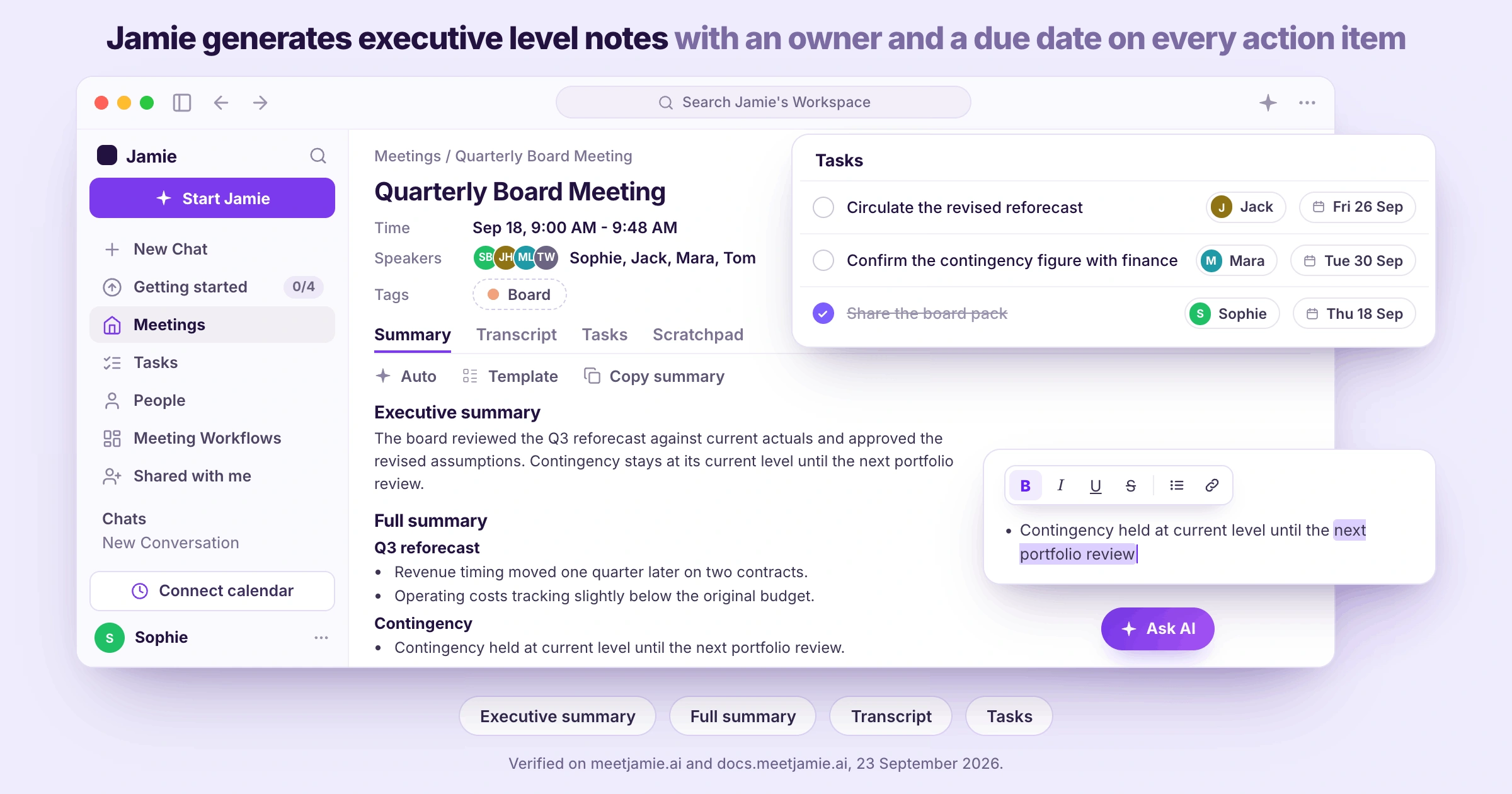
Your ability to rely on AI summaries comes down to the fact that each summary sits beside the complete transcript of that lecture. When a summary has an error, one reviewer goes directly to the transcript to see what was actually said. And when you are sitting at the rear of a crowded, loud auditorium, a few words may get lost in the noise. This is where custom vocabulary becomes important, as soon as you have entered your course-specific terms.
By the time you've packed up after the lecture, Jamie has generated your executive summary, a full summary organised by topic, the full transcript and your list of tasks:
Feature | Description |
|---|---|
Executive summary | The executive summary covers the most important points of the whole lecture, which means you get up to speed fast. That's the part to read on the way into your next class. |
Full summary by topic | The full summary by topic gives every subject its own section to revise from. Set Summary detail to Extensive or Brief, depending on whether you're studying or skimming. |
Transcript | Jamie keeps the full transcript searchable, word for word and organized by speaker. You check any summary line against what was actually said before it goes into your revision notes. |
Tasks | Jamie automatically extracts tasks and assigns each to its speaker, with due dates. You check them off in the app, which means a deadline mentioned in a lecture stays in front of you. |
d) Jamie Identifies Each Speaker by Name, and Speaker Memory Remembers Their Voice Next Time
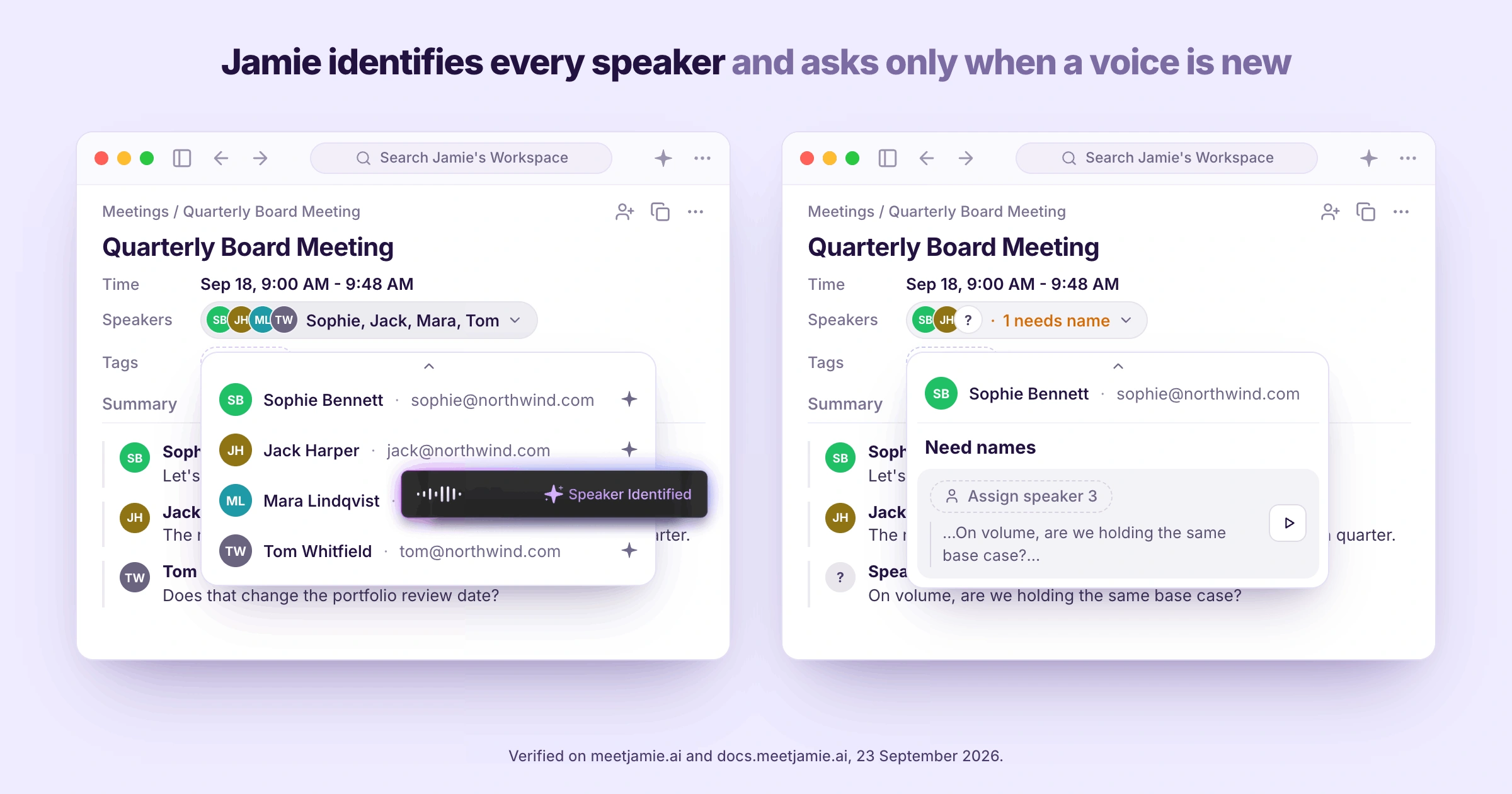
Say four students are arguing over one case, and you have to quote the right student in your paper. Jamie identifies each of the speakers by name in the transcript. Vitalii R. on G2 states that Jamie also does an excellent job with speaker recognition. However, Jamie is certainly not going to be 100% accurate all of the time. A completely new voice or an extremely loud background could make Jamie show that voice as Speaker 1, and then after class you are able to name that voice after listening to a short clip.
Whenever five people talk in one seminar, Jamie identifies each speaker by name, and Speaker Memory remembers their voice next week:
Feature | Description |
|---|---|
Identify speakers | Jamie identifies speakers by name across your transcript and notes, using your calendar. After a seminar, you listen to a short clip and name any voice Jamie didn't recognize. |
Speaker Memory | Name a voice once, and Speaker Memory remembers it in your later meetings. A weekly seminar group gets its names back automatically from the second week on. |
e) Jamie Records Microsoft Teams, Zoom and Google Meet Calls From Your Laptop With No Bot
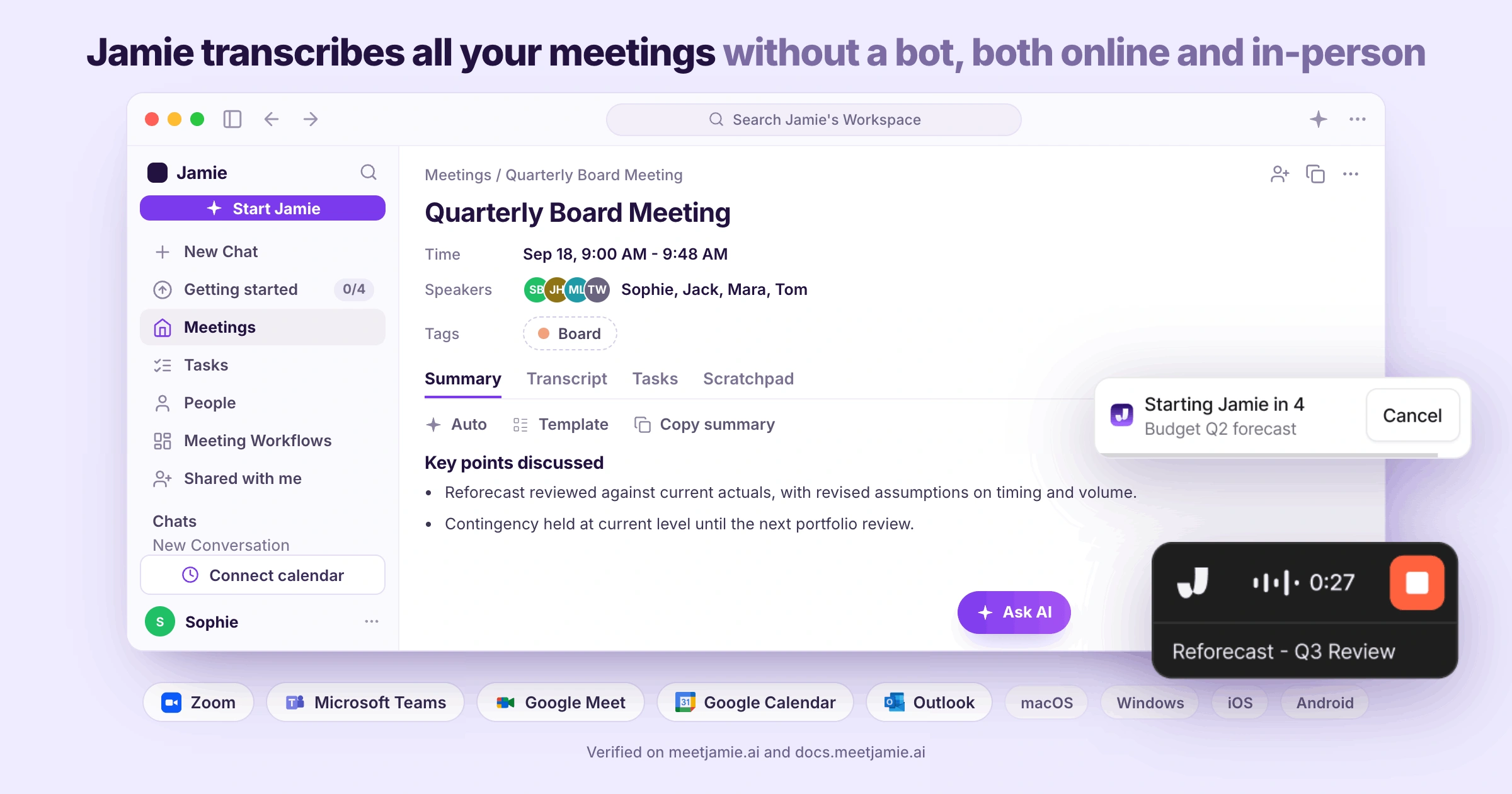
Once you have synced your calendar with our app, the Jamie apps on Mac and Windows will automatically record each of your online classes once your microphone turns on. Recording stops as the class winds down. Michael S. on G2 says every meeting gets captured with only a couple of clicks. There is no bot that will join your video conference; this is done to protect your privacy and keep the class private between you and those who are participating in it. Telling others about the recording is still your responsibility, and I recommend obtaining verbal consent at the beginning of the class. You may also turn on either or both of the optional Recording notice email and the meeting chat notice.
Once your classes move online, Jamie's recorder works on every online meeting platform, including Microsoft Teams, Zoom and Google Meet, starts and stops on its own and connects to your calendar:
Feature | Description |
|---|---|
Recorder | The recorder captures any call from one floating button, and no bot joins it. When Jamie detects you've joined a video call, Jamie asks if you want to start recording. |
Online meeting platforms | Jamie records Microsoft Teams, Zoom, Google Meet, and other online meeting platforms on desktop. Your online class gets recorded, whichever platform your school or team uses. |
Auto-start and auto-stop recording | Auto-start and auto-stop recording follow your calendar in the Mac and Windows apps. Recording begins when your mic turns on for a scheduled meeting, and ends as the meeting winds down. |
Calendar connection | Connect Google Calendar, Outlook or Exchange once, and every recording carries its meeting's name. Your lectures arrive titled and in order, ready to find again before an exam. |
f) Jamie Is GDPR Compliant, ISO 27001 Certified and DORA-Ready, With Meeting Data in Europe
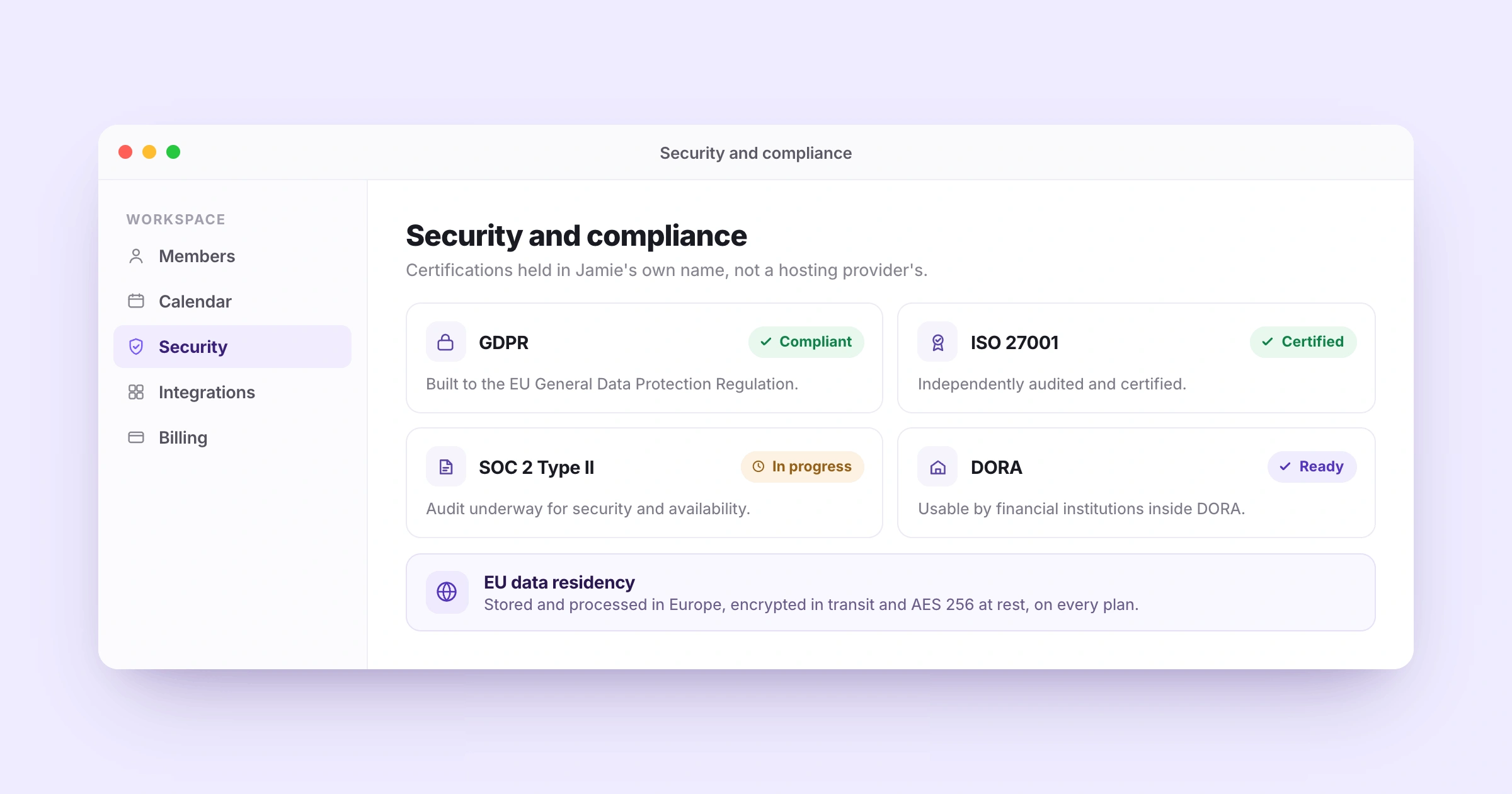
Jamie does not keep your audio for your school or company. When IT asks where it goes, the answer is that it gets deleted right after transcription, on every plan. And on the Enterprise version of Jamie, an administrator can set up a schedule to automatically delete the transcripts, anywhere from immediately up to two years.
For anyone whose university or company has to approve tools, Jamie carries GDPR compliance with ISO 27001 certification, a SOC 2 Type II audit underway, DORA readiness and EU data residency:
Feature | Description |
|---|---|
GDPR and ISO 27001 | Jamie is GDPR compliant and ISO 27001 certified, which answers a university or company vendor review in one line. Your IT team checks one page instead of waiting for evidence from us. |
SOC 2 Type II | Our SOC 2 Type II audit for security and availability is underway. We'll call it finished only when the report is issued, which means your IT team can plan around the date. |
DORA-ready | Jamie is DORA-ready, which means banks and funds under DORA can adopt Jamie. That matters if your internship or first job sits in finance and your notes go with you. |
EU data residency | EU data residency keeps your meeting data in Europe, encrypted with AES-256. Your lectures and meetings sit under European privacy law from the first recording. |
g) Jamie Builds the Live Transcript While the Lecture Runs, Beside Your Private Scratchpad Notes
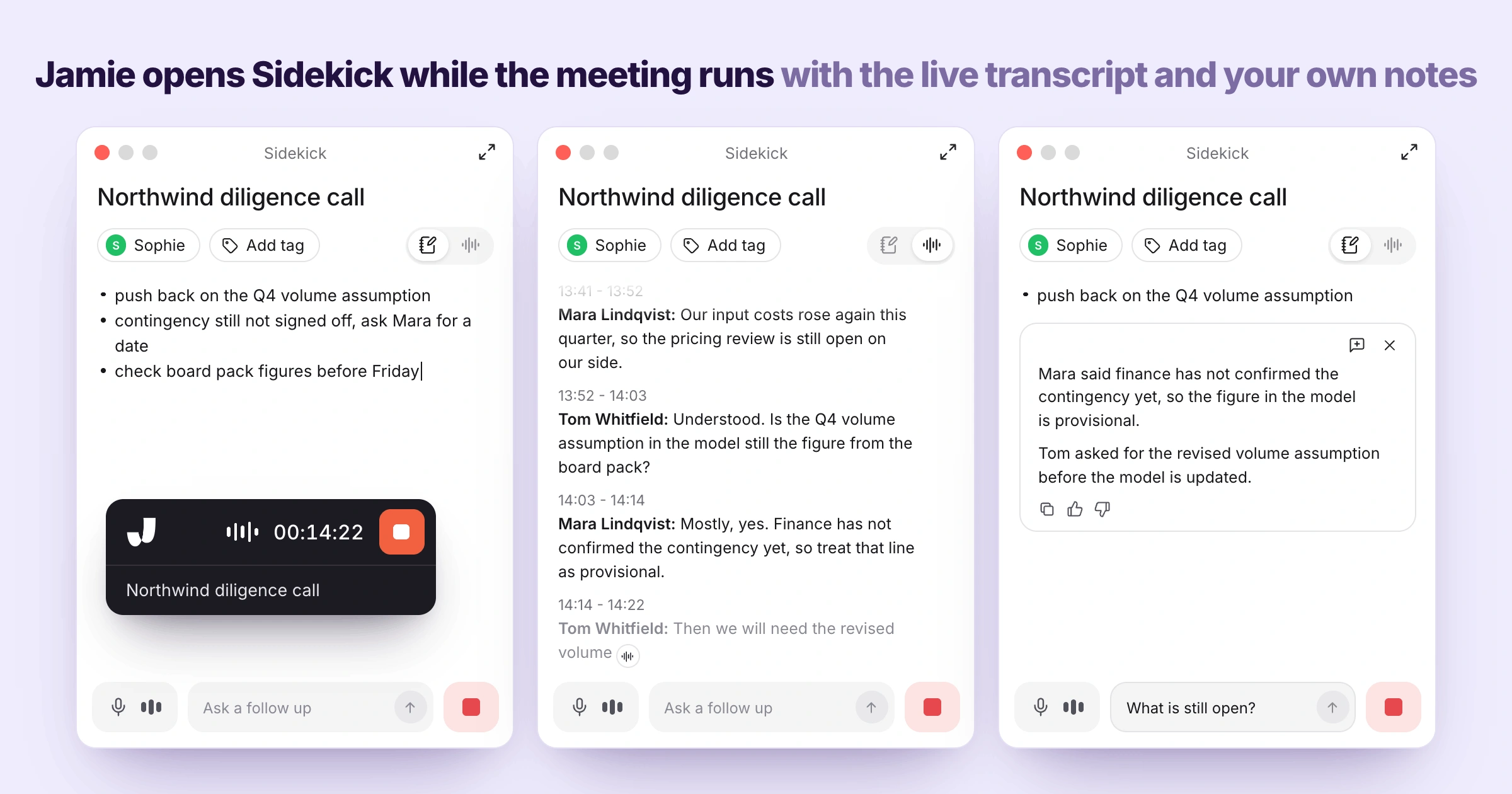
It's the middle of a lecture, and unfortunately you've lost track of what the professor said. With Sidekick floating next to your call on your laptop, you'll see the real-time transcript, and on your phone the recording sheet shows the transcript recorded so far, with your Scratchpad in the Notes tab.
During the lecture, Jamie opens Sidekick beside your call, builds the live transcript while the lecture runs and keeps your Scratchpad notes private:
Feature | Description |
|---|---|
Sidekick | Sidekick puts your notes, live transcript, and questions for Jamie beside your call. Type "Recap the last 5 minutes" after drifting off, and Jamie catches you up while the lecture keeps going. |
Live transcript | Jamie timestamps each line of the live transcript while the lecture runs. Miss a sentence while writing, scroll up to read it, and tap the arrow to jump back to the latest line. |
Scratchpad | Your Scratchpad holds private notes, and Jamie puts them into summaries when asked. Type your own points during class, and they stay yours until you choose to add them. |
h) Jamie Sends Lecture Notes to Notion, Transcribes in 100+ Languages and Spells Your Terms Right
Other small features help support the transition too. Many of these let you take your notes to applications you're already using, and one reviewer actually created their own workflow linking Jamie with Claude, which reads the summaries and transcripts.
Beyond the notes, Jamie runs Workflows into Notion, transcribes in 100+ languages, spells your terms with custom vocabulary, and works with MCP, Salesforce and HubSpot, Slack, Asana and your tags:
Feature | Description |
|---|---|
Workflows | Jamie's Workflows create a Notion page from each lecture once your meeting ends. You describe the job once in a sentence, and Jamie does it for every meeting that matches. |
100+ languages | In 100+ languages, Jamie transcribes the lecture and generates the summary in yours. Set your summary language once, and an international seminar comes back in the language you revise in. |
Custom vocabulary | Custom vocabulary spells your course names, people and acronyms correctly in every transcript. Add up to 50 terms on Free, Plus and Pro, starting with your professor's name. |
MCP | Our MCP server lets Claude and ChatGPT search your meetings, on Pro and up. Ask Claude to pull a month of lecture summaries without copying a single transcript. |
Salesforce and HubSpot | Jamie logs notes to HubSpot and attaches them to Salesforce from Pro upward. Client meetings appear on the right contact or deal, which means nobody retypes the call. |
Slack | The Slack connector posts meeting recaps to your channels and searches Slack alongside meetings. Your own connection works on all plans. |
Asana | Action items turn into Asana tasks when Jamie files them, starting on Pro. Deadlines from a meeting go straight onto the project board your team already checks. |
Tags | Tags group a course's lectures together, and private tags work on every plan. Filter by a tag, and Ask Jamie answers about that course only. |
Jamie's pricing
Free: €0 per month
Plus: €25 per month
Pro: €47 per month
Team: €39 per seat per month
Enterprise: Custom pricing
Source: Jamie pricing
What Jamie users love
Recordings hold up in difficult rooms
"There are no obvious downsides to Jamie - its performance has always been good (even in some difficult environments it has recorded well)." Rod S., G2
Accurate transcripts and well organised summaries
"The transcription is also usually very accurate. I also like the AI summaries it generates after the call - they're well laid out and organized, especially compared to other AI note-takers." Verified User in Design, G2
What Jamie users flag
One reviewer runs into the 30 minute meeting limit on the free plan
"The 30min meeting limit, but I understand that's the business model ;)" Charlotte Z., G2
One reviewer is waiting on a ClickUp integration
"I feel Jamie could improve by offering more integrations with other software. I'm mainly missing a ClickUp integration." Alberto A., G2
2. Goodnotes: Best Notability AI Note Taker Alternative for Handwritten Notes
Best for: Goodnotes is the best Notability alternative for students and teams who write by hand with a stylus and want AI working on their handwriting.
Similar to: Notability, Microsoft OneNote and Apple Notes.
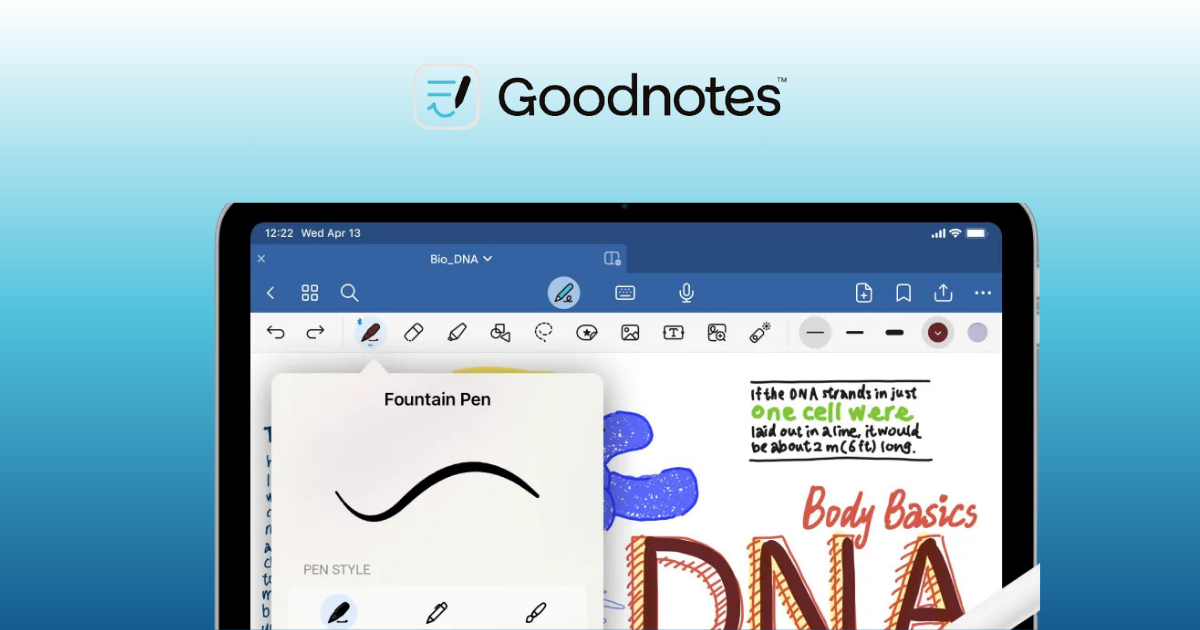
Goodnotes is an AI note taker for iPad, iPhone, Mac, Android, Windows and the web. Goodnotes AI answers questions with citations back to the page in your notebook.
Goodnotes' key features
Digital handwriting: Goodnotes' digital ink is built to feel like pen on paper.
AI transcription: Goodnotes AI transcribes your recordings into searchable, editable text automatically.
Handwriting to text: Goodnotes converts handwriting into editable text and checks your spelling as you go.
PDF annotation: You import a PDF, then highlight and mark it up by hand.
Handwriting search: Goodnotes searches your handwriting, typed text, PDF content and folder titles.
Study Sets: Goodnotes creates flashcards and study materials from your own notes.
Quiz generator: Goodnotes AI generates quizzes from notes, five a month on Free.
Real-time collaboration: Several people edit notebooks, whiteboards and documents together on Pro.
Whiteboard: Goodnotes gives you an infinite canvas to plan and brainstorm visually.
Security: Goodnotes holds SOC 2 Type II and ISO/IEC 27001, and complies with GDPR.
Goodnotes' pricing
Free: 0 dollars per month
Essential: 11.99 dollars per year, billed annually only
Pro: 35.99 dollars per year, billed annually only
Teams: 120 dollars per seat per year, billed annually only
Enterprise: Custom pricing
The AI Pass add-on costs 9.99 dollars per month on any paid plan.
Source: Goodnotes pricing
What Goodnotes users love
Whiteboards and a large template library
"The UI and the different types of whiteboards are really useful. I also like the pricing, especially since it includes more than 500+ notebooks, planners, and stickers." Jagadish P., G2
Handwritten notes, flashcards and audio recording in one app
"digital handwritten notes is the best part. flashcard and audiorecording" Ankita B., G2
What Goodnotes users flag
One reviewer has hit glitches and slow loading since the latest update
"I've also been experiencing software glitches and slow loading since the recent update." Bijit C., G2
The same reviewer finds it expensive on a student budget
"It's quite expensive for students compared to other note-taking apps." Bijit C., G2
3. Microsoft OneNote: Best Free Notability AI Note Taker Alternative for Microsoft 365
Best for: Microsoft OneNote is the best Notability alternative for students and teams who already work in Microsoft 365 and want free notebooks on every device.
Similar to: Goodnotes, Evernote and Notion.
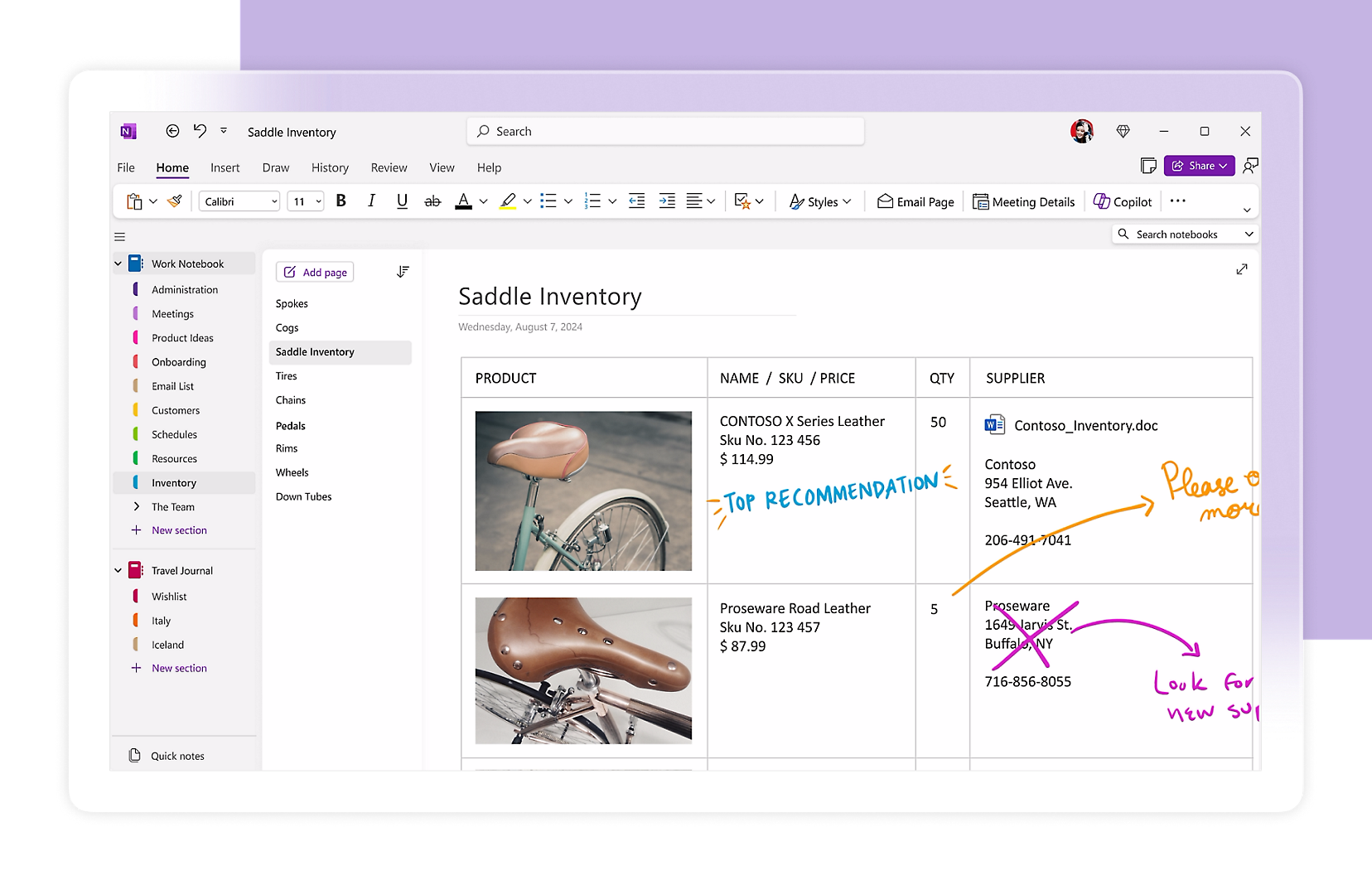
Microsoft OneNote is a free AI note taker for Windows, Mac, iPhone, iPad, Android and the web. Quick Capture saves text, voice, ink or images to your notepad, and the scanner extracts text from documents and pictures.
Microsoft OneNote's key features
Digital ink: OneNote combines digital ink with the natural feel of a pen.
Ink to Text: On Windows, OneNote converts your handwritten notes into typed text.
Voice dictation: OneNote dictates your notes in 27 languages, with Auto-Punctuation.
Copilot Notebooks: Copilot Notebooks summarise meetings, classes and discussions from your notes.
Audio overviews: Copilot Notebooks create audio overviews you can listen to from notes.
Copilot in OneNote: Copilot drafts plans, generates ideas and creates lists from your prompts.
Tags: OneNote marks notes with to-do lists, follow-up items and custom labels.
Sync: OneNote syncs your notebooks across PCs, Macs, phones and tablets.
Share and collaborate: You share notebooks and create notes together with other people.
Sticky notes: OneNote's Sticky notes let you make quick memos inside the app.
Microsoft OneNote's pricing
OneNote: 0 dollars per month
Microsoft 365 Personal: 9.99 dollars per month
Microsoft 365 Family: 12.99 dollars per month
Microsoft 365 Premium: 19.99 dollars per month
Source: Microsoft OneNote pricing
What Microsoft OneNote users love
Notebooks, sections and pages with no rigid structure
"What I appreciate most about Microsoft OneNote is the freedom to organize information without having to follow a rigid document structure." Vishaka C., G2
The app costs nothing to use
"I really like that it’s free, and so far I haven’t had to pay to use it." Verified User in Financial Services, G2
What Microsoft OneNote users flag
One reviewer's Android app falls out of sync with the cloud
"Sometimes the Android version gets out of sync with the cloud version, and I end up having to sign in to OneNote in a browser to fix the version mismatch." Verified User in Financial Services, G2
Large notebooks get harder to navigate without strict naming
"Without consistent naming and section organization, related information can become scattered, and navigating back to a particular note takes longer than expected." Vishaka C., G2
4. Evernote: Best Notability AI Note Taker Alternative for Scanned Notes and Recordings
Best for: Evernote is the best Notability alternative for people who keep lecture notes, PDFs and scans together and find them by search.
Similar to: Microsoft OneNote, Notion and Apple Notes.
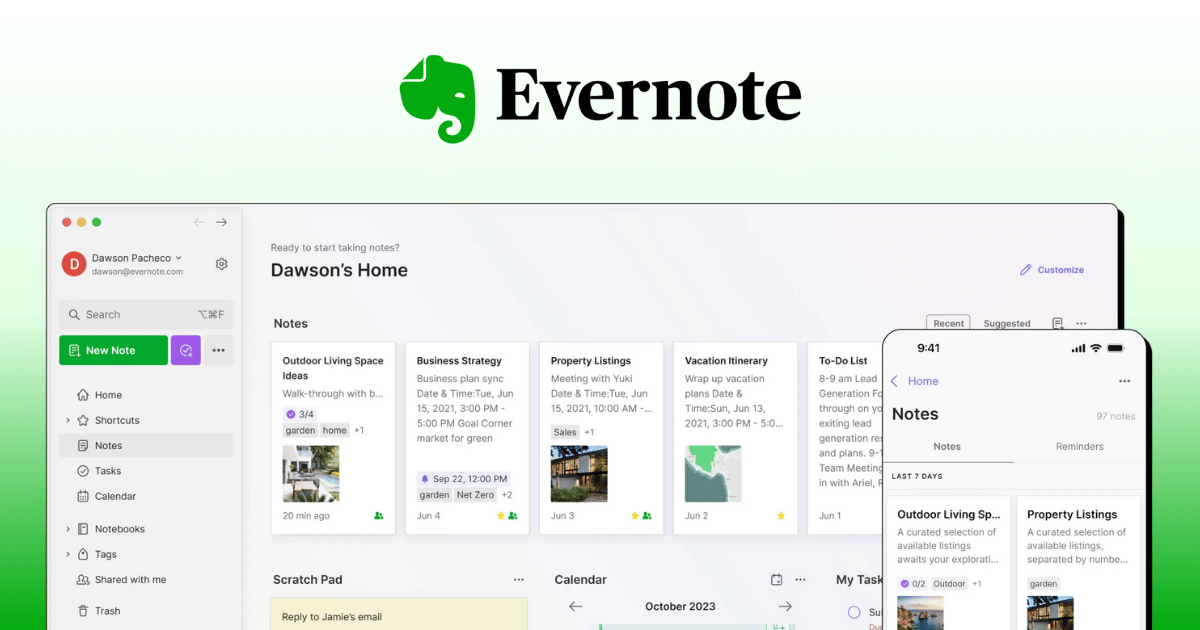
Evernote is an AI note taker for iOS, Android, Mac, Windows and the web. You keep your notes, audio, PDFs, scans and web clips together in notebooks. Evernote transcribes recordings in over 50 languages.
Evernote's key features
Meeting recorder: Evernote records in-person and online meetings, then transcribes them with speaker recognition.
Live Transcription: A floating panel updates the transcript in real time as you record.
AI Assistant: You chat with your notes, and replies name the notes they used.
Semantic Search: Evernote finds notes by meaning, even without the exact words you typed.
Handwriting search: Evernote makes handwritten notes you photograph searchable, along with printed text.
PDF annotation: Evernote's Pen and Highlighter tools mark up your PDFs.
Document scanning: Evernote's phone camera scans documents, whiteboards and business cards into notes.
Web Clipper: You clip what you see online into a note with one click.
Offline notes: Every plan, free included, opens your notes without an internet connection.
Security: Evernote is ISO 27001 certified and encrypts stored data with AES-256.
Evernote's pricing
Free: 0 dollars per month
Starter: 14.99 dollars per month
Advanced: 24.99 dollars per month
Flexible: from 10 dollars per seat per month
Enterprise: Talk to sales
Source: Evernote pricing
What Evernote users love
Search finds words inside handwritten images
"When I need to find something, the lightning-fast search can scan through thousands of notes and even find words tucked inside uploaded documents or handwritten images in a matter of seconds." Issa S., G2
A note started on the phone continues on the laptop
"I can start a note on my phone and seamlessly continue editing it on my laptop without any issues" Reem M., G2
What Evernote users flag
The free plan stops at one notebook and fifty notes
"The free plan limits you to just one notebook and fifty total notes, essentially forcing you into a costly premium subscription." Issa S., G2
One reviewer finds the paid plans expensive
"The premium subscription plans are quite expensive compared to other similar note-taking alternatives." Reem M., G2
5. Apple Notes: Best Free Notability AI Note Taker Alternative for Apple Devices
Best for: Apple Notes is the best Notability alternative for students on iPhone, iPad and Mac who want free handwriting, scanning and recorded lectures.
Similar to: Goodnotes, Microsoft OneNote and Evernote.
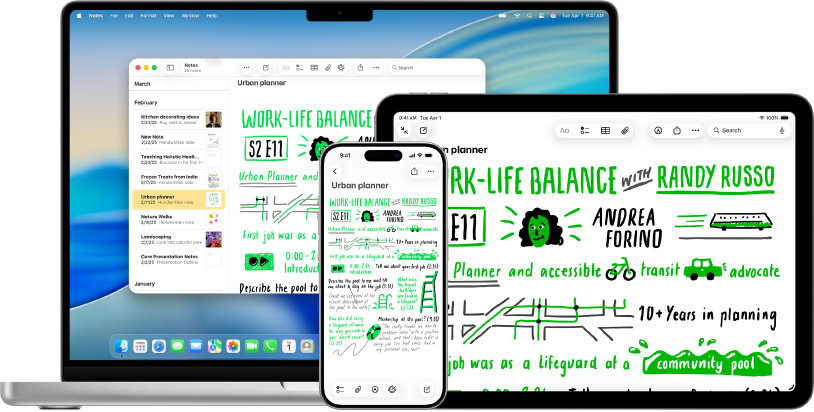
Apple Notes is an AI note taker built into iPhone, iPad and Mac, and you can open your iCloud notes in a web browser too. You pin notes, create checklists and add photos, videos or web links to any note.
Apple Notes' key features
Handwriting: On iPad, you write or sketch with Apple Pencil or a finger.
Auto-refine Handwriting: Notes makes your handwriting more legible in real time, keeping your style.
Scribble: Notes turns your Apple Pencil handwriting into typed text as you write.
Handwriting search: You search typed and handwritten notes, plus text inside scanned documents.
Document scanning: You scan and sign documents, then keep them inside a note.
Writing Tools: Apple Intelligence proofreads, rewrites or summarizes text you select in a note.
Smart Folders: A Smart Folder filters your tagged notes across every folder you have.
Collaboration: Collaborators edit a shared note and everyone sees the changes in real time.
Password protection: You lock a note with a password to keep it secure.
Security: Apple maintains ISO 27001 and 27018 certifications, re-audited every year.
Apple Notes' pricing
Apple Notes: 0 dollars per month
iCloud 5GB: 0 dollars per month
iCloud+ 50GB: 0.99 dollars per month
iCloud+ 200GB: 2.99 dollars per month
iCloud+ 2TB: 9.99 dollars per month
iCloud+ 6TB: 29.99 dollars per month
iCloud+ 12TB: 59.99 dollars per month
Source: iCloud+ plans
What Apple Notes users love
Formatting tools for bold, italics and underlining
"It features formatting tools so you can easily bold, italicize, sort, underline text." LabMom1234, App Store
Thousands of notes stay easy to refer back to
"I have added thousands of notes over the years which I still refer back to!" Zebram***, App Store
What Apple Notes users flag
Editing the middle of a note is hard with VoiceOver
"I can either get the cursor at the beginning of the text or at the end of the text, therefore making it nearly impossible to correct any thing in the middle of the note." C@riss@, App Store
Nested folders can send you back to the top
"if you try to get out of it, it sends you all the way back instead of the folder it was in." fnhdhg&n4vdc58m6, App Store
6. Notion: Best Notability AI Note Taker Alternative for Shared Study Workspaces
Best for: Notion is the best Notability alternative for students and teams who build shared wikis, databases and project pages around their notes.
Similar to: Evernote and Microsoft OneNote.
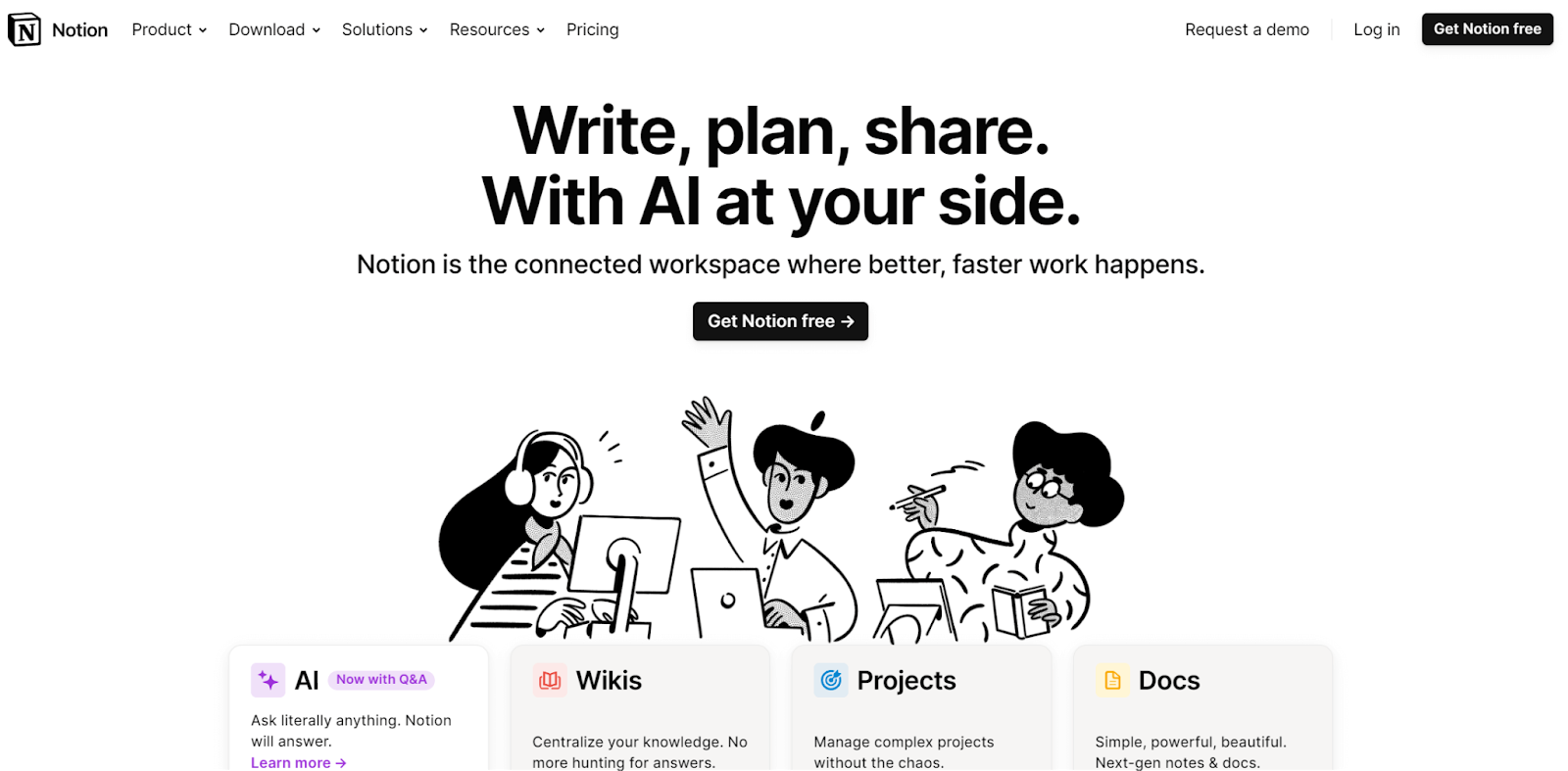
Notion is an AI note taker and workspace for Mac, Windows, iOS, Android and the web. You keep docs, wikis, projects and databases together. The free plan includes unlimited pages.
Notion's key features
AI Meeting Notes: Notion transcribes your meeting and identifies key points and action items.
Speaker labels: On desktop, Notion labels speakers in the transcript, best in one-on-one calls.
Summary citations: Each summary point cites the transcript line it came from.
Custom instructions: You set how Notion structures summaries for a sales call or standup.
Upload audio: Notion transcribes and summarizes AAC, M4A, MP3 and WAV files you upload.
Notion Agent: On Business, the Agent creates and edits pages and databases for you.
Databases: You track tasks, subtasks and dependencies with custom properties, on every plan.
Enterprise Search: In beta, Notion searches connected apps like Slack, Google Drive and GitHub.
Notion Calendar: You connect several calendars and start meeting notes from an event.
Security: Notion is SOC 2 Type 2 and ISO 27001 certified, with AES-256 encryption.
Notion's pricing
Free: 0 dollars per month
Plus: 12 dollars per seat per month
Business: 24 dollars per seat per month
Enterprise: Custom pricing
Source: Notion pricing
What Notion users love
Meetings come back as a summary and minutes
"I use Notion to transcribe my meetings and then have a summary and minutes of each one; it helps me a lot." Ronald V., G2
The built-in AI helps solve problems faster
"I like the built-in AI assistance because I can share my problems and it helps me solve them faster." Filipche I., G2
What Notion users flag
Setting it up took reading blogs and other users' advice
"I had to review several blogs and other users' experiences to know how to set it up." Ronald V., G2
Large files load slowly, and mobile could be better
"I find Notion slow with large files, and the mobile experience could be better." Filipche I., G2
7. Otter.ai: Best Notability AI Note Taker Alternative for Live Lecture Captions
Best for: Otter.ai is the best Notability alternative for students who want live captions, lecture slides and summaries from virtual and in-person classes.
Similar to: Fathom, Microsoft OneNote and Notion.
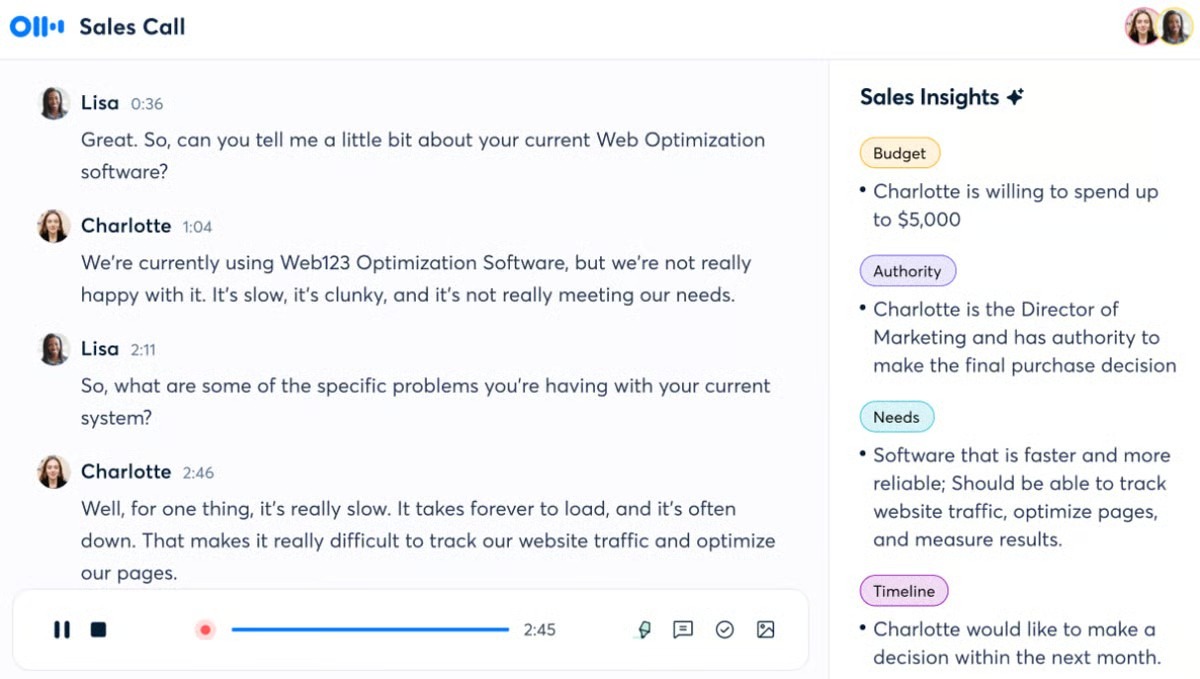
Otter.ai is an AI note taker for the web, iOS, Android, desktop and Chrome. Otter gives faculty and students real-time captions and notes for in-person and virtual lectures.
Otter.ai's key features
Live transcription: Otter transcribes meetings and lectures in real time, with speaker identification.
Automated Lecture Notes: Otter joins and records Zoom, Microsoft Teams and Google Meet calls.
Automated Summary: After the lecture, Otter generates a summary of the key moments.
AI Chat: AI Chat answers across meetings, with 20 queries a month on Basic.
Highlights and comments: You highlight, comment and insert images within your class notes.
File imports: Otter transcribes audio and video files you import, 3 lifetime on Basic.
Custom vocabulary: You add names and terms, up to 100 each on Pro.
Exports: On Pro, you export to MP3, TXT, PDF, DOCX and SRT files.
Mobile apps: You follow a lecture live in Otter's iOS or Android app.
Security: Otter has a SOC 2 Type 2 report and AES-256 server-side encryption.
Otter.ai's pricing
Basic: 0 dollars per month
Pro: 16.99 dollars per user per month
Business: 30 dollars per user per month
Enterprise: Contact sales
Source: Otter.ai pricing
What Otter.ai users love
You focus on the discussion instead of taking notes
"I don’t have to take notes during the meeting and can focus on the discussion" Gayatri R., G2
Speaker identification helps when several people talk
"Speaker identification is useful when several people are talking, and the AI summaries give me a quick overview before I go through the full conversation." Gayathri B., G2
What Otter.ai users flag
Names and numbers come out wrong with Indian accents
"Transcription is not always accurate with Indian accents or when we switch between Hindi and English, so names and numbers sometimes come out wrong." Gayatri R., G2
One reviewer wanted the free plan limits explained before recording
"I wish onboarding explained the free plan limits more clearly before I start recording" Gayathri B., G2
8. Fathom: Best Notability AI Note Taker Alternative for Recording Calls on Video
Best for: Fathom is the best Notability alternative for people who take classes or meetings on Zoom, Google Meet or Microsoft Teams and want video recordings.
Similar to: Otter.ai and Notion.
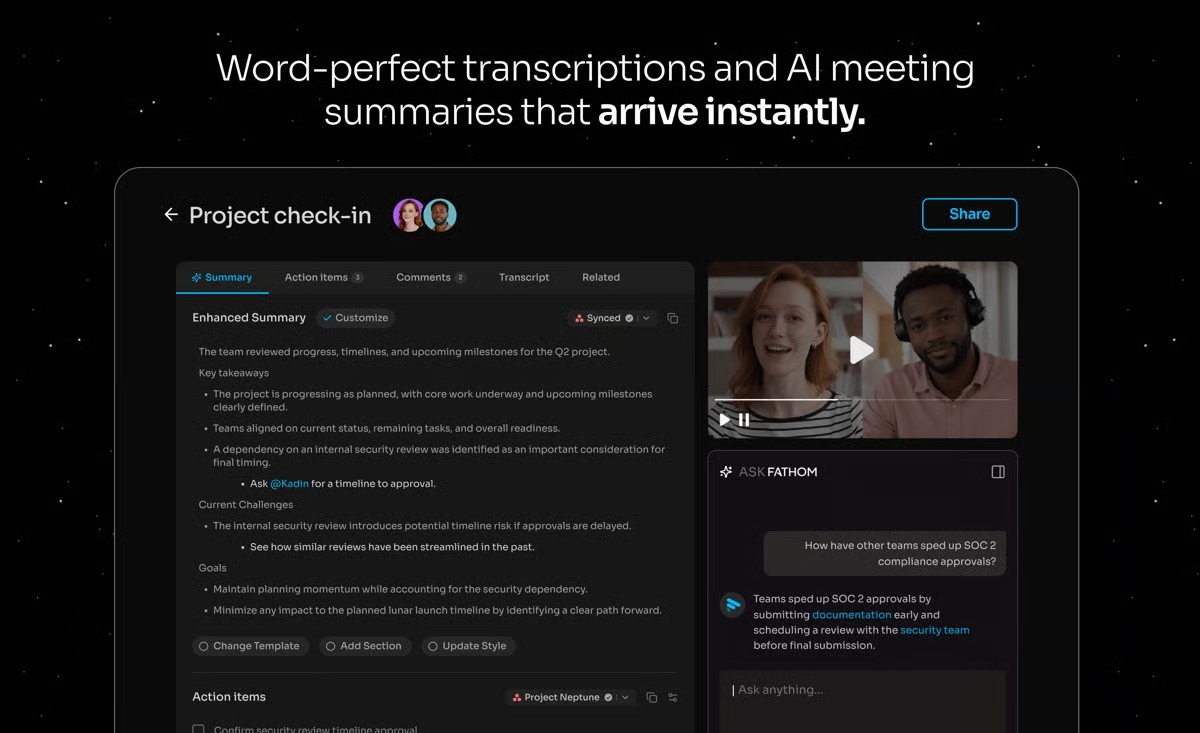
Fathom is an AI note taker for Mac, Windows and iPhone. Fathom captures Zoom, Google Meet, Microsoft Teams and Slack huddles. The iOS app records in-person meetings.
Fathom's key features
Capture modes: You pick a bot-free transcript, bot-free audio, or full audio and video.
Speaker attribution: Fathom attributes each speaker, even in bot-free recordings.
Instant summaries: A recap arrives when your call ends, with action items on Premium.
Ask Fathom: Ask Fathom answers questions across your past calls and surfaces key insights.
Custom dictionaries: You add your own terms and acronyms for more accurate transcripts.
Clips and playlists: You save clips and playlists and search across every call.
iOS app: The iPhone app records in-person meetings and shows summaries on the go.
Desktop app: Meeting alerts and one-click joining sit in Fathom's desktop app.
Integrations: Fathom syncs notes and action items to Slack, Notion and Asana.
Security: Fathom is SOC 2 Type II audited, HIPAA compliant and GDPR-aligned.
Fathom's pricing
Free: 0 dollars per month
Premium: 20 dollars per user per month
Team: 19 dollars per user per month, 2 user minimum
Business: 34 dollars per user per month, 2 user minimum
Enterprise: 35 dollars per user per month, billed annually only
Source: Fathom pricing
What Fathom users love
Accents and dialects come through in the transcript
"The AI picks up everything, including accents and dialects that can sometimes be difficult." Stuart E., G2
Reminders to start transcribing, plus summaries and action items
"I love the reminders to join and begin transcribing as well as the AI summaries and action items" Tanci C., G2
What Fathom users flag
The Fathom icon can get in the way during a meeting
"It‘s difficult to move the icon sometimes so I’m distracted during a meeting trying to get it out of the way." Tanci C., G2
The web portal can be slow with many stored calls
"The web portal can be a little slow at times, but given the volume of calls we store, that’s to be expected." Stuart E., G2
Final Verdict on What's the Best 8 Notability AI Note Taker Alternatives?
Jamie is the best Notability AI note taker alternative for recording your lectures and meetings, as Jamie records in person on your phone or laptop, identifies each speaker by name, syncs recordings across your devices and answers any question across all of them without limits.
Jamie syncs all recordings across your Mac, Windows, iOS and Android devices using one account, on both the free and paid plans. This way you are able to record your lectures on your mobile device, and Pro will allow one recording to continue for as long as 5 hours. 
On your laptop, you can open Sidekick and see the live transcript beside your Scratchpad, where your own notes stay completely private. After class, you receive an executive summary of the lecture, a full summary broken down by topic, and action items assigned to whoever said them. 
If you name someone once when they speak, Speaker Memory will remember their voice in your later meetings, which means you don't need to name them again. You can also ask Jamie questions about any of the lectures you've recorded, unlimited on all plans, including Free. 
And if you make a section called "review questions" with simple prompts like: 
"help me review this lecture by giving a small quiz at the end of the lecture notes at the style of an MCQ" 
....in Templates, you will be able to test yourself after every lecture. 
That being said, there is a gap. There is no handwriting feature within Jamie. Instead, you use the Microsoft 365 connector to send your notes to OneNote and write over them there with your Apple Pencil.
You can also pick a different tool when the job is different:
Choose Goodnotes when you write your notes by hand.
Choose Microsoft OneNote when you want free handwriting on Windows.
Choose Evernote when you scan paper notes with your phone.
Choose Apple Notes when you want notes built into iPhone.
Choose Notion when you build shared wikis and databases.
Choose Fathom when you want video recordings of your calls.
Our Picks for the Best Notability AI Note Taker Alternatives
I would recommend Jamie for those that record their classes and meetings. If handwriting is your method of studying, then I would also suggest looking into Goodnotes and Microsoft OneNote.
Jamie, the meeting intelligence platform: Your recordings of both in-person and remote classes are made on your phone or laptop, and no participant bot joins the call. All recordings sync across all platforms (Windows, iOS, Mac, Android) from one account regardless of which plan you have chosen. Meeting data for Jamie is stored and processed in Europe; Jamie is GDPR compliant and ISO 27001 certified. The audio of what was spoken in a meeting is deleted after transcription occurs. An Enterprise customer's administrator may choose to delete transcripts on their own schedule. Consent stays yours, through verbal consent, the optional Recording notice email and the meeting chat notice.
Goodnotes, the note-taking app: You may write on screen with an Apple Pencil when using digital ink from Goodnotes that is like handwriting with a pen on paper. On top of capturing in-person lectures via your device's mic (20 minutes of audio on Free), you can also capture meetings conducted through Zoom, Teams, or Meet via the mic on your device. That needs Goodnotes AI for Meetings (Pro). The audio files are recorded along with your handwritten notes inside each notebook you create. And Pro allows you to sync libraries across both Apple and non-Apple devices.
Microsoft OneNote, the free note-taking app: OneNote is free, and you handwrite with a stylus or finger on Windows and iPad, and ink with a mouse or trackpad on Mac. OneNote records audio notes during a lecture, with your typed notes linked to the recording. Copilot summarizes your notes with Microsoft 365 on Windows, and with a Copilot license on Mac and iPad. Cloud notebooks sync across your devices on the free version, through your Microsoft account, and the transcribed audio sits in your OneDrive.
Excellent experience and I save many hours to focus on what really matters.

Jean-Christophe Klarer
Head of Services | Nagarro
Professional Services / Consulting
Frequently Asked Questions
Which Notability Alternatives Make AI Summaries and Quizzes for Study?
Both Jamie and Goodnotes can do this, each in its own way. Jamie creates an executive summary and a full summary organized by topic for each of your lectures. If you have a Templates section titled Review questions, Jamie includes review questions on that subject in your summary. Even though free accounts come with only 1 custom template, it lets you create those questions, the same as paid users. Goodnotes uses AI to generate quizzes from your notes, and on the Free account you are limited to five a month. Otter.ai, Fathom and Evernote also create summaries of a recording.
Which Notability Alternatives Let You Search Your Notes by Asking a Question?
In terms of searching your notes by asking a question, Jamie, Evernote, Otter.ai, Fathom and Notion allow you to do this. With Jamie, Ask Jamie runs an AI search across every one of your recorded lectures, unlimited on any plan. For example, if you type a question about your upcoming exam, Jamie finds it for you in your transcripts. Evernote AI Assistant searches across all of your notes and includes citations. Similarly, Otter.ai and Fathom search within their plan limits, as does Notion on its Business plan.
Which Notability Alternatives Record Audio While You Take Notes?
Jamie, Goodnotes, Microsoft OneNote and Apple Notes all give you an option to capture a voice track as you are taking your notes. Notability launched in 2010 with audio recording built in. When using Jamie, you record the lecture while watching the live transcript of what is being said appear next to your Scratchpad notes on your laptop but Jamie deletes that audio right after the transcription process is over for highest privacy. When using Goodnotes, the audio is captured within your notebook and is tied to your handwriting. As for OneNote, it allows you to link your typed notes to the audio. Finally, when using Apple Notes the audio goes directly into the note.
Is Google Keep a Good Notability Alternative for Quick Voice Notes?
Yes, for short audio or text notes. For an entire class, lecture or meeting, I would use Jamie, which records your meeting on your phone or laptop and generates a transcript, summary and action items. Google Keep stores your voice note in a text note and plays it back when you want it to. With a paid Google AI plan on Android, Keep can also turn your spoken words into new notes.
Is There a Notability Alternative Without a Subscription?
Yes. Jamie includes 10 free AI notes per month at 30 minutes each, including summaries, action items and unlimited Ask Jamie. Microsoft OneNote is a free application for taking notes, and Apple Notes is free and available directly on all Apple products. If you prefer to buy once, Noteshelf 3 also offers Premium for 14.99 dollars one time on the US App Store.
Can You Mix Handwriting and Typing in a Notability Alternative?
Yes, a few. In Jamie, you are unable to write handwritten notes; however, when using the Microsoft 365 connector to send your lecture notes to OneNote, you may then hand-write over those notes with an Apple Pencil. Also, the application MyScript Notes allows you to create content using your pen, keyboard or even your voice, and you can combine all three options in that same word. Using an iPad, your Apple Notes will convert your handwritten notes into typewritten text using Scribble, and OneNote takes stylus handwriting on both Windows and iPad.
Which Notability Alternatives Let Your Study Group Edit Notes Together?
With Jamie you press Share and send your lecture notes to the group via either a link or through an email, on all plans. Nobody needs to sign up with Jamie in order to view the summary. Goodnotes, Microsoft OneNote, Apple Notes, Notion and Craft allow multiple members of a study group to work with the same set of notes. To host a live Goodnotes document requires Pro or the AI Pass add-on, and when working collaboratively within Apple Notes everyone will be able to see which edits were most recently done and by whom. Craft allows users to collaborate in real time using both comments and shared Spaces on its Family, Team and Enterprise plans.
Which Notability Alternatives Work With Zoom Classes and Meetings?
Jamie, Goodnotes, Otter.ai, Fathom, Evernote and Hive Notes can be used in conjunction with Zoom. Jamie records your Zoom, Microsoft Teams and Google Meet calls from your computer (Mac or Windows) and does so without a bot joining the call, ensuring privacy. Telling the people on the call about the recording is still on you under Article 13 of the GDPR, which means you obtain verbal consent from participants at the start. The optional Recording notice email and the meeting chat notice are available within Jamie's features, and Hive Notes puts a collaboration space for creating notes and tasks within your Zoom meetings.