Introducing Agentic Workflows
Clara
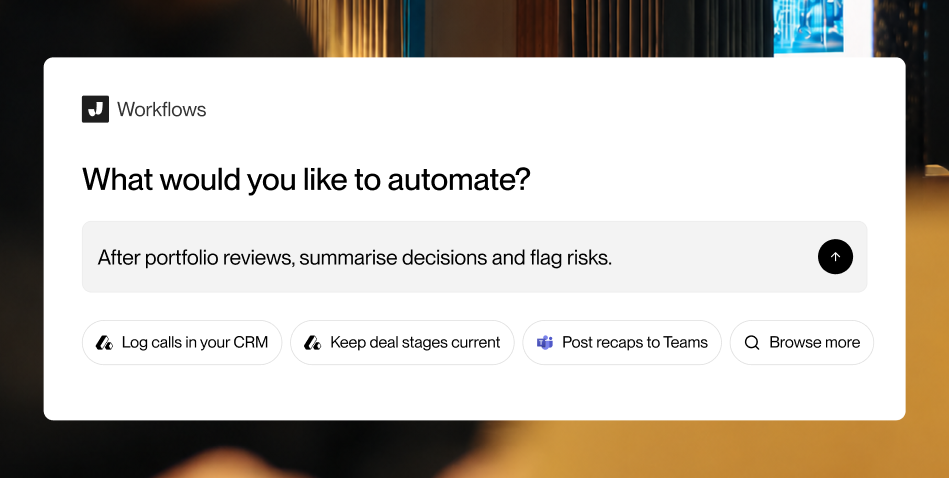
Today we’re launching Agentic Workflows. Tell Jamie what should happen after a meeting, and it takes care of the rest. Jamie updates the record in your CRM, adds new details to the project document, and posts the summary to your team’s channel. You set it up once, and it runs after every relevant meeting.
We’re rolling it out gradually to existing customers and to new users who request access.
The most powerful thing about Agentic Workflows is that Jamie can take the context it already has from your meetings, combine it with information from your connected tools, and turn that into action. Processes that used to take hours of manual work, and sometimes days of back and forth, can now happen automatically after a meeting.
What's an agentic workflow?
An agentic workflow is an automation that runs after your meetings. You describe what should happen in plain words, and Jamie works out the steps: what to take from the conversation, what to add from your connected tools and where the result should go.
Once you switch it on, it runs after every meeting it applies to. A workflow can be one step, like exporting the notes as a PDF file, or several across different tools, like updating your CRM, adding to a project document and posting a recap to your team’s channel.
Watch the following video for an introduction to Agentic Workflows:
How it works
1. Connect your tools. Connect the tools you already use in one click. Jamie has ready-made connectors for popular apps like Attio, DealCloud, OneDrive, SharePoint, Outlook, Microsoft Teams, and more.
2. Describe what should happen. Tell Jamie in plain words what to do, and after which meetings. For example: "After every call with a portfolio company, add the key updates and next steps to the company's record in Attio."
3. Review the workflow. Jamie builds the workflow and shows you the steps. If it needs more detail, like which fields to update or which channel to post to, it asks. You adjust anything that isn't right, test it on your most recent meeting, then switch it on.
4. Choose how it runs. Approve each run before anything is changed: Jamie shows you what it's about to do, and you choose Run or Skip. Or let it run automatically after every relevant meeting.
5. Follow every run. See what ran on each meeting, what needs your attention, and the full history of every workflow.
Take a deal team in diligence on a target company. They set up one workflow: "After every expert call on Project Jupiter, add the key findings to the Jupiter diligence tracker in SharePoint, and post a summary to the deal team's Teams channel." From then on, Jamie updates the tracker and the channel after every expert call.
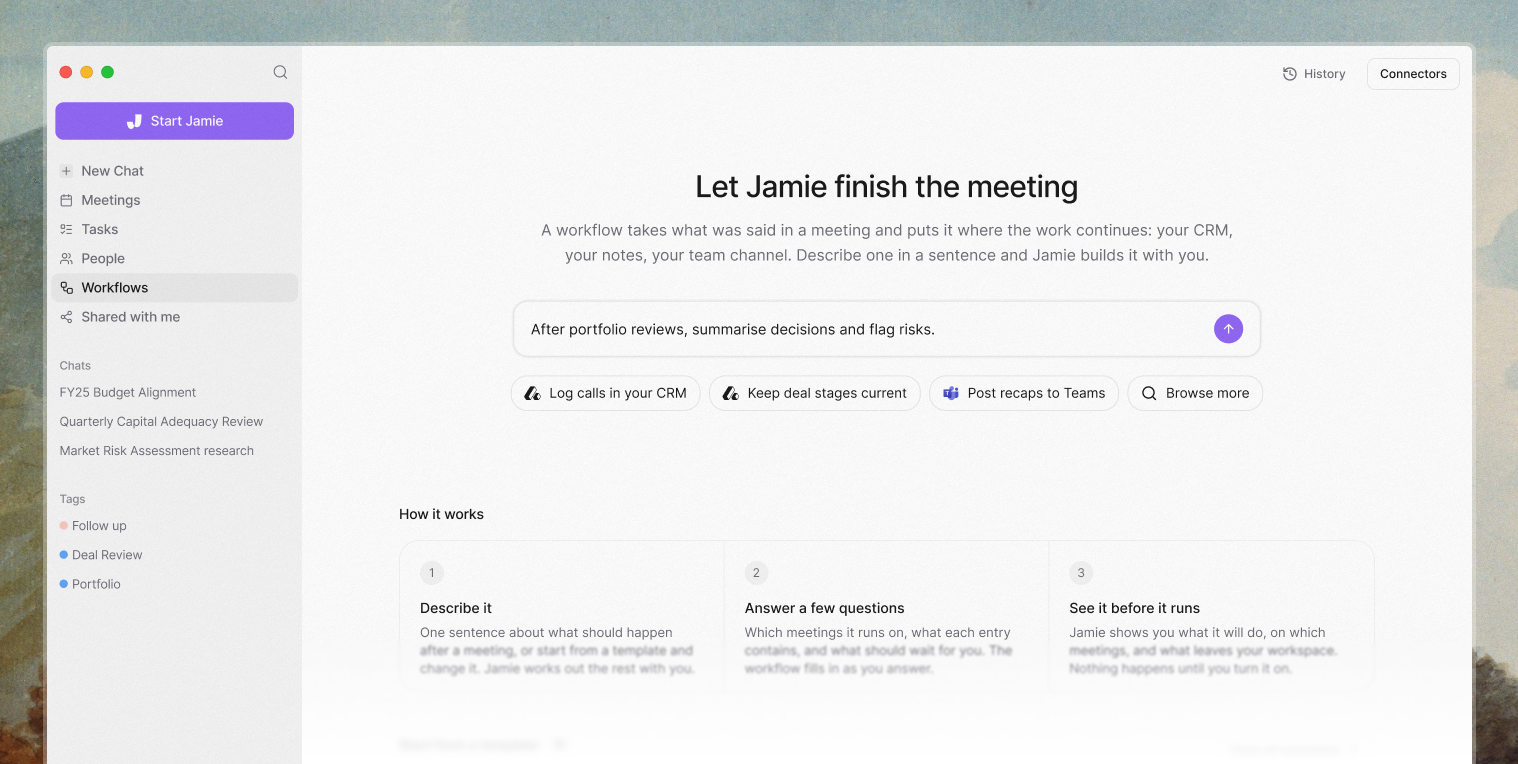
Start from an example
You don't have to start from a blank page. Jamie suggests workflows to start from, so you can use one as it is, or adjust it to how your team works.
A few ideas to get you started:
Update your CRM: after every customer call, notes land in the deal record in Affinity, Attio, DealCloud, or any other CRM. Action items can become tasks too.
Keep documents current: after each meeting about a project, new details go straight into its running brief in SharePoint or Notion, or get exported as a PDF or Word file.
Share team recaps: after the weekly all-hands, a short summary is posted to the right Teams or Slack channel, so everyone stays informed and no one has to write it.
From one person to the whole firm
Anyone can build workflows that run on their own meetings, in the tools they've connected.
On the Team and Enterprise plans, workspace admins can connect a tool like DealCloud, Salesforce or Pipedrive once for the whole workspace, and build workflows that run on every member's meetings.
You stay in control
You decide what runs. A workflow only runs on its own once you’ve reviewed it and switched it on. You can test it on a recent meeting first.
Approval when you want it. A workflow that requires approval doesn’t write anything on its own. Open the run, check what it’s about to do, and choose Run or Skip. Nothing reaches your tools until you choose Run. Once you trust a workflow, you can switch it to Automatic.
Every run is visible. Each run is tied to the meeting that triggered it, and every workflow keeps its own history, so you can see what ran and what needs your attention.
Admins control workspace-wide workflows. Only workspace admins can connect a tool for the whole workspace or build workflows that run on everyone’s meetings. A workspace connection is only used by workspace workflows, never by members’ own chats or workflows. Every admin can see all workspace workflows, and Jamie asks for confirmation before one is edited, since the change applies to every member’s meetings.
Want to see how deal teams use Agentic Workflows with their CRM? Join our live webinar on October 29, How Deal Teams Automate Their CRM using AI.